Chat, meet, call and collaborate all in one place with Microsoft Teams.
Included in the Microsoft 365 suite is the latest in cloud collaboration and sharing. Teams is a cloud-based application that seamlessly integrates with other Microsoft programs, some familiar and some new. Teams allows you to share assets like calendars, files and email, too.
Please note: Use OneDrive for Business to store your personal files that do not need to be shared with others or do not need to be collaborated on. Use a Team to store files any time you think others may need to have access to the file at any time. Personal files are not accessible once someone has left the university.

File Storage Relationships Between Tools

Instructional Guides
Security
Ohio State Institutional Data Policy
- Microsoft 365 is for academic and personal use only.
- Students may not place sensitive data in any Microsoft 365 online product.
- Ohio State employees must be aware of what type of data that is being placed into Teams.
- Learn more about Institutional Data
Ohio State Computing Policy
Access to Ohio State computing and internet resources must be used in a responsible manner. To learn more, see the Responsible Use of University Computing and Network Resources.
Frequently Asked Questions
General
Who can use Teams?
Who can use Teams?
Teams is available for faculty, staff, guests, student employees (with an S account), and students.
Students who are student employees (with an S account) will have 2 separate accounts:
- lastname.#@buckeyemail.osu.edu – to access student related Teams (Academic side)
- lastname.#s@osu.edu – to access university business related Teams (Employee side)
All Wexner Medical Center employees have access to Teams from the Medical Center's Microsoft 365 instance. To add a Medical Center account to an Ohio State campus Team, the OSUMC account must be added by their Medical Center account (firstname.lastname@osumc.edu) NOT lastname.#@osu.edu.
How do I log in to Teams?
To access Teams, sign in using your email address and password.
- Faculty, Staff and Guests: use lastname.#@osu.edu
- Student Employees: use lastname.#s@osu.edu
- Students: use lastname.#@buckeyemail.osu.edu
Can I use Teams Transcription?
The Microsoft Teams Transcription Feature was enabled on 8/8/24. AI Closed Captioning will continue to be enabled.
Learn more about the university's recording and transcription guidelines or how to record and transcribe a meeting in Microsoft Teams.
Can you add member by uploading a list?
Currently this is not yet supported however check back for future updates!
Can you see who is on a team before you join?
No, the list of Team members of a Team will not be available to you until you join the Team.
Do I need to install an app to use Teams or OneDrive for Business?
Both services offer an application that can be downloaded and installed on your computer for Windows, Mac and Linux. However both offer web-based alternatives that can be accessed through the sign-in option on the Microsoft 365 service page. Follow the sign-in button link and log in using your Ohio State credentials of lastname.#@osu.edu, students use lastname.#@buckeyemail.osu.edu, and your current password. Medical Center employees will need to use their Medical Center credentials to log on.
What is the first thing to know about Channels in Teams?
Please see Microsoft's complete details on First Thing to Know About Teams and Channels.
How can I follow a Team?
If there are Teams you infrequently use or if you are a part of many Teams, they may not show on your Shared Libraries view in OneDrive on the web, in the mobile apps, as a location to save files to Microsoft applications, or as a destination to move/copy files in OneDrive on the web. To address this you will need to “Follow” the Team. Following a Team is done through some Sharepoint settings. Please see Why you need to follow sites in SharePoint for information on following.
Can I share my screen in Teams?
Yes you can! Please see Share Your Screen in a Chat for details.
Is there a playground in Teams to practice?
No. However, create a Team and play around in there and then delete it when you are done! You will not break anything. The Medical Center has an approval process in place for Teams creation, so if you cannot create a Team, please contact your help desk.
Should my Team be Public or Private?
When creating a Team you have a choice of setting the Privacy mode to Public or Private which controls who can see the Team when searching and how they request to join. With a Public team anyone can see the Team and files without being an explicit member. If you use a public team you should create a private channel to store any files you do not want to be public.
With a Private team only members of the team can see the team, the files within the team and must be added as explicit members. We recommend creating only private teams.
If you created a public team you can make the team private by following these steps:
To change the privacy settings for your team from public to private (or vice versa), go to the team name and select More options > Manage team toward the top of the menu. Click on Settings, then under Team Details select Edit, then select Private and select Done.
Rule of thumb... Don't use Public and keep it Private whenever possible! This for every Microsoft 365 application when applicable, whether it is Microsoft 365 Groups, Teams, Shared Libraries, etc. Keep them private!
For a more detailed look at recommendations from Microsoft on Team security, including a table summarizing the configurations for each tier, please see Configure Teams with three tiers of protection.
What are the Retention Settings for Teams?
All retention settings can be found on the Microsoft 365 Important Service Usage Information page.
What happens if a Team Owner leaves the university?
A request via the IT Service Desk with appropriate approval will be needed. See specific details and process in Requests for Mailbox access and Data Transfer. Files and content should stay as they are part of the Team and not part of the individual. Medical Center will need to contact the Medical Center help desk.
What is the Data Classification for Teams?
Please see Data Types and Retention for Microsoft 365.
Will I always get Teams notification emails?
Teams allows you to control how many and what types of notifications you receive. Please see Notifications for details.
Will Teams replace Carmen or Carmen Zoom?
No, Teams will not be the Carmen or Zoom replacement. These services will stand side by side.
Calendar
If you are a delegate for someone, are you able to see their calendar from your Teams window?
No, currently the Teams Calendar is for your events only. Management for calendar delegates should continue to be performed in Outlook.
Dual Appointments
Can I view Teams in two organizations at once?
If you are a member of an organization and a guest in another, you have the ability to flip between organizations without logging in and out. Please see Switching Between Organizations for details. If you would like to view two at the same time the only work around is to:
- Log into your home tenant in the desk top application
- Log into your home tenant in the web browser
- Switch your organization in the web browser
This will allow you to see your home organization in your desktop application and the guest organization in the web browser.
E911 - Notes of Use
What is the E911 Notes of Use Agreement?
Telephone dialing with Microsoft Teams operates differently than traditional telephone service. You must be connected to the internet and logged in to the service to make calls. If your device has no power, is experiencing a power outage or cannot access the internet, you will be unable to make any calls through Microsoft Teams, including emergency calls to 911.
While logged in to Microsoft Teams, you will have access to Enhanced 911 (E911) service. With E911 service, dialing 911 will send your telephone number and location to your Public Safety Answering Point, giving dispatchers the location information they need to send help or call you back if necessary. Supported Microsoft Teams clients will attempt to automatically determine your location. You MUST verify the discovered location is accurate. Check your location often when utilizing wireless as you may have connected to a different access point, and always check when you use VPN or have moved to a new wired network location.
You can check your emergency location below the dial pad under the Calls app or at the bottom of the calls section in your Teams Settings. You can only Edit or Confirm your emergency location in Calls on the Windows and Mac desktop clients.
If you are connected to a university network that has been mapped for E911 you will be unable to modify the location information. If you can Edit or Confirm your location it means that your connection has not been mapped for E911 and you will need to choose Edit to provide your location, including room number, in the Microsoft Teams client manually. If the location has not been mapped or the mapped location is incorrect, please contact the IT Service Desk to map or correct the location information.
If you are connected to a non-university network (i.e. Med Center, Home, etc…) you will need to provide your location in the Microsoft Teams client manually. Every emergency location you have confirmed is saved and does not need to be reconfirmed when returning. When you move to a new physical location, the Teams emergency location will change to reflect what location services detects. If you dial 911, stay on the line to confirm your location so your call can be routed to the correct Public Safety Answering Point.
Instructions for manually setting your E911 location can be found below along with additional 911 related information.
You must acknowledge that you have read this notice and understand how E911 dialing works. If you do not accept the terms of this notice, you will not be able to receive Voice/Calling services for Microsoft Teams.
How can I add, edit or reset my emergency location in Teams?
The Emergency Location in Microsoft Teams is used to route emergency calls to the appropriate dispatch authorities and to assist in locating the caller in need of assistance.
You can only Edit, Confirm, or Reset your emergency location in the Calls app on the Windows and Mac desktop clients. Check your location often when utilizing wireless as you may have connected to a different access point, and always check when you use VPN or have moved to a new wired network location.
Open your Teams Client and navigate to the “Calls” app using the Calls icon in the left navigation pane.
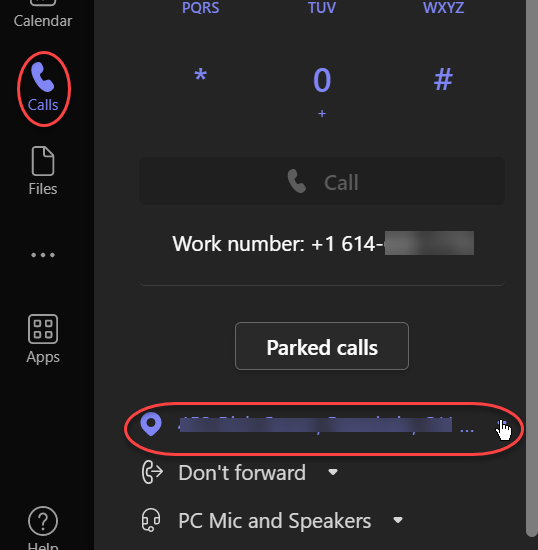
Click on the Emergency Locations Settings option. It will appear as an address in the lower left hand corner of the Teams interface.
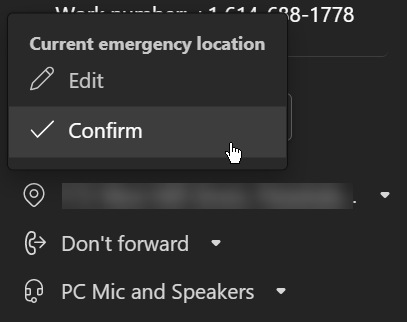
- If the address is correct, select the option to “Confirm” the address that was discovered using location services.
- If the address shown is not correct, select the option to “Edit” and input the correct address. Include the floor and room number if applicable.
- If you are connected to a university network that has been mapped for E911 you will be unable to “Edit” or “Confirm” the location information. If the mapped location is incorrect, please contact the IT Service Desk to correct the location information.
Please see Manage location sharing in Microsoft Teams for more information or contact the IT Service Desk for 24-hour support, seven days a week.
How do I enable location services?
For E911 services to function properly you must adjust the location services settings on your devices to allow the Teams client access. – You may need to reach out to your IT service desk for help in adjusting these settings.
- On a MacOS computer make sure the Teams client, Teams client Helper and Maps are allowed to access location services.
- On a Windows computer make sure the location service is enabled.
- On an iOS or Android device make sure the Teams client is allowed to access location services.
For specific steps please refer to: Work from Home Emergency 911: Enable Location Services on Microsoft's website for further instructions.
How do I perform a 911 test call using 933?
If you have an actual emergency DIAL 911.
To perform a test to verify your 911 emergency services are configured correctly dial 933 from your university Teams account, this test system can also be used with university Skype for Business and campus analog phone service. Dialing 933 reaches an automated TEST system and will not result in emergency services being provided. This system will test the information that would be passed to emergency services when 911 is dialed. When you make a call to 933 an automated attendant will read back your phone number, state whether your location is provided and what the location provided is. It will also allow you to record a message that will be played back to verify you have two-way audio. If the location is correct, Great! If the location is incorrect, please see the FAQ above.
File Management
Can I create a shared library?
Your role or position may not allow you to create a shared library. Contact your local help desk if you do not see the option. A shared library in OneDrive is the storage location for your Team. If a Team is created in Microsoft Teams, then a shared library appears in OneDrive.
Do Teams and OneDrive provide version control for files?
Teams and OneDrive for Business both provide version history of files.
- Teams: you must view in the web view accessible
- OneDrive for Business: in either web view accessible or in the desktop application
How long are deleted files retained?
Teams
- Teams deleted files are kept for 93 days.
- See Microsoft's Restore deleted items from the site collection recycle bin for steps to recover files in SharePoint
- The max number of file versions that can be saved per file is 500. This is a rolling 500, so version 501 replaces version 1 (the oldest).
OneDrive for Business
- OneDrive for Business deleted files are kept for 93 days.
- See Microsoft’s Restore deleted files or folders in OneDrive for steps to recover files in OneDrive
- The max number of file versions that can be saved per file is 500. This is a rolling 500, so version 501 replaces version 1 (the oldest).
File Sharing
Can I share a Team file with someone in my organization but not part of the Team the file is stored in?
Yes. Navigate to where the Team file is stored in OneDrive and share a link from there. Even though they are not in the Team, they will receive a link to the file. The file cannot be edited by anyone not in the team. They will be able to download a copy however, but your original file is safe and secure in the team.
Can I share files that are in Teams with people who are NOT a part of that team?
Please see Sharing Guidance for Teams.
Can I use anonymous links in Teams?
Please see Sharing Guidance for Teams.
Can professionals outside of Ohio State be added to a team?
Yes, external organizations that also use Teams can be added to a Team created at the Ohio State University. OSU Medical Center does not currently allow this ability beyond The Ohio State University. OSU members can be added to a Medical Center team as a guest using their lastname.#@osu.edu email address.
What are cascading permissions in Teams and OneDrive for Business?
Just like with other cloud-based storage and collaboration solutions, permissions cascade down a folder. So providing permissions to a folder means that permissions will cascade down to any subfolders that are included. Permissions do not cascade up. Remember to always keep access in mind when applying permissions. Provide the least amount of access necessary. For more details, please see Microsofts's Manage sharing and permissions in OneDrive and SharePoint.
Limits
Are there meeting limitations in Microsoft Teams?
- Maximum number of people in a meeting (can chat and call in) 1000 people with full functionality, participants over 1000 will have a view only experience.
- Teams Breakout rooms are limited to 300 people. Learn more about Limits and specifications for Microsoft Teams.
- Maximum duration of a Teams meeting is 24hrs
Is there a limit to the number of Teams you can create?
At the university you have a limit of 250 Teams. At the medical center they have a request process in place for Team creation.
Notifications
Is there a quick way to snooze notifications?
Yes you can enable Quiet Hours in Teams. Please see Notifications and Settings for more details.
Troubleshooting and Known Issues
- If you find Teams is running slow or not as expected, you can clear your client cache to help clean up Teams.
- View necessary settings for Mac Security and Privacy.
- Find up-to-date known issues from Microsoft.
Current Limitations of Teams and Channels
Captioning and Accessibility
Teams Meeting and Teams Live Event automated captioning does not meet OSU Minimum Digital Accessibility Standards. For details please refer to the live captioning FAQ.
If you have a disability and rely on assistive technology, and are having trouble related to Teams, please contact the Ohio State Accessibility Helpline 614-292-5000 for assistance or refer to the resources from Microsoft below:
Teams and Channels
| Feature | Maximum Limit |
|---|---|
| Number of teams a user can create | Subject to a 250 object limit |
| Number of teams a user can be a member of | 1,000 |
| Number of members in a team | 10,000 |
| Number of owners per team | 100 |
| Number of org-wide teams allowed in a tenant | 5 |
| Number of members in an org-wide team | 10,000 |
| Number of teams a global admin can create | 500,000 |
| Number of teams an Office 365 tenant can have | 500,000 |
| Number of channels per team | 200 (includes deleted channels) |
| Number of Private channels per team | 1000 |
For details on Teams Meetings limitations and information please see Teams Meeting Information.
For information on Private Channels please see Private Channels.
Channel Names
Channel names can't contain the following characters or words.
| Characters | ~ # % & * { } + / \ : < > ? | ' " .. |
|---|---|
| Characters in these ranges | 0 to 1F and 80 to 9F |
| Words | forms, CON, CONIN$, CONOUT$, PRN, AUX, NUL, COM1 to COM9, LPT1 to LPT9, desktop.ini, _vti_ |
Channel names also cannot start with an underscore (_) or period (.), or end with a period (.).
Chat Limitations
| Feature | Maximum limit |
|---|---|
| Number of people in a private chat | 100 |
| Number of file attachments | 10 |
| Chat size | Approximately 28 KB per post |
Emailing a Channel
The "email to channel" functionality for Teams channels is considered best effort. Messages sent to a Teams channel are routed to a Microsoft managed tenant, where predefined policies are applied. Please do not use for sensitive or restricted data. We have no control or visibility on messages sent to a Teams channel. You cannot whitelist, you cannot create rules, you cannot even see mail flow details.
Our recommendation is to not use this functionality for any critical messages. Use the Group's inbox instead, or a DG, or a shared mailbox. Learn more about how to Send an email to a channel in Microsoft Teams.
| Feature | Maximum limit |
|---|---|
| Message size | 24 KB |
| Number of file attachments | 20 |
| Size of each file attachment | Less than 10 MB |
| Number of inline images | 50 |
Shared Library Naming
A shared library is based upon a Team. When a Team is created a Shared Library is created for all Team members. If a Team name changes, the name of the corresponding Shared Library in SharePoint Online will NOT change. This is a known limitation of the service. If Microsoft changes this we will update you here.
If a Team Channel name changes, the name of the corresponding Shared Library in SharePoint Online will change to match.
Limits
Storage limit of 25TB. Full details of limits can be seen in the following Microsoft Article SharePoint Online limits. Please note that Teams is based off of SharePoint Online.
There is a limit to the total number of files and folders you can have within a single Team of 30 million. While that is a large amount there are impacts to search, viewing and OneDrive syncing to be aware of, please see the article referenced above for details.
Reduced Functionality for USB Handsets
Affects Poly CX300 (Mac and PC) and Yealink MP45/50 (Mac)
On affected devices USB Handsets can only be used as a basic audio device (Microphone/speaker) for Microsoft Teams. All call control must be done from the Teams client on your computer. Here are some of the most common issues with these devices:
- You may find no dial tone with USB Devices; it is unnecessary for calling.
- Call controls from the CX300 will not be available on the device itself, such as dialing, answering, and hanging up calls. These functions will need to be performed on the PC/Mac Client.
- Yealink MP45/50 phone (for Mac) does not currently allow for some call controls from the device itself, such as dialing, answering, and hanging up calls.
Legacy documentation information: Content from this page was found in article KB06230 within the ServiceNow Knowledge base for OTDI. Current content is found here, but you may visit the knowledge base for historical information.

