When using the desktop version of OneDrive, Teams folders and files will not appear by default. If you would like to add your Teams to the My Files section of OneDrive you can do so using the OneDrive web interface. The only drawback to this method is that it will only show the name of the Channel as the Folder name. If the files are all in General in the Team this would not be a helpful solution. Please see Adding Teams Folders to Windows Explorer if you find this is an issue for you as this method will include the Team name.
Log into the university's Microsoft web portal using your Ohio State University username and password (lastname.#). Navigate to OneDrive.
Inside OneDrive for Business locate the Shared Library of the Team you would like to add to your Windows File Explorer.
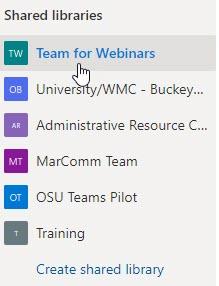
Once inside the Team, navigate to the Channel that holds the files you want to add to My Files.
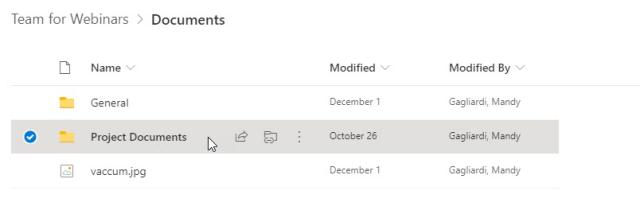
Once the Channel is selected click Add Shortcut to My Files in the toolbar at the top.

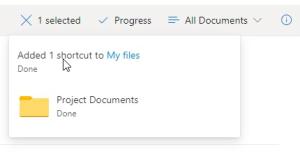
In the upper right hand corner, you will see a progress pop up that shows the shortcut is being added.
Now when you open File Explorer on your computer you will see the folder in the list.
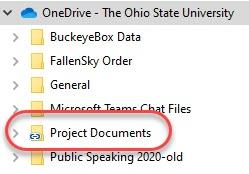
The shortcut will also appear in My Files in the OneDrive for Business web interface.
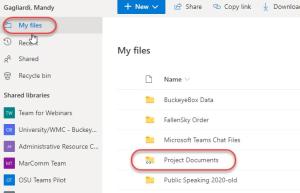
Remove a Folder from My Files
The process of removing folder or file from My Files is straight forward. Click the More Options button for the folder you want to remove. In the menu that appears click Remove. This only removes it from your My Files area. The folder is still accessible to you through the Shared Library.