You can add Shared Libraries (Team Channels) to your Finder on macOS. This is a preferred method if you are going to add a large number of Shared Libraries to Finder as this method will also include the Team name. This method does require you to work in both the desktop Teams application and the OneDrive web interface to complete the process. You must also have the OneDrive for Business Mac client installed and signed into your account.
Start by logging into the university's Microsoft 365 web portal using your Ohio State University username and password (lastname.#) and BuckeyePass. This is an important step, or you could run into issues when you actually try to add the folder. Navigate to OneDrive.
Move to the MS Teams desktop client. Navigate to the Team that contains the shared library you want to add and click on the appropriate channel. In this example I am using the General channel of the ARC Intake Team.
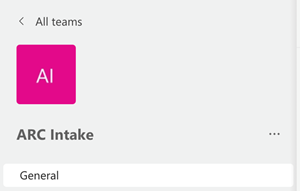
Once inside the channel click on the Files tab at the top. Then click on Open in SharePoint. This will open your default web browser directly to that Team and Channel.

In the toolbar at the top click Sync.

A pop-up screen will appear. Click Allow.
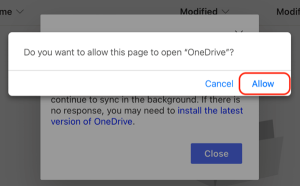
You should see a notification that you are now syncing the folder with OneDrive for Business. If you do not see the notification and instead see a log in screen, then you were not successfully logged into OneDrive before you started. This can cause an issue and you will not get your desired results. You will have to start from the beginning.

Navigate to your home folder in the Finder on macOS and open it. Under your home folder there are 2 folders related to OneDrive for Business: “OneDrive – The Ohio State University” (where your personal OneDrive Files are accessed and “The Ohio State University” (where any Teams files sync’d with OneDrive will be accessed).
Under the “The Ohio State University” folder you will see the Name of the Team and the name of the Channel. It will be tucked underneath the name of your tenant. So, in this example it says The Ohio State University (my tenant) and under that the name of the Team (ARC Intake) and the name of the Channel (General). This allows a deep level of understanding of where the files are located compared to adding a Team folder to My Files. If you would prefer to just add a shortcut to My Files please see Adding Teams Folders to My Files in OneDrive.

Removing a Shared Library from Finder on macOS
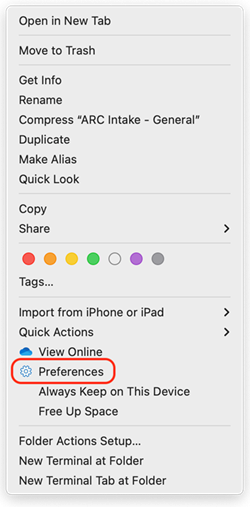
Since the folder is synced you must stop the syncing before you can remove it from your Finder. Start by right clicking on the folder you would like to remove in File Explorer. In the action menu click Preferences.
In the Preferences window on the Account tab look for the name of the Team/Channel that you want to remove and click Stop Sync for that folder.
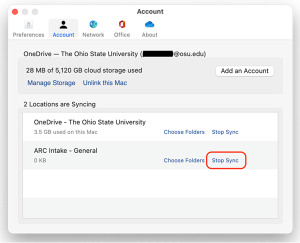
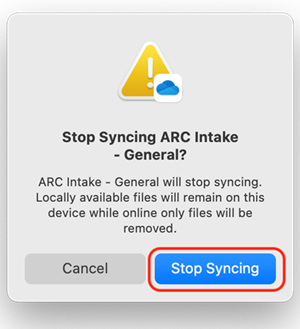
In the confirmation window click Stop Sync.
If the folder does not disappear from your list you can right click and click delete, however it should disappear after a few moments.