Before using any Microsoft 365 services, please review the information on sharing content, acceptable use, general questions, and other important items to be aware of on this page Microsoft 365 Important Service Usage Information
Your profile picture is part of your Microsoft 365 account and will appear in different Microsoft 365 applications such as Outlook and Teams. Please remember that the photo which appears here represents both you and your role within the university. Make it one you are proud to have reflect you and The Ohio State University.
To set or change your profile picture start by visiting Ohio State's Microsoft 365 web portal and logging in using your Ohio State username and password. If you are having trouble with your password, please contact the IT Service Desk at 614-688-HELP(4357) or using Self Service.
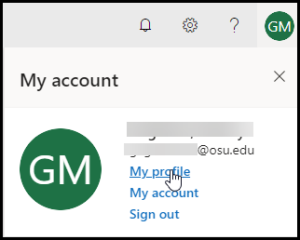
Once logged in select the logo that contains the initials of the logged in user in the upper right-hand corner of the screen to open a menu.

Once the menu opens click My Profile to open your profile screen.
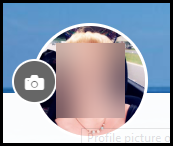
At the top of the page select the camera button to set a picture.
Next, select the link Upload a new photo.

Choose the photo that should appear in your profile. Please remember this image will show up throughout Microsoft 365. Select Open to continue. If necessary, use the slider to zoom in and out on the picture then Select Apply.

Select Done once the picture is uploaded.