Microsoft Teams supports 3 types of channels, standard, private and shared.
Private channels create focused spaces for collaboration within your teams. Only the users on the team who are owners or members of the private channel can access the channel. Anyone, including guests, can be added as a member of a private channel as long as they are already members of the team.
Shared channels in Microsoft Teams create collaboration spaces where you can invite people who are not in the team to access just the shared channel. Only the users who are owners or members of the shared channel can access the channel.
Learn more about Shared Channels in Teams.
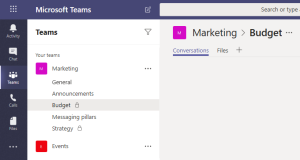
A lock icon indicates a private channel. Only members of private channels can see and participate in private channels that they are added to.
Current Limitations of Channels
Private channels support connectors and tabs (except Stream, Planner, and Forms). Full application support for private channels, including messaging extensions and bots is still in development.
Each team can have a maximum of 1000 private channels, and each private channel can have a maximum of 5000 members. The 1000 private channel limit is in addition to the 200 standard channel limit per team.
Retention Settings
Retention settings of Private channels follow that of standard channels as detailed on Retention Schedule.
How to create a private channel
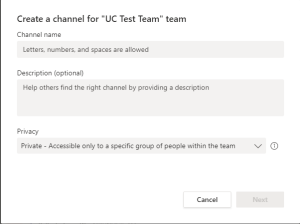
Create new channel within a Team, under the Privacy setting choose Private.
Once you click Next you will be able to add the people you want to have access.
How to manage a private channel
The private channel owner can click Manage channel and then use the Members and Settings tabs to add or remove members and edit settings. Each private channel has its own settings.
Additional details on private channel capabilities and restrictions can be found at Private Channels at Microsoft.
Important Information
A private channel is useful in these scenarios:
A group of people in a team want a focused space to collaborate without having to create a separate team.
A subset of people in a team want a private channel to discuss sensitive information, such as budgets, resourcing, strategic positioning, and so on.