Team Owner Management
All shared resources in our Microsoft 365 tenant need to have two owners. When someone leaves the university and they are an owner of a Team within Microsoft, all members of the Team will receive a message allowing them to take control of the Team. This makes certain that we do not have orphaned Teams in our tenant. This is similar in concept to owners of a Group. In fact, Teams are based upon Groups within Microsoft, so it makes sense that they are managed the same way. To read about Groups and Group owners please see Group Owner Messages in Microsoft 365.
When an owner of a Team leaves the university, a message will be sent to the other members of the Team telling them that the Team needs a new owner. Remember, Teams should have two owners at all times.
If you would like to claim ownership of the Team select the Go to site button to open Teams in your web browser to the Team that needs an owner.
In the upper right-hand corner of the Team, notice the label that tells you how many members there are in the Team. In this example there are two members.
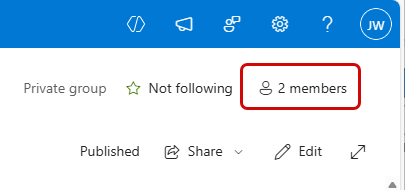
Select the Members button to open the Members panel. All current members will be listed.
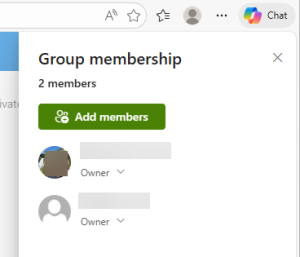
To set someone as the owner, drop open the menu and set the membership to Owner.
To add new members, click the Add Members button to open the Add Members panel. Add the members and their member type and click Save.
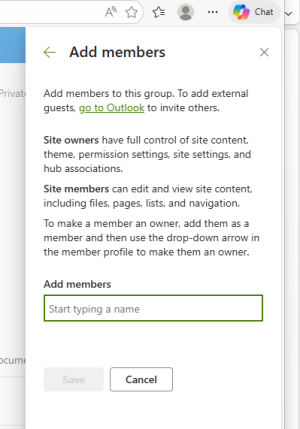
Only Owners can set someone else as an owner. You can claim ownership of a Team for yourself, not another member. All Teams should have two owners.