OneDrive for Business is the Microsoft-provided cloud storage and collaboration tool for storing, syncing, and sharing files.
OneDrive for Business is different than OneDrive. A OneDrive account is tied to a personal Microsoft consumer account that is not managed by Ohio State. A OneDrive for Business account is tied to an Ohio State (Microsoft 365) account that is managed by the university and provides 5TB of storage.
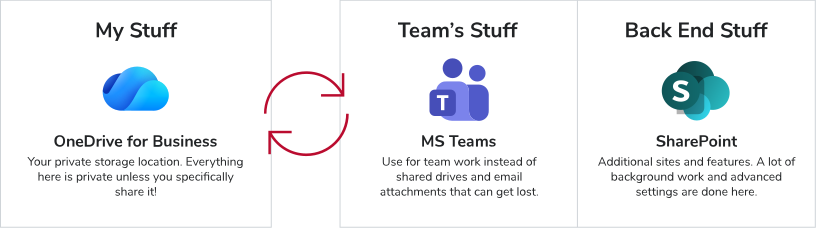
Please note: Use OneDrive for Business to store your personal files that do not need to be shared with others or do not need to be collaborated on. Use a Team to store files any time you think others may need to have access to the file at any time. Personal files are not accessible once someone has left the university.
Some benefits of OneDrive for Business include:
- Real-time collaboration editing documents using the online Office Web Apps or Office client apps
- Sharing files with others and managing who can edit documents
- Accessing the same files via a phone, tablet or computer
A full description of OneDrive for Business can be seen here.
Best Practices
- Keep folder and file names short by using abbreviations. Example: Use "01012015MgrMtg" instead of "January 01 2015 Managers Meeting".
- Do not use spaces in the names of files or folders. Example: Use "01012015MgrMtg" instead of "01012015 Mgr Mtg".
- Review sharing/permissions at the beginning of each semester.

File Storage Relationships Between Tools
Instructional Guides
Security
Ohio State Institutional Data Policy
- Microsoft 365 is for academic and personal use only.
- Students may not place sensitive data in any Microsoft 365 online product, including OneDrive.
- Ohio State employees must be aware of what type of data that is being placed into OneDrive.
- Learn more about Institutional Data
Ohio State Computing Policy
Access to Ohio State computing and internet resources must be used in a responsible manner. To learn more, see the Responsible Use of University Computing and Network Resources.
Frequently Asked Questions
General
Is there a difference between OneDrive and OneDrive for Business?
OneDrive for Business is different than OneDrive. A OneDrive account is tied to a personal Microsoft consumer account that is not managed by Ohio State. A OneDrive for Business account is tied to an Ohio State (Microsoft 365) account that is managed by the University and provides 5TB of storage.
What privacy protections are in place for my data?
As with other IT service contracts, Ohio State's contract with Microsoft includes privacy protections that prevent the unauthorized (and unlawful) access, sharing, or monetization of Ohio State data stored within cloud services. Ohio State's contracts provide greater privacy protections than the user agreement for your personal (non-Ohio State) Microsoft accounts.
When will I lose access to OneDrive for Business?
Students: Access to Microsoft 365 ends two (2) years after you have left the university regardless of whether you have graduated or withdrawn. Your access is directly tied to an “active student” status. Any folders and files shared with other people will have the sharing links removed at that time.
Employees: Access to Microsoft 365 ends on your official university termination date. Any folders and files shared with other people will have the sharing links removed at that time.
Plan for this in advance! Transfer all your files from your OneDrive for Business account to another location prior to graduation or leaving the university. It is vital you backup your data before leaving the university as they will not be available to you once your access to Microsoft 365 ends.
Why do some of my files shared with me appear to be owned by a user who is no longer with Ohio State?
If ownership of a file has been transferred to a new person from someone who has left the university or changed roles, in OneDrive the file may appear that it is still “owned” by that person. While looking at items in the OneDrive “Shared with you” section the “Shared By” name list may show the original user’s name, but that person is no longer the current owner. While you may see a different owner for shared links, the link’s target goes to a different OneDrive account than the “Shared by” name. That’s because “Shared by” lists the previous owner. While the displayed name is the original owner, OneDrive connects you to the account of the current data owner.
File Management
Can you save directly to OneDrive or do files need to always be uploaded/downloaded?
Yes. Since this is a Microsoft Cloud Storage solution it integrates with the other Microsoft 365 products allowing you to seamlessly save to and from the cloud through your other Microsoft 365 applications. You can also access OneDrive through CarmenCanvas.
Can I create a shared library?
Your role or position may not allow you to create a shared library. Contact your local help desk if you do not see the option. A shared library in OneDrive is the storage location for your Team. If a Team is created in Microsoft Teams then a shared library appears in OneDrive.
Do OneDrive and Teams provide version control for files?
OneDrive for Business and Teams both provide version history of files:
- OneDrive for Business: in either the web view or in the desktop application
- Teams: in the web view only
How long are deleted files retained?
OneDrive for Business
- OneDrive for Business deleted files are kept for 93 days.
- See Microsoft's Restore deleted files or folders in OneDrive for steps to recover files in OneDrive
- The max number of file versions that can be saved per file is 500. This is a rolling 500, so version 501 replaces version 1 (the oldest).
Teams
- Teams deleted files are kept for 93 days.
- See Microsoft's Restore deleted items from the site collection recycle bin for steps to recover files in SharePoint
- The max number of file versions that can be saved per file is 500. This is a rolling 500, so version 501 replaces version 1 (the oldest).
File Sharing
How do I share with a medical center employee?
Sharing from OneDrive needs to follow both University and Medical Center policies. Please see Sharing Guidance for OneDrive.
Can I share a Team file with someone in my organization but not part of the Team the file is stored in?
Yes. Navigate to where the Team file is stored in OneDrive and share a link from there. Even though they are not in the Team, they will receive a link to the file. The file cannot be edited by anyone not in the team. They will be able to download a copy however, but your original file is safe and secure in the team.
Why would I choose to use a "Link for Access" vs. "Direct Access"?
A "Direct Access" allows you to specify individuals and the level of access they can have to access the file or folder. A link can be sent to a larger audience, such as our entire organization, to access but everyone with the link has the same access level.
Does “Can View” in OneDrive allow others to download files?
Yes. Anyone with the permission level of "Can View" can also download a copy of the file.
What are cascading permissions in OneDrive for Business and Teams?
Just like with other cloud-based storage and collaboration solutions, permissions cascade down a folder. So providing permissions to a folder means that permissions will cascade down to any subfolders that are included. Permissions do not cascade up. Remember to always keep access in mind when applying permissions. Provide the least amount of access necessary. For more details, please see Microsofts's Manage sharing and permissions in OneDrive and SharePoint.
Help
If you have any trouble accessing or using Microsoft OneDrive for Business, please contact the IT Service Desk.
For additional help, see Microsoft's Troubleshoot issues with OneDrive.
