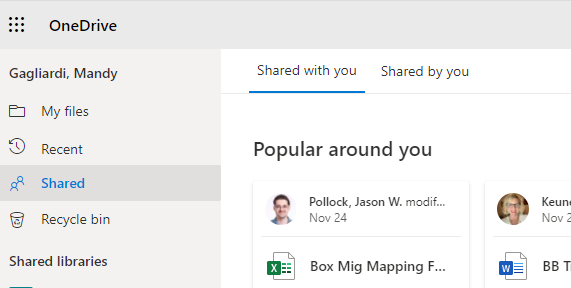
Finding files that have been shared to you can be done using the Shared link on the left side of the navigation panel in the web view of OneDrive for Business.
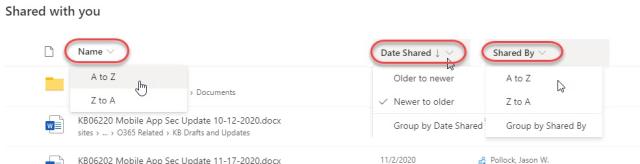
Files can be sorted by Name, Date Shared, and Shared By using the column headers in the Shared with you section. Files can also be grouped by Date Shared and by Shared By.
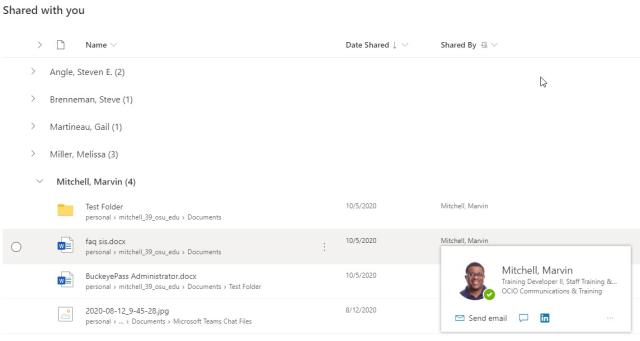
This will update your view showing a more organized space.
Searching for a File
In the Shared view of OneDrive for Business use the Search field at the top of the screen. Once you click in the field a list of recent files will appear.

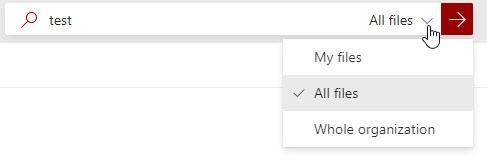
Type in a portion of the name of the file you would like to find. The All Files menu on the right of the field can be used to specify where to look for the file. The choices are All Files, My Files or Whole Organization.
Filtering
You can also use additional criteria to filter your Shared view. In the upper right-hand corner click the Filter icon to open the Filter panel. You can use this panel to filter by date and by document type. Additionally, you can use the People field to search for files from a particular user.
