Knowing who you can share with and how can be confusing. Here are guidelines on how you can share with people.
Sharing in OneDrive means that you first need to understand who your audience is. Within OneDrive you can share information with people inside of the University, outside of the University, the Wexner Medical Center, Students and COTC students. How you share is going to be determined by WHO your audience is. The Wexner Medical Center is a SEPARATE tenant from The Ohio State University and must be treated as such. Please make certain you are following the guidance for sharing with Wexner Medical Center located below.
Sharing outside the University
Faculty, staff and students can share OneDrive files with specific users outside the university, and anonymous linking is supported. When sharing with a person outside of the university, an email will inform the collaborator that an item has been shared with them.
- If the collaborator has a Microsoft email (such as @outlook.com) they will be prompted to log in to their account.
- If the collaborator does not have a Microsoft email, they will receive a pin code that enables them to access the file in OneDrive web view.
Sharing inside the University
- Share One Drive files to faculty and staff using their lastname.#@osu.edu email address.
- Share to students using their lastname.#@buckeyemail.osu.edu.
- If you are sharing with student employees, use their lastname.#s@osu.edu email address.
- You also have the option to share with People in <Your Organization>, which gives anyone in your organization access. Files shared with this option will be included in Microsoft’s "Popular Around You" or "Suggested Files" feature. For more details on "Popular Around You" and the "Suggested Files" feature, please see See Files Shared with You. People who see the file in their suggested files section will also have access to the file, not just whom the link was shared with, whether they receive it directly from you or forwarded from someone else. Read more about sharing on Microsoft’s site.
Sharing between the University and Wexner Medical Center
- Wexner Medical Center faculty and staff can share S1 or S2 data with university members when needed. If S3 or S4 data needs to be shared the Medical Center user must first request access to share.
- University faculty, staff and students can share with Wexner Medical Center users using their medical center email address firstname.lastname@osumc.edu.
- Using the access setting of “People in The Ohio State University with the link” to share an item will NOT be accessible to people at the OSU Wexner Medical Center, they are in a separate Office 365 organization than University Staff (@osu.edu) and Students (@buckeyemail.osu.edu). You should share items with them directly by using their medical center email address firstname.lastname@osumc.edu.
- If you are using links to items in a communication that needs to be accessible to OSU Wexner Medial center people use the “Anyone with the link” option and set to view only.
Sharing for COTC
Faculty adding COTC students will use their lastname-#@cotcmail.cotc.edu
Students who want to share with faculty/staff will need to send the sharing invitation to the COTC Faculty/Staff member using their @mail.cotc.edu or @osu.edu email address. Do NOT use their @cotc.edu email address. Faculty will need to make certain this is communicated to all of their students or it could cause an issue with their email.
Faculty do have the ability to check if the student did use the correct email address BEFORE clicking the invitation link. Depending upon your email application, you can look at the details of the To: field. Typically you can hover (Outlook) or click on the To: field to see the details. If the invitation was sent to your @cotc.edu email address do NOT click the link. Contact the student directly and advice them to re-share the information using the correct email address.
Sharing Permissions: A Quick Overview
We are often asked about sharing permissions, and what different permissions mean. Microsoft has a lengthy help article on this topic.
When sharing you have several Link Settings options:
- Anyone gives access to anyone who receives this link, whether they receive it directly from you or forwarded from someone else. This may include people outside of your organization.
- People in <Your Organization> with the link gives anyone in your organization who has the link access to the file, whether they receive it directly from you or forwarded from someone else. For this level of sharing, people “in our organization” includes students, but not medical center employees, because the medical center has its own, separate instance of MS365.
- People with existing access can be used by people who already have access to the document or folder. It does not change any permissions. Use this if you just want to send a link to somebody who already has access.
- Specific people gives access only to the people you specify, although other people may already have access. If people forward the sharing invitation, only people who already have access to the item will be able to use the link.
What does my collaborator see?
If the collaborator is using a different Office 365 tenant (meaning they are using OneDrive, but the university does not control it) they will see the files in their Shared with Me interface in OneDrive. Please see How to Find Files Shared with Me to learn how to look at files. They also cannot sync the folder/files to their organization's OneDrive client on Mac/PC.
If the collaborator does not use Office 365 then they will receive an email telling them that you would like to share a file with them. In the email there will be a link that they need to click to access the file. You will be notified the first time they access the file. External users that are not associated with a Microsoft Tenant (e.g. personal Microsoft account) can only ever access OneDrive shared items via the shared link provided via email. This is because OneDrive for Business and OneDrive personal are completely separate and isolated platforms. There is no “Shared with you” equivalent area between OneDrive for Business and OneDrive Personal account. They also cannot sync the folder/files to their personal OneDrive client on Mac/PC.
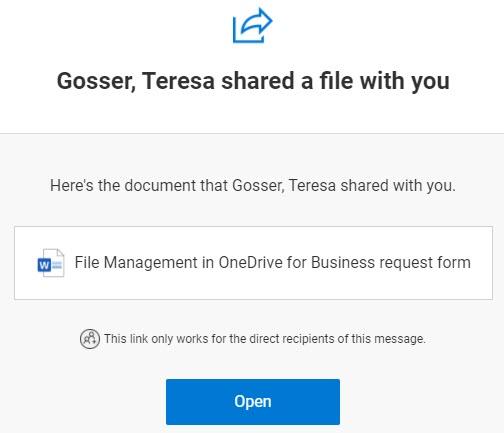
They will then be sent a verification code to the same email address. They will have to enter the code the first time to access the file you shared.
Using this process, collaborators are not using the OneDrive application. Because they are not using OneDrive, they will not be able to access the file through Shared with Me. They will need to save the link and use it any time they want to access the file.