Best practice for using Microsoft 365 with the University Email System and a Wexner Medical Center Email Account on an OCIO device. This document only pertains to those individuals that have moved under OHR but are still performing Medical Center business.
If you have both a university email account and a medical center email account you will have access to two different instances of Microsoft 365. We have provided recommendations from OCIO regarding the use of each and how they interact with each other when using University Email as your primary account and medical center as your secondary account.
Use your university username (lastname.#) as your primary email in the desktop Outlook client. If you need to access you medical center account (firstname.lastname@osumc.edu), you can do so via the Outlook web app. You will not be able to log in to the Microsoft 365 desktop apps (Outlook, Teams, Skype, etc) with your medical center credentials.
Out of Office
You are not able to forward you medical center email to your university email. If you do not plan on accessing your medical center email often, set an out of office automatic reply containing contact information for your university lastname.#.
- Select File > Automatic Replies.
- In the Automatic Replies box, select Send automatic replies. (Note: If you don't see Automatic Replies, use Rules and Alerts to set up your out-of-office message).
- Optionally, set a date range for your automatic replies. This will turn off automatic replies at the date and time you enter for the end time. Otherwise, you'll need to turn off automatic replies manually.
On the Inside My Organization tab, type the response that you want to send to teammates or colleagues.
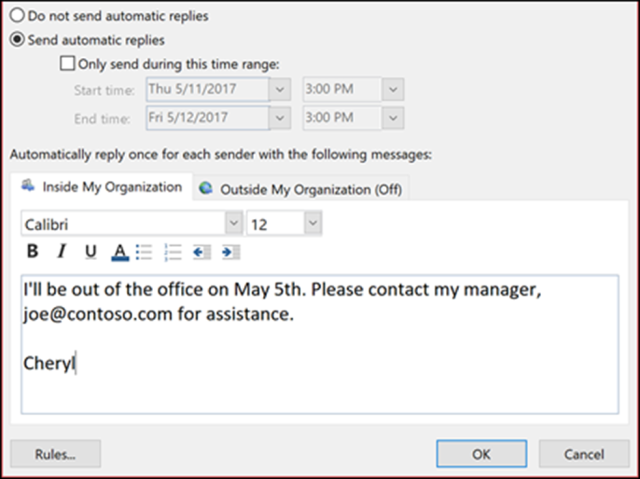
- Note: Sending automatic replies to anyone outside my organization will send your automatic reply to every email, including newsletters, advertisements and potentially junk email. If you want to send automatic replies to those outside your organization, we recommend choosing My contacts only.
- Select OK to save your settings.
Calendar
Your university and medical center calendar will not be able to interact with each other or merge. If you send or receive a meeting with your university email, it will only appear on your university email calendar, and not on your medical center email calendar. You must access the meeting using your university email. Vice versa with your medical center account.
We recommend working with your clients and partners through only one of these calendars to avoid confusion. Note that medical center users will only be able to see Free/Busy indicators on your university calendar and vice versa.
Teams
Your Teams status will reflect your calendar availability from the email account you are logged in with. Similar to your calendar, you will need to access Teams meetings based on the account the meeting invitation was sent to.
Interacting with Shared Services team
We recommend selecting one account to use and interact with your team. This alignment will ensure that a team is working and collaborating on the same platform, and calendars are up to date and accurate.
General Guidance
- In order to access your Wexner Medical Center email and other Microsoft 365 applications, you must use the web applications. In the desktop apps, you must log in with your university lastname.#.
- To see your email archive, access the medical center's Microsoft 365 web portal. It will be listed at the bottom of the pane on the left.
- To access Near Point (old email archive system) use your medical center credentials.
Important Information
Using Microsoft 365 with the University Email System and a Wexner Medical Center Email Account on an OCIO device.
- This document only pertains to those individuals that have moved under OHR but are still performing Medical Center business.