To move content between MS Teams and OneDrive, log into the university's Microsoft web portal and select OneDrive.
Select the files or folders that you want to move, and then select Move to.
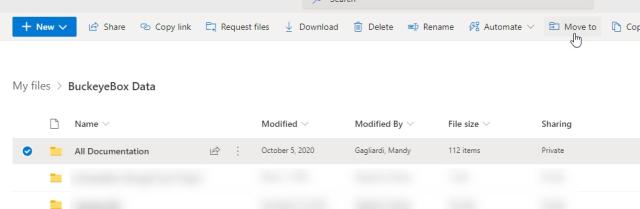
Note: If you don't see the Move to command, you're probably using classic OneDrive for work or school or an on-premises instance of OneDrive for work or school. If so, follow the SharePoint 2016 steps to move or copy files within or between sites.
Under Choose a destination, select the location you want to move to. Teams appear under the name of your organization, such as OSU Teams Pilot in this example.
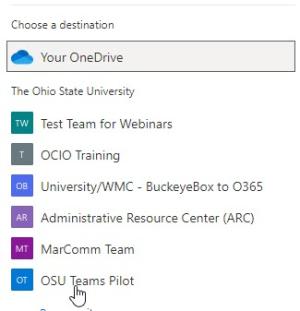
You'll see different locations depending on where you are. For example, if you're on a SharePoint site, you'll see your current library, your OneDrive, and other sites. You might have to select Browse sites to see the site you want.
- Select the Channel you would like the file/folder moved to, then click Move Here. You can also move to a sub-folder with the Channel or create a new folder within the channel to move the items to.
Important Information
Moving folders/files will remove any shared links and custom permissions on items. You will need to re-share any items once the move is completed.