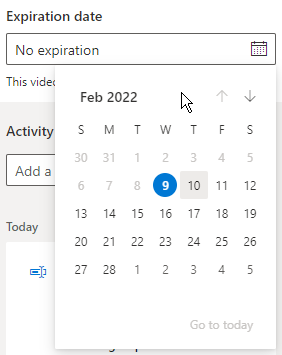
These changes are for Teams Meetings recordings. The ability to change the expiration date should be available by mid-February of 2022.
For an active meeting, once the meeting recording has stopped, you will see the recording in the Teams “Chat window” of the meeting.
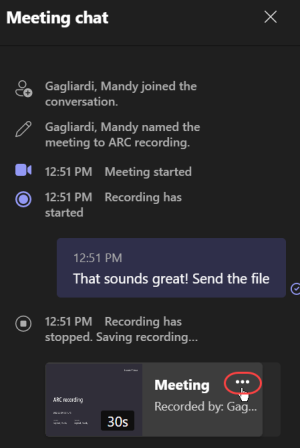
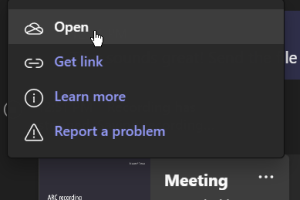
To change the expiration of the recording, select the 3 dots in the upper right corner of recording. This will open an action menu for the recording. In the action menu select Open to open the recording. This will open the recording through the web interface and you may need to log in again.
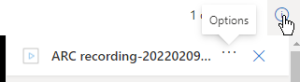
In the upper right hand corner of the web interface you will see an information icon that looks like a question mark in a small circle. Click that to open the Options panel.
In the Options panel you have settings for managing the recording. To change the expiration date, select the calendar icon and choose the new expiration date.