To check the storage size of a team that you own, start by visiting the team in the Teams interface. You can use the web interface or the desktop application.
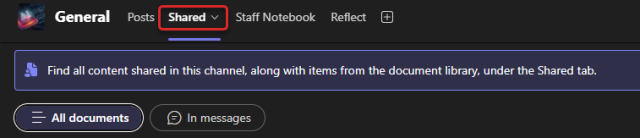
Within the team select the Shared tab at the top.
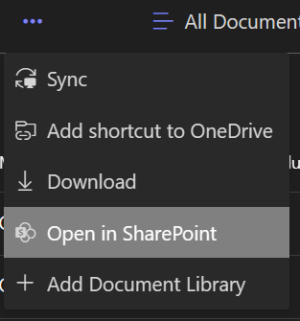
On the Teams toolbar select the ellipse menu at the end to open an action menu.
In the action menu select Open in Sharepoint.
This will open your team within your web browser. Within the web browser select the gear icon in the upper right-hand corner. This will open an action menu for your team. Within the menu select Site Information.
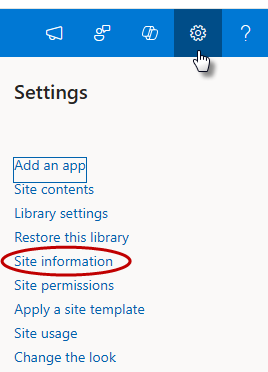
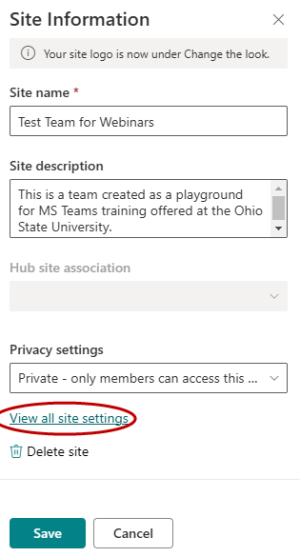
The Site Information panel will open. In the panel select View all site settings.
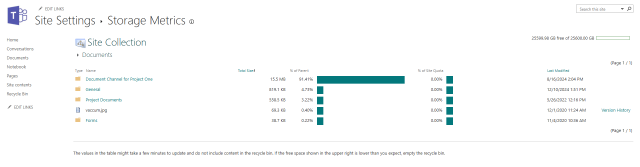
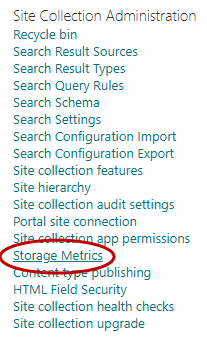
In the site settings window select Storage Metrics.
This will open another window showing you the total storage of your team and where the storage is allocated across the team. Selecting the Documents folder will show you the details of all file storage of your team.