The course console allows administrators edit and view information about a single learning object.
Access the Course Console
To open a learning object's course console page, search for it in the course catalog, then click the training's title in the search results.

Course Console Page
The course console page is comprised of several sections.
Header
Expand each accordion section below to learn about the header of the course console.
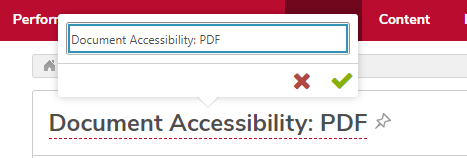
Note: Any field underlined with a dotted line is editable directly from this section. Click the field to edit, then click the green checkmark

to save the change.
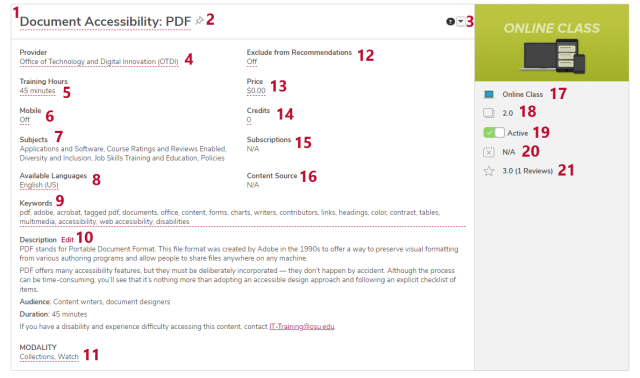
1: Title
The title of the training.
Titles must meet certain requirements as defined in the BuckeyeLearn Distributed Administration Standards:
- Titles must be short and descriptive
- Avoid
- Department names
- Acronyms
- Delivery method (for example, “online”)
- The word “training”
- Audience description (for example, “for student employees”)
- Any deviation from title standards may be used only for duplicate trainings approved by the Operations Committee, Steering Committee, and the content owner
This field is editable.
2: Pin
Click the pin icon

to save a link to the this course console page on the Pinned Links widget on the Learning Admin Console and the Pinned Links section of the Admin Tools pages.
3: Options Menu
Allows you to perform several tasks, depending on your permissions and the type of learning objects.
Click the down arrow

to open the options menu.
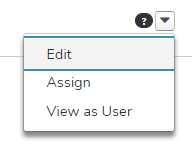
You may not have permission to perform certain tasks, and they may not appear in your option menu.
- For all learning objects
- Edit: Click the edit option to open the learning object’s detailed edit page. On this page, you can edit
- General information, including training equivalencies
- Prerequisites
- Subjects
- Skills
- Competencies
- Acknowledgement
- Availability
- Emails
- Transactions
- Evaluations
- Assign: Assign the training using the learning assignment tool, if you have the permission to do so
- View as User: View the training details page
- Edit: Click the edit option to open the learning object’s detailed edit page. On this page, you can edit
- For online course learning objects
- Create version: Reversion an online course
- For material and video learning objects
- Preview: Preview the learning object
- For curricula learning objects
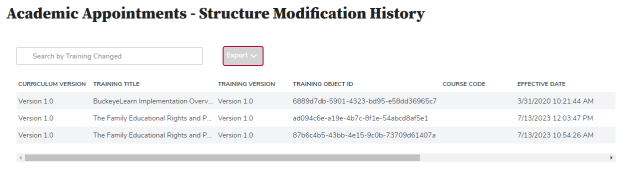
- Structure History: View basic information about changes to the curricula's structure
4: Provider
The provider/vendor of the training. This field is editable only for online courses and videos. Only providers you have access to are available to select.
5: Training Hours
The length of the training in hours and minutes.
All learning objects are required to have training hours, according to the BuckeyeLearn Distributed Administration Standards.
This field is editable.
6: Mobile
Not used at Ohio State.
7: Subjects
The subjects related to the training.
All learning objects are required to have at least one subject, according to the BuckeyeLearn Distributed Administration Standards. Learning objects may have more than one subject. Subjects can be edited from the Edit option in the Options menu (#3 on this image)
Review the Subject Definitions for more information about subjects.
8: Available Languages
The language of the training.
9: Keywords
Words related to the training.
Keywords are not visible to end users, but are used by the system for searching. Include common spelling errors, acronyms, and alternative names for systems, departments, and topics.
Type keywords, separated by a comma.
This field is editable.
10: Description
The training’s description that will be seen by learners.
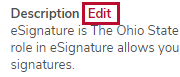
Click the Edit link to edit the description in a WYSIWYG editor.
Descriptions must meet certain requirements as defined in the BuckeyeLearn Distributed Administration Standards:
- The details of the topic covered
- Learning objectives
- The length of the course (for example, “in this 10-minute online course...”)
- The intended audience, if applicable
- Housekeeping items, such as a computer is required or lunch is not provided
- Rules and policies, such as attendance is required for the entire session to receive credit
- Procedures for withdrawal, if they are specific to that course (for example, if a fee will be assessed for no-shows)
- A statement that alerts the learner that the training is mobile-friendly is it meets the criteria for mobile content
It is also a best practice to include information for learners about who to contact with accessibility issues.
This field is editable.
11: Modality
Modalities allow learners to filter searches by type of training. Options include:
- Attend (includes events)
- Collections (includes curricula)
- Listen (includes materials)
- Practice (includes tests)
- Read (includes materials)
- Watch (includes online courses and videos)
This field is editable.
12: Exclude from Recommendations
Not used at Ohio State.
13: Price
Not used at Ohio State.
14: Credits
The number of credits earned by completing this course.
Not used by most areas at Ohio State.
This field is editable.
15: Subscriptions
Not used at Ohio State.
16: Content Source
Not used at Ohio State.
17: Learning Objective
The type of learning object.
18: Version
The version of the learning object.
19: Active/Inactive Toggle
Click the toggle to change between active and inactive states.
Active training is available to learners and may be assigned and registered for. Inactive training is not available to learners.
20: Deactivation Date
The date the training will be deactivated, if one is selected.
The deactivation date can be edited from the Edit option in the Options menu (#3 on this image).
21: Reviews
Not used at Ohio State.
Essential Data, Content, and Settings
Expand each accordion section below to learn about the essential data, content, and settings sections of the course console.
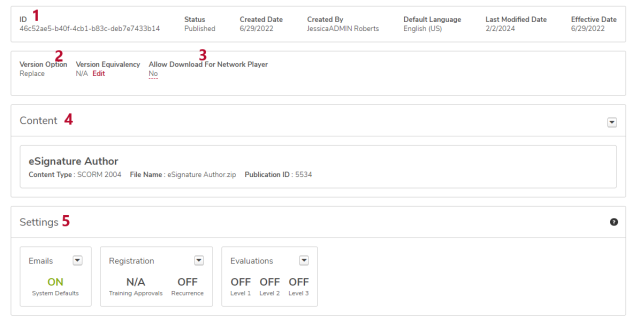
1: Essential Data
Basic summary information about the learning object.
2: Version Information
Information about the version of the learning object. Only visible if the learning object has been reversioned.
3: Allow Download
If the learning object can be downloaded by users.
Only visible for online courses. Not used by most areas at Ohio State.
This field is editable.
4: Content
Information about the learning object, including the file name and the type of file.
Only visible for online courses, materials, and videos.
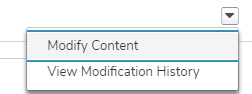
For online courses only, an options menu is available by clicking the down arrow
.
You may not have permission to perform certain tasks, and they may not appear in your option menu.
- Modify Content: make small changes to an online course that do not involve changing the structure of the SCORM file
- Resume: resume paused modifications; only visible when a modification is paused
- View Modification History: view details about all past modifications
5: Settings
The settings selected for the learning object.
Emails cannot be edited. Emails can be edited from the Edit option in the Options menu (#3 on the header image)
Registration and evaluations settings can be edited by clicking the down arrow. Not all administrators have the permissions to change these settings.
Availability
Availability which defines the learners who can search for and request a learning object, can be viewed and set in the course console if it has not been set during the creation of the learning object.
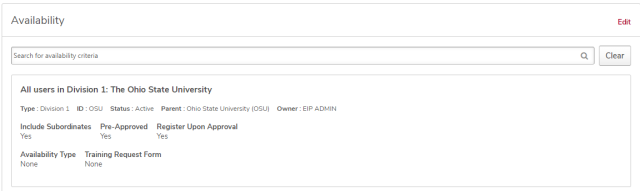
If you have not set availability for your training, click the Select Users button
.
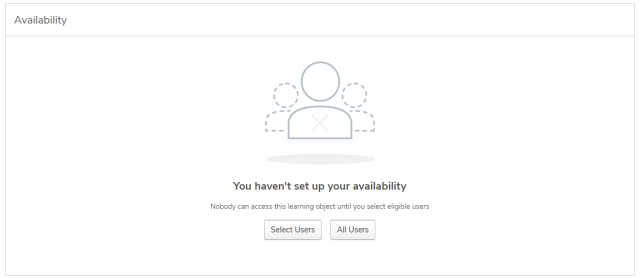
If you have already set availability, but want to change it, click the Edit link.

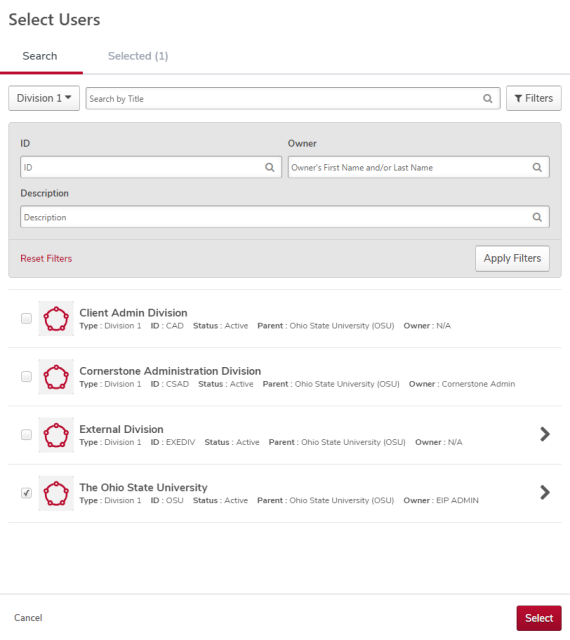
Select your desired learners, then click the Select button

.
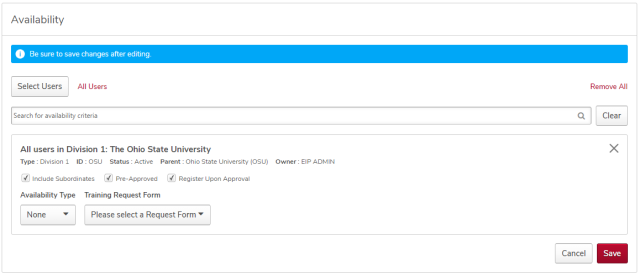
Click the Save button

to save your choices.
Reporting Widgets
The reporting widgets provide basic information about the learning object.
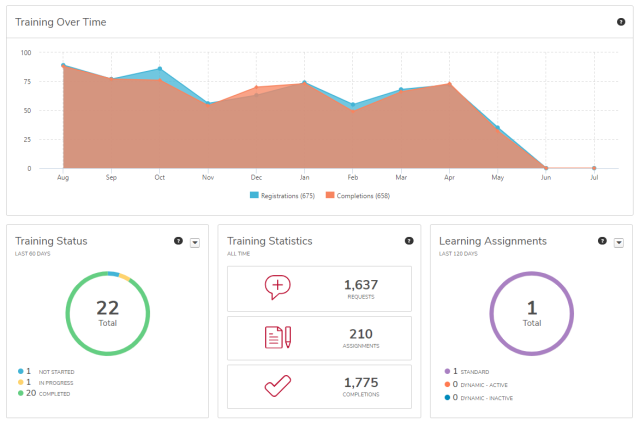
- Training Over Time: how many times the learning object has been registered for and completed over the last year
- Training Status: all of the statuses of the learning object on learner's transcripts; change the timeframe by clicking the down arrow
- Training Statistics: how many times the learning object has been requested, assigned, and completed
- Learning Assignments: how many times the learning object has been assigned change the timeframe by clicking the down arrow
Associated Training
This section shows any associated prerequisites, pre-work, and post-work.
Click the training title to go to the course console page for that learning object.
