About Availability
Availability defines the learners who can search for and request a learning object. There are many ways to define availability, such as by group, division, or individual learners.
If no availability is set for a learning object, then learners cannot search for or request the learning object. However, learning objects with no availability can still be assigned by administrators using learning assignments.
Leave availability blank for any learning object you do not want to appear to learners, such as for learning objects that are only part of a curriculum or learning objects that are not ready to be taken by learners.
Commonly Used Availability
For best results, use these criteria and values for these common situations
| Learners Allowed to Request Learning Object | Criteria | Value |
|---|---|---|
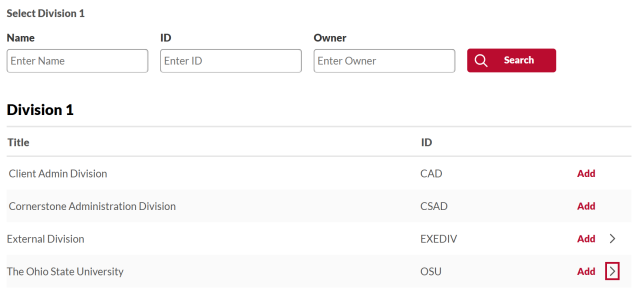
| All Ohio State University learners (includes employees, students, consultants, contractors, and anyone with an Ohio State Username (lastname.#) | Division 1 | The Ohio State University |
| All Ohio State Employees, including student employees | Group | All Ohio State Employees (w/ student employees) |
| All Ohio State Employees, excluding student employees | Group | All Ohio State - No Student Employees |
How to Set Availability
While it is slightly different in different areas of BuckeyeLearn, setting availability generally follows a similar process:
On the availability page of your learning object, select the criteria.
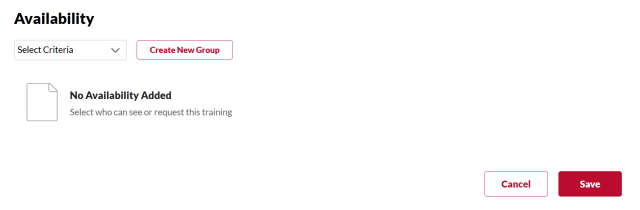
Click the Select Criteria dropdown menu.
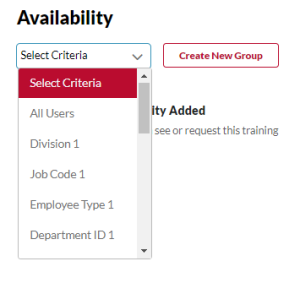
- Select the criteria.
Select the value.
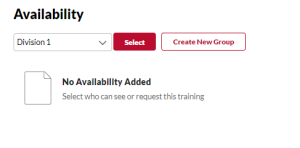
Click the Select button

.
Search for the value.
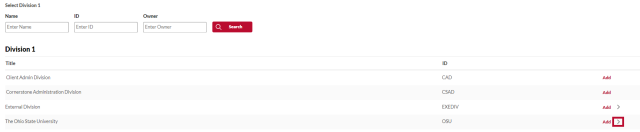
Select the value by clicking the Add button on the correct value.

Click the Done button

to return the value to the availability page.