The Course Catalog allows BuckeyeLearn administrators to access and manage their vendor's learning objects.
Access the Course Catalog
There are two ways to access the course catalog: from the Admin menu and from the Learning Admin Console.
Access the Course Catalog from the Admin Menu
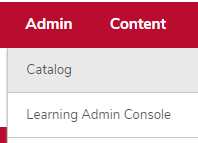
- Hover over the Admin tab.
Click Catalog.
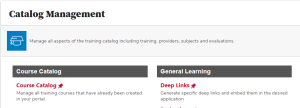
Click the Course Catalog link in the Course Catalog section.
Access the Course Catalog from the Learning Admin Console
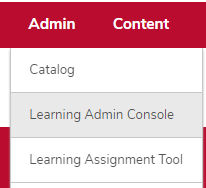
- Hover over the Admin menu.
Click Learning Admin Console.
Click the Search icon in the Search the catalog field.

Search the Course Catalog
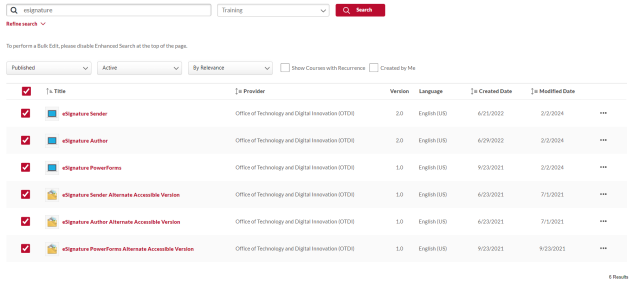
To search the course catalog, type a training title or keyword in the "What would you like to search for?" field and click the Search button.

Results will be displayed below.
Refine Your Search Results
You can refine your search results by the type of learning object by clicking the All Training dropdown. Select or deselect learning object types to narrow your search results.

To further refine your search, click the Refine search link under the search field.

Options to further narrow your search will appear.

After you have made your selections, click the Search button.
Reviewing Search Results
Expand each accordion section below to learn about the search results.
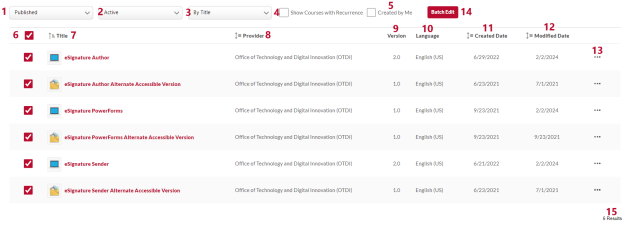
1: Published Button
Click the Published button to show a dropdown list of training statuses. Select a status to refine your search results. Only one status can be shown at a time.
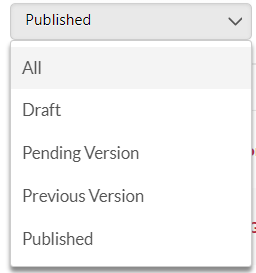
- All: Shows training in all statuses
- Draft: Shows online courses in draft, unpublished/inactive status
- Pending Version: Shows training where a version has been created effective, or the reversioning has failed; on the effective date (or when the versioning is successful), the status changes to Published
- Previous Version: Shows that the training is an older version, meaning that a more recent version of the training currently exists; training in this status can still be on a user’s transcript, depending on if the users were upgraded during the reversioning process
- Published - Shows published, active training in the most current version
2: Active Button
Click the Active button to show a dropdown list of training statuses. Select a status to refine your search results.
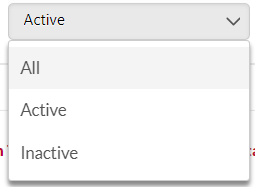
- All: Shows both active and inactive training
- Active: Shows only active training
- Inactive: Shows only inactive training
3: By Title Button
Click the Title button to show a dropdown list of options by which to sort your training.
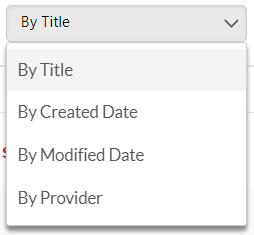
Options are:
- By Title
- By Created Date
- By Modified Date
- By Provider
4: Show Courses with Recurrence Checkbox
Check to show only courses with recurrence. Unchecked by default.
5: Created by Me Checkbox
Check to show training only created by your admin account. Unchecked by default.
6: Checkbox
Check or uncheck all items by checking the box at the top of the column. Check or uncheck individual trainings on each row.
7: Title
The title and type of learning object. Click the training title to open the the course console page for that training.

8: Provider
The provider or vendor of the training. All vendors you have access to are available in the course catalog. You can sort by this column.
9: Version
The version of the training.
10: Language
The language of the training.
11: Created Date
The date this training was first entered into BuckeyeLearn. You can sort by this column.
12: Modified Date
The most recent date when the training was modified. If the course has never been modified, this field is empty. You can sort by this column.
13: Actions
Click the actions icon

to perform certain actions.
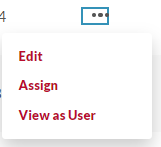
- Edit: Edit the training in the course catalog
- Assign: Assign the training using the learning assignment tool, if you have the permission to do so
- View as User: View the training details page
- Preview: Preview the training; not available for all learning objects
14: Batch Edit
Click the Batch Edit button

to bulk edit all checked courses at once on the Selected Training page.
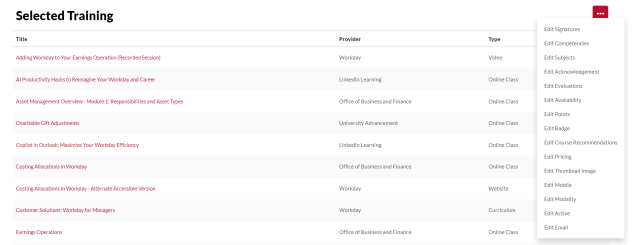
Areas that can be bulk edited are:
- Skills
- Competencies
- Subjects
- Acknowledgement
- Evaluations
- Availability
- Points
- Badge
- Course Recommendations
- Thumbnail Image
- Mobile
- Modality
- Active
For more information on bulk editing training, visit Cornerstone Help.
15: Number of Search Results
The number of results from your search.
To open a training's course console page to edit it, click the training's title in the search results.
The training's course console page will open.
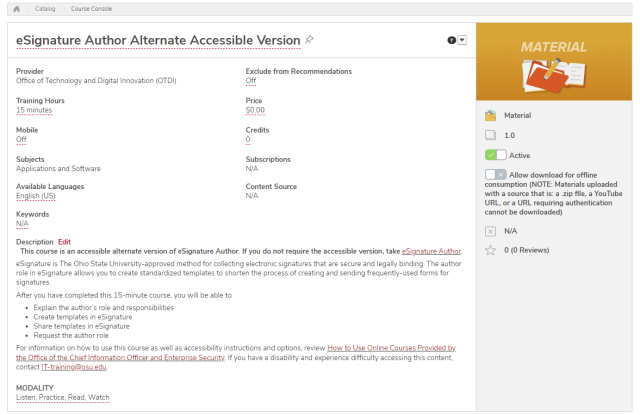
To return to the course catalog, click the back button in your browser, or click Catalog in the breadcrumb at the top of the course console page.
