Definitions
SiteID
The name of your OTDI Webhosting Account which may (or may not) match your site’s main web address. For example, https://osu.edu is The Ohio State University’s main web address (URL), but their OTDI Web Hosted SiteID is ‘osumain’.
Web Root
The full path to where your website account is stored on our servers. This is useful for SSH users or websites that require you to tell them exactly where they live on the filesystem. For OTDI Web Hosting, this is typically:
/usr/local/webs/[SiteID]/
Document Root
This is the directory that contains your Python Application Files. (getenv.py, helloworld.py, redirect.py, etc.) This directory also contains the required wsgi.py file which controls the routing of your application’s requests from Apache.
/usr/local/webs/[SiteID]/python/
The /htdocs/ Directory
This is a physical subdirectory under your Web Root.
/usr/local/webs/[SiteID]/htdocs
In a standard LAMP Environment, this would be your website’s Document Root. In our Python WSGI environment, it’s treated as a repository for any static ‘Flat’ files you want to serve alongside your WSGI Application. (*.html, *.css, *.js, *.jpg, etc.)
The Podshell Alias
Our Hosted Web Infrastructure is built in an elastic Kubernetes environment that includes a function called “pod shell”. We’ve developed a podshell alias command that provides “pod shell” functionality in a way that doesn’t reduce your container security. Specifically, it allows modifications to non-ephemeral components, and that allows you to install Python Libraries and other structures like Flask without special access. Additional information about the alias can be found here.
Shell User
Users who are allowed to connect directly to the Web Hosting system via an SSH shell. Instructions for setup & use can be found in Shell Access.
The Process
Before we get into the nuts & bolts, I feel it’s important to understand how our WSGI Server handles web requests for your application.
Apache receives asset requests at the primary URL listed in the dashboard for your SiteID
https://[siteID].org.ohio-state.edu/
Apache hands that request off to our WSGI Service & your application internally, as defined by the wsgi.py file we placed in this directory:
/usr/local/webs/[SiteID]/python/
As the current wsgi.py file is a sample file we placed to mirror the landing page we have in /htdocs/, it rewrites the browser’s URI to include a dynamic /static/ subfolder and WSGI is instructed to serve any files we’ve placed in /htdocs/:
https://[SiteID].org.ohio-state.edu/static/
To get your application to run, you will need to upload your python scripts to the /python subfolder, your static files to the /htdocs folder, and then modify/replace the existing wsgi.py script so Apache & WSGI know what to do. Let’s get that done …
Check/Set Your SiteID’s Container Image
In the OTDI Web Hosting Dashboard, under the Server Options section of the SiteID you plan to use for your application, check that it’s set to a Python WSGI server image. If it’s not, click the down-arrow, choose & save a Python image that suits your needs.

Saving your new image will trigger several processes on the OTDI Web Hosting Servers, rebuilding your Kubernetes Containers with the Docker image you selected. These processes may take up to 45 minutes to complete.
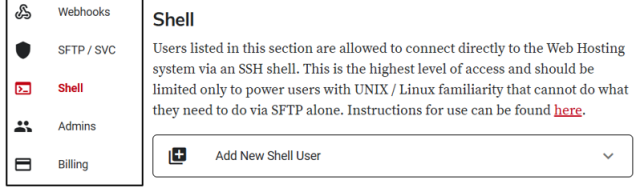
Ensure You Are a member of the Shell User group
In the OTDI Web Hosting Dashboard, ensure your name.# has been added to the Shell users’ group. If not, contact a site administrator (Listed in the Admins section), the site owner (Listed in the General section), or contact us.
Connect to Web Hosting Via Secure Shell
In a terminal of your choice, enter:
ssh [name.#]@webssh.osu.edu
Choose the SiteID you want to use from the list provided.
If you can’t connect, contact a site administrator (Listed in the Admins section), the site owner (Listed in the General section), or contact us.
Verify the Python WSGI Document Root was successfully generated
In a terminal of your choice, enter:
cat /usr/local/webs/[siteID]/python/wsgi.py
If you don’t see something like this, please wait an additional half-hour. If it still doesn’t look right, contact us:
def application(environ, start_response):
status = '302 Found'
output = b'<html><head><meta http-equiv="refresh" content="0; url=/static/"></head></html>'
response_headers = [('Content-type', 'text/html; charset=utf-8'), ('Content-Length', str(len(output))), ('Location', '/static/')]
start_response(status, response_headers)
return [output]
Upload your Application Files
Using FileZilla, WinSCP, Git, or Rsync, upload your application files into your SiteID’s Document Root.
Using those same methods, upload your application’s static assets to your SiteID’s /htdocs/ subdirectory.
Modify/Replace the sample wsgi.py file to suit your needs.
Restart Your Container
In the OTDI Web Hosting Dashboard, under the General section of the SiteID you plan to use, click the Restart Website button:
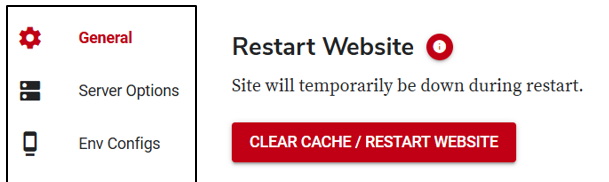
This button performs a rolling restart of any containers associated with your account & clears your containers’ cache on our ingress Controller. It should finish in less than a minute.
Test your website
Open a Web Browser & navigate to your Application’s URL. Hopefully, you will see your application’s Landing page.
Shibboleth, DUO or GMS in your App
In Web Hosting, the WSGI server is running behind an Apache Server that’s already running a Shibboleth SP module, so there's no need to define your own SP. In this configuration, Apache forwards all web traffic to the /python/ folder instead of /htdocs/.
Along with that traffic, Apache forwards system variable & header information to the Python environment, but disregards standard .htaccess files. Because of this, you cannot use .htacces rules to implement Shibboleth in a Python application. You can, however, still use Shibboleth Authentication in your app.
You simply need to create a protected area in your /python/ environment and direct your users to it with a 302 or 307 redirect and a properly formatted link like this:
https://[Your-Apps-URL]/Shibboleth.sso/Login?target=https://[Your-Apps-URL]/[protected-path]
Before issuing the redirect though, you may want to have your application check for the existence of a ‘REMOTE_USER’ variable within the environment or headers. You can effectively use this variable to determine if the user already has a shibboleth token, or if your redirection was successful.
If you wish to implement Shibboleth and BuckeyePass (Duo) for authentication, then you’ll need to append that redirection link with this variable:
&authnContextClassRef=urn:mace:osu.edu:shibboleth:ac:classes:mfa
Similarly, if you wish to implement Shibboleth for authentication and your OSU Group Management Service (GMS) account for authorization, then you’ll need to append the redirection link with this variable:
&entitlement=https://[EntityID]/hostedsp/[SubGroup]
As before, you may want to have your application check for the existence of an ‘ENTITLEMENT’ variable within the environment or headers. You can effectively use this variable to determine if the GMS entitlements are set properly.
Notes
A Known Webhook Catch-22
The Python WSGI container image will not produce a working website without a wsgi.py configuration file in the Document Root. However, should you plan to use our Gitlab Webhook service to keep your application up to date, you’ll need to create a wsgi.py file in your remote Git Repository and remove the sample wsgi.py file we inserted during the original image creation. The initial ‘Pull’ request issued by our Webhook service will fail if the /python/ directory isn’t completely empty. (It has no ‘Overwrite’ Permissions for untracked files)