One of the biggest benefits to OTDI Web Hosting (WH) is our built-in integrations with other OTDI Services like Identity Management (IdM), Shibboleth Single Sign-On (SSO), and the University Code Repository (UCR).
This document deals specifically with the UCR’s “Continuous Delivery” integration within OTDI WH. It explains how to use our API to create a “Webhook Receiver” inside your WH Account to automate the deployment of your code through a matching Webhook in UCR. It assumes you already have working accounts for UCR & WH, and that you’re familiar with the CI-CD functionality of GitLab.
To begin, let’s define some terms…
Definitions
Webhooks
Webhooks allow a website to be linked to a git-based repository so the repo’s features (Such as versioning, multiple branches, etc.) can be leveraged. Basically, webhooks work with a PHP Script on our servers, through a Webhook Receiver, triggered from a matching Webhook in your UCR. The receiver is setup in the WH Dashboard, and the Webhook is defined in the UCR.
A Note: While this document explains how to setup Webhooks in our GitLab environment with our GitLab Receiver, the same principles should work with any other git resource like Github™.
Webhook Receiver
A webhook receiver is the WH side of a UCR Webhook. It receives SSH encrypted traffic, decrypts it, and routes it to the proper location. You must have a matching Webhook Set (Hook & Receiver) for UCR Webhooks to work.
SiteID
The name of your OTDI Webhosting Account which may (or may not) match your site’s main web address. For example, https://osu.edu is The University’s main web address, but their OTDI Web Hosted SiteID is ‘osumain’.
Webroot
The topmost directory where the files making up your web site are located. In WH, this is typically:
/usr/local/webs/[SiteID]/Document Root
The empty directory that will contain the web pages visible to your public. For WH this is typically:
/usr/local/webs/[SiteID]/htdocs/ Generated URL
This is the URL you will use to create your UCR Webhook. It’s a system-generated URL that your UCR Webhook needs to tell your Webhook Receiver to update your website. (Essentially, it’s a special REST Call) The URL is generated in the WH Dashboard when the Webhook Receiver is created, and the conditions for its operation are defined in the Webhook in UCR.
Repo URL
The SSH-based URL for your UCR repository. It tells the WH Webhook Receiver where to retrieve your code. UCR provides this for you, so you only need to copy & paste it into the Webhook Receiver. However, UCR provides both SSH & HTML versions of it, so be sure to copy the right one. Only SSH-based pulls are supported here.
Relative Path
The path where git will store its local copy of your remote repository. The path is a location relative to your site’s Webroot. For WH, this is typically under your ‘Document Root’.
- Be sure to include the leading slash!
Remote
This is the default ‘shortname’ of your remote repository. If you’re unsure, it’s probably ‘origin’.
Branch
This is the ‘branch’ of the repository to be used by Git. It’s probably ‘master’ or ‘main’, but you can verify this at the university code repository to be certain.
Key Relative Path (and Private Key)
This is the location (Relative to your webroot) that contains the Private SSH key used by the Webhook Receiver. This is not a dedicated GitLab deploy Token nor a personal SSH key. Instead, it’s an OpenSSH key pair that’s been automatically generated for you and placed in your Webroot at: php-data/.ssh/id_rsa
- Be sure to enter just the 'Relative Path', and include a leading slash!
The Setup Process
- Create the UCR Project in the university code repository.
- This document assumes you know how to do this.
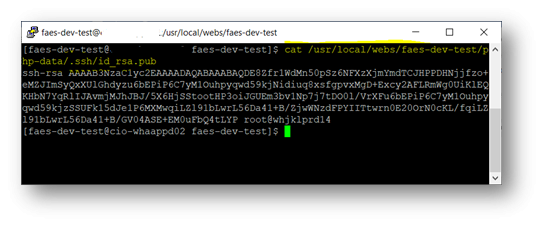
SSH into ssh://webssh.osu.edu and copy your public key from /usr/local/webs/[SiteID]/php-data/.ssh/
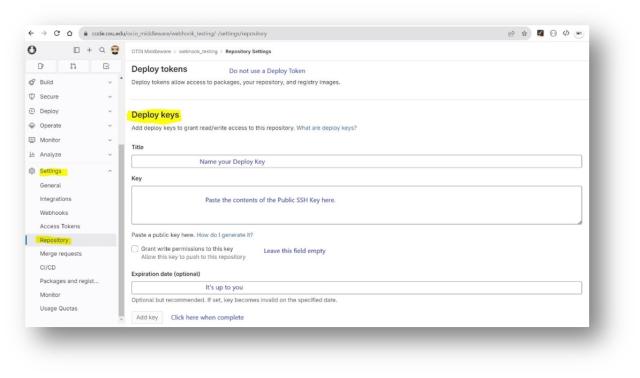
Configure a Deploy Key in the ‘Settings’ > ‘Repository’ section of your UCR Project using the Public SSH key in the previous step.
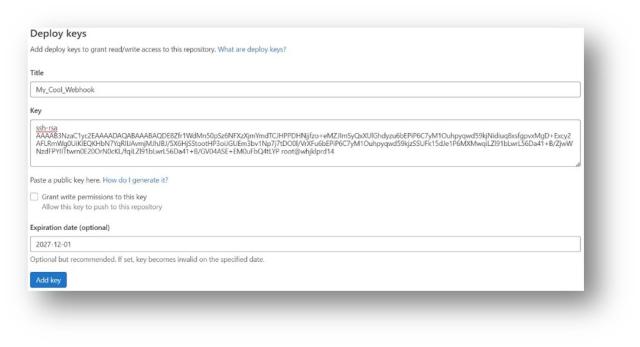
The Result...
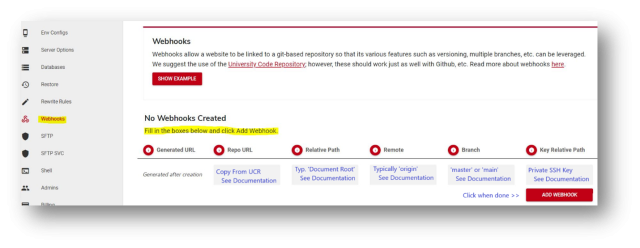
Login to your Dashboard at OTDI Web Hosting. Create a Webhook Receiver in the ‘Webhook URL’ section and Generate a URL. See the Definitions section above for an explanation of each field.
The Result...

Make a Webhook in the ‘Settings’ => ‘Repository’ section your UCR Project using the ‘Generated URL’ from the previous step.
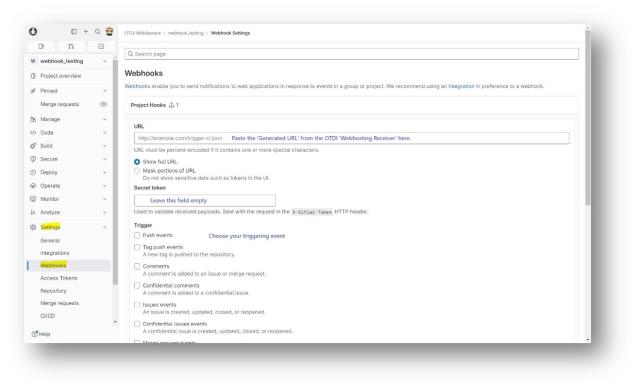
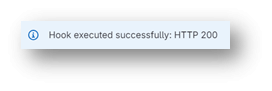
Test the Webhook using the trigger you defined. You should receive an HTTP result code of 200.
Okay, I understand it all, just remind me of the steps
- Create the UCR Project
- SSH into ssh://webssh.osu.edu and copy the public SSH key.
- Configure a Deploy Key in the ‘Settings’ > ‘Repository’ section of your UCR Project using the Public SSH key.
- Login to your OTDI Web Hosting Dashboard. Create a Webhook Receiver & Generate a URL.
- Create a UCR Project Webhook using the Generated URL.
- Test the Webhook.
As always, if you need help with this process, don’t hesitate to ask.