PaperCut is a print management solution for OTDI-managed devices.
The client application required for this service will be installed on your endpoint by default. If there is no icon for Papercut in your taskbar, please contact the IT Service Desk to have them investigate why and to install the application.
Managing Your Print Shares
Follow the instructions to request access to a print share.
View Your Assigned Printers
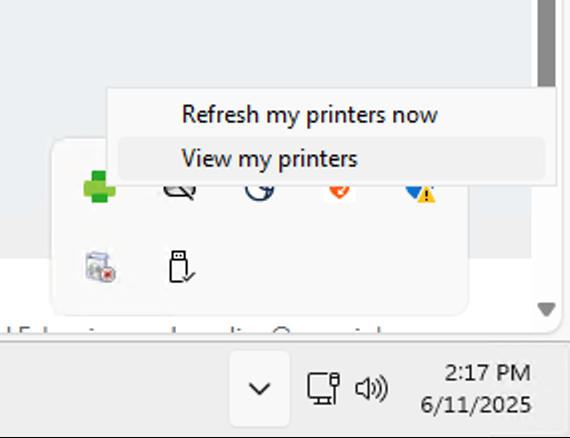
To view your assigned printers, look in the system tray / menu bar of the device for an icon representing PaperCut Printing. Click on the icon and select "View my printers".
Windows Users
Mac Users
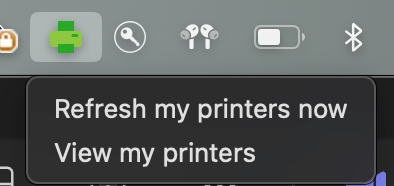
Note: For Mac users, unlike your previous process in Jamf’s self-service application, your printer queues will now be handled the same automated way as Windows users. For a print queue to be deployed to your Mac, your user account needs to be a member of the queue’s access group by completing the form in Managing Your Print Shares.
Troubleshooting
All printers are assigned to a user account after they have requested access using the information in Managing Your Print Shares. There are no optional printers available at the time this page was published so the "Add printers" feature will not have anything available to select.
After completing the Print Share request form, you should not need to reboot or log back into your system for the printer queue to appear. If the printer queue does not install automatically after a few minutes you will need to contact the IT Service Desk.