DocuSign can generate a CSV specific to the template you are working with to ensure the entered data maps to the desired fields in the envelope. This job aid provides the steps to create CSV spreadsheets specific to the template that you are working with for use with the Bulk Send process. If you are not familiar with how to create a Template or how to add Fields to a template please refer to the Create Template and Fields job aids.
Expand each accordion section below to learn about components in the CSV spreadsheet and DocuSign template.
1. Template
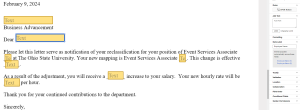
You should only attempt to create a CSV after the template is fully created and all necessary data fields are added. Please review this sample template and note the recipients and the data fields.

2. Generate a Bulk Send CSV
Click the Download CSV Template link that appears in the Import Bulk List pop-up window. This action will generate a Bulk Send CSV.
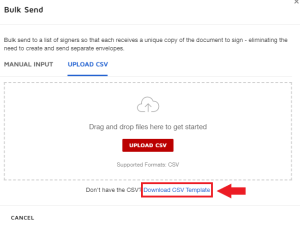
Click the Download CSV Template link that appears in the Import Bulk List pop-up window. This action will generate a Bulk Send CSV.
3. Column Headings
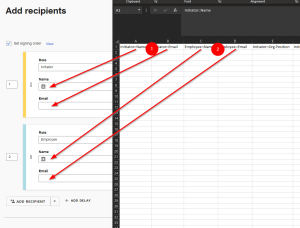
Open the spreadsheet and view the columns and headers. The column headings fall into two categories, recipient's columns and the data fields columns.
4. Data Label and Column Headings
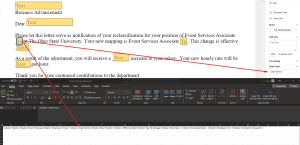
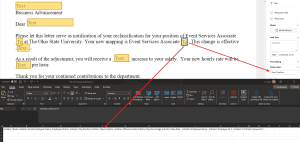
In the image below, the text box placed on the template where data will be populated by the CSV, with its attributes displayed on the right side.
5. Populating CSV Spreadsheet
- Enter information into each data label for each role in your workflow.
- Continue entering information until complete.
- Save the CSV file.

Important Information
When populating Employee ID data to a CSV, please be mindful that the CSV columns are formatted to "Text" so that leading zeros for the Employee ID are not truncated.