Templates should be created when your area identifies the need for a template for a commonly-used form. If the form is not owned by your area, you should contact the area that owns it to request that they create a template. This prevents duplication and ensures that the most up-to-date form is used.
If your area owns the form, then you can create a template from it.
All documents must be accessible to users with disabilities before they are uploaded. For more information about creating accessible documents, contact your area’s accessibility coordinator or take accessibility skills training.
- Start a new template.
- Click the Templates link to open the Templates page.
Click the New button
.
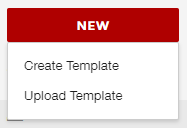
Click Create Template.
Upload an accessible form.
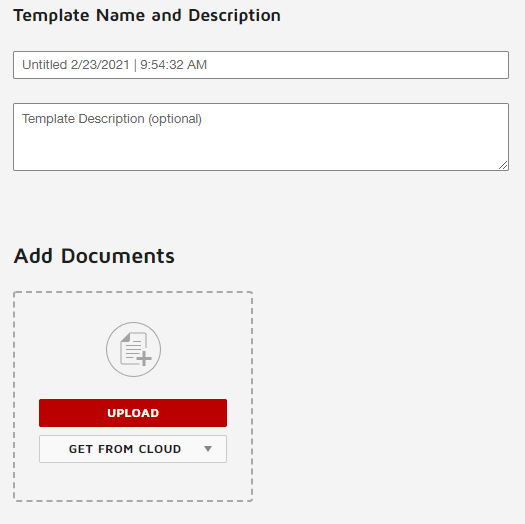
- Type a name, using your area’s naming conventions.
- Type a description that will help others understand how and when to use the form.
- Click the Upload button and select and upload a form.
Add recipients.
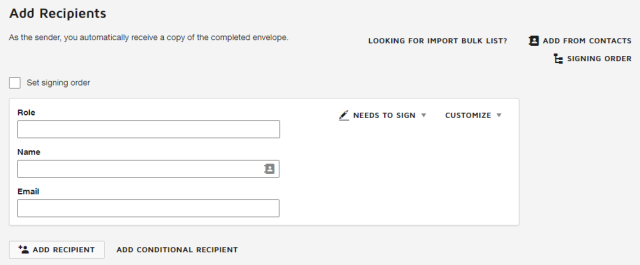
- Check the Set signing order checkbox, if needed, to determine in which order recipients should sign by changing the numbers in the boxes next to each recipient.
- Type the Role for each recipient, such as Employee, Approver, and Employee’s Manager.
- Type a Name and Email, if needed, to include a specific person as a recipient.
- Click the Needs to Sign dropdown menu to change the recipient’s action, if needed.
Click the Customize dropdown menu to select an authentication method, if needed.
Click the Add Recipient button
to add additional recipients.
Edit the email message.
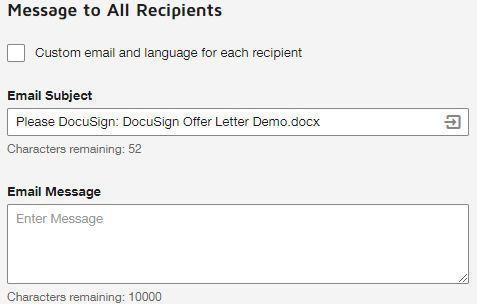
- Check the Custom email and language for each recipient checkbox, if needed to create an email for each recipient.
Type the Email Subject.
- Type the Email Message.
Select Advanced Options by clicking the Advanced Options button
.
Select Recipient Privileges.
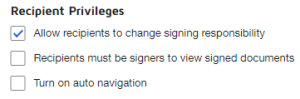
- Uncheck the Allow recipients to change signing responsibility checkbox, so recipients cannot change how documents should be signed.
Check the Recipients must be signers to view signed documents checkbox to allow only those who are required to sign a document to see it.
Check the Turn on auto navigation checkbox to automatically move a recipient through a document, only stopping where their input is needed.
Select Reminders.
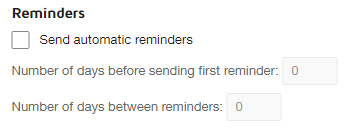
Check the Send automatic reminders checkbox, if needed.
- Type a number in Number of days before sending first reminder field.
- Type a number in Number of days between reminders field.
Select Expiration options.

- Type a number in Number of days before request expires field.
- Type a number in Number of days in which to warn signers before expiration field.
Create a Password.
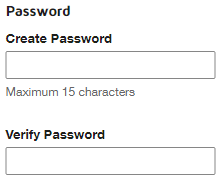
- Type a password in the Create Password field to prevent changes being made to your template by other authors or senders.
- Re-type the password in the Verify Password field.
Select Template Modification options.
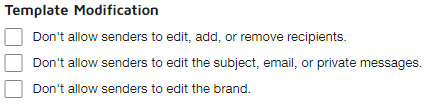
- Uncheck the Don’t allow senders to edit, add, or remove recipients checkbox to prevent problems for senders.
- Uncheck the Don’t allow senders to edit the subject, email, or private messages checkbox to prevent problems for senders.
- Check the Don’t allow senders to edit the brand, if needed.
Click the Next button

.
Add fields to the template for each recipient.
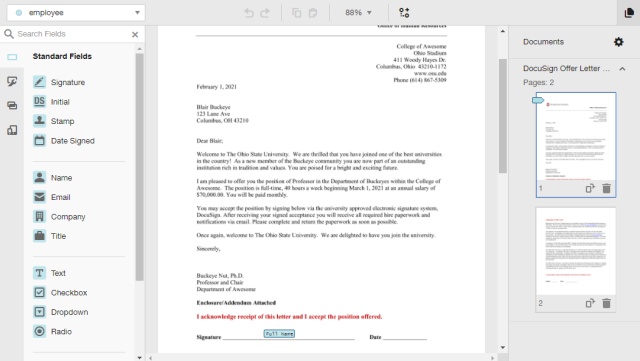
Select the correct recipient from the recipients dropdown list.
Drag and drop fields from the fields area to the correct place in the document.
When you have added all of the fields required for each recipient, click the Save and Close button
to save the template.
- Share the template.