The Fields Page
The Fields page is where you add fields to your uploaded accessible document to provide areas for senders to customize documents and for signers to add required information and sign the document.
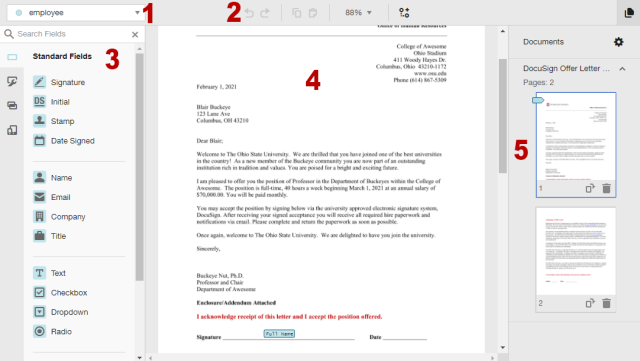
1. Recipients
The recipients dropdown lists all recipients who have a signing role. The fields you add will be color-coded to match the recipient. Be sure to select the correct recipient when you add fields to your template.
2. Controls
The controls area contains undo and redo buttons, as well as copy, paste and zoom.
3. Fields
These are the most common types of fields added to documents. To add fields to the document, drag and drop a field onto the document in the correct place.
4. Document
The document you are currently adding fields to.
5. Page Guide
A scrolling list of all the pages in your template.
Commonly-Used Fields
For additional information about field types, visit DocuSign Help.
Signature
The recipient’s signature. The field automatically populates with the recipient’s signature.
Initial
The recipient’s initials. The field automatically populates with the recipient’s initials.
Date Signed
This field is automatically filled in with the current date.
Text
This is a free text field for data. Change settings in the field properties.
Name
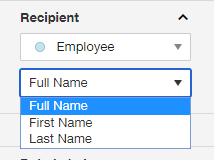
The name field supports three formats: First Name, Last Name, or Full Name. Change the format in the field properties. The field automatically populates with the recipient’s name as you entered it when you added the recipient.
Company
This field automatically populates with the recipient’s company name from their preferences. If they do not have a company name specified, they can fill it in.
Title
This field automatically populates with the recipient’s title from their preferences. If they do not have a title specified, they can fill it in.
This field automatically populates with the recipient’s email address as you entered it when you added the recipient.
Checkbox
This is a checkbox for recipients to select one or more options. You can add a single box or a group of multiple boxes. Change settings in the field properties.
Radio Buttons
Radio buttons provide options from which recipients can select only one response. Radio buttons are placed as a group. Change settings in the field properties.
Dropdown
This field provides a drop down list of options to select a single option. Change settings in the field properties.
Attachment
The Attachment field allows you to request additional documentation from a recipient. When they complete the document, the attachment is added to the final document.
Note
The Note field is a free text field that you can use to enter additional information to your recipients. You can add a Note for an individual recipient and the text that you enter appears only while signing.
Approve
The Approve field offers an alternative to a required Signature or Initial field for recipients to approve your documents. Change settings in the field properties.
Decline
The Decline field works the same way as the signing option Decline to Sign. If the recipient clicks the Decline tag during signing, any remaining fields on the documents are skipped, and he is prompted to provide a reason for declining. Change settings in the field properties.
Formula
This calculated field dynamically calculates a result based on recipient-entered values in other fields. Change settings in the field properties.
Field Properties
The options pane is where the options for each field you add to your document can be changed. You can set options such as if a field is required; the size and font of the field; and the options for a drop down menu. Options will be different for each field type.
For additional information about field properties, visit DocuSign Help.
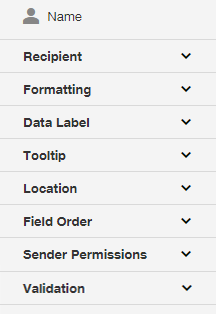
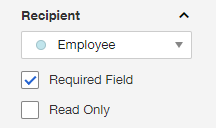
Recipient
You can select the recipient who must fill out this field, as well as if this field is required or read only. Some fields, like name, can be further customized, such as full name, first name, or last name. Check Read Only if the recipient should not be able to change this field. It is often used when the sender will pre-fill certain data before sending documents.
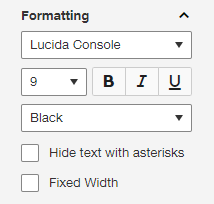
Formatting
Change how the data looks when typed by the recipient. Check the Hide text with asterisks box if you are asking the recipient to add restricted data to the document. This will hide the information on the form, including the printed form, and the data is only available in the document’s data file. Ask how your area handles restricted data before including it in a form.
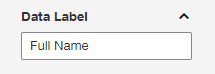
Data Label
Often changed to be the same as the label on the form, this information is invisible to users. It will be read out loud by screen readers before the tooltip, and is required for accessibility purposes. If you set the data labels for different fields to be exactly the same, when the recipient fills out the first field, it will be automatically filled in other fields with the same data label.
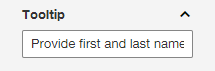
Tooltip
Provide instructions or information about the field that will appear when a recipient hovers over the field. It will be read out loud by screenreaders after the data label, and is required for accessibility purposes.
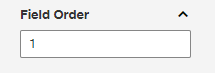
Field Order
It is a best practice to add fields to your template in the logical order that they will be used by recipients. If you need to change the order, do so here.
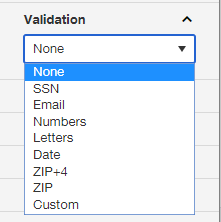
Validation
Restrict the type of data that can be added by recipients.
Field Accessibility
Each field added to a document must be made accessible to users with disabilities when it is added to your template. This is done primarily by changing the data label and the tooltip.
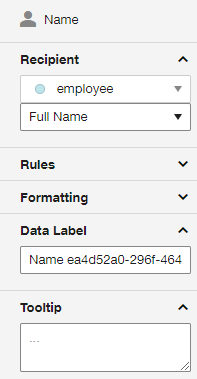
Data Label
Often changed to be the same as the label on the form, the data label information is invisible to users, but is read aloud by a screen reader before the tooltip. It is required for accessibility.
Tooltip
The tooltip for a field provides instructions or information about the field that will appear when a recipient hovers over the field, and is read aloud by a screen reader after the data label. It is required for accessibility.
Help With Accessibility
If you need assistance with making fields accessible, contact the eSignature team at esignature@osu.edu.