This job aid provides the steps to perform a Bulk Send within the DocuSign web client.
What is Bulk Send?
Bulk sending is the ability to create and send many DocuSign envelopes at once using routing info and data populated from a CSV spreadsheet. Bulk sending works with any number of recipients in your template signing order. Each recipient in your workflow can also vary between envelopes in the same bulk send.
When is it Useful?
Bulk sending is useful when:
- Issuing many documents at once for signature from many parties.
- Sending forms to a group of employees or participants, such as performance reviews or policy acknowledgments.
If your template contains data fields, such as text boxes, checkboxes, or radio buttons, those fields can be populated with data entered in the bulk send spreadsheet.
Requirements
To perform a Bulk Send, you will need to have either the eSignature Sender or eSignature Author permission. If you need to obtain permission, please see the Request an eSignature Role job aid.
If you have any questions regarding this process, please send an email to esignature@osu.edu for help.
Select Template
- Log into eSignature.
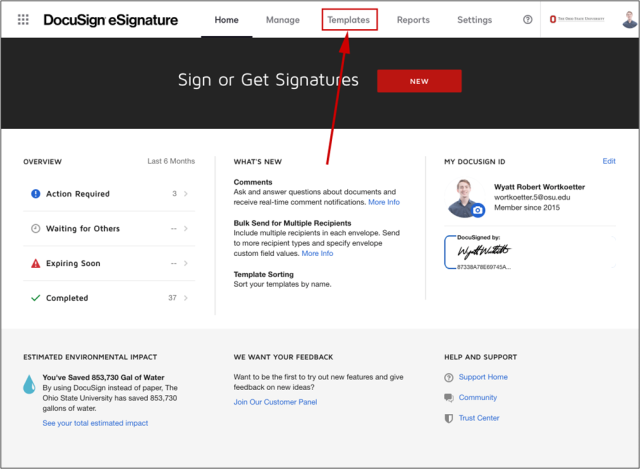
Select the Templates tab within DocuSign.
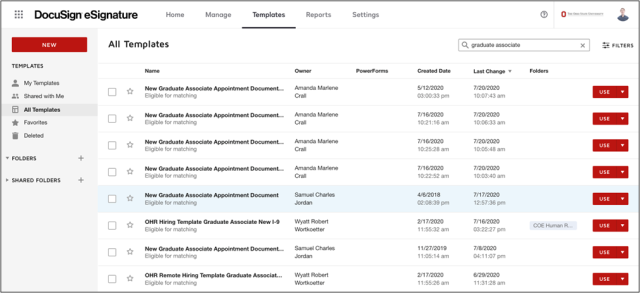
Select the template you want to use by checking the checkbox to the left of the template.
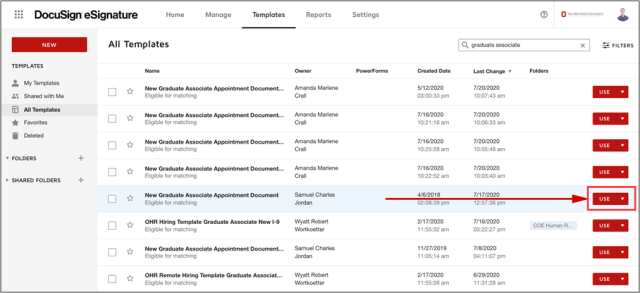
Click the Use button.
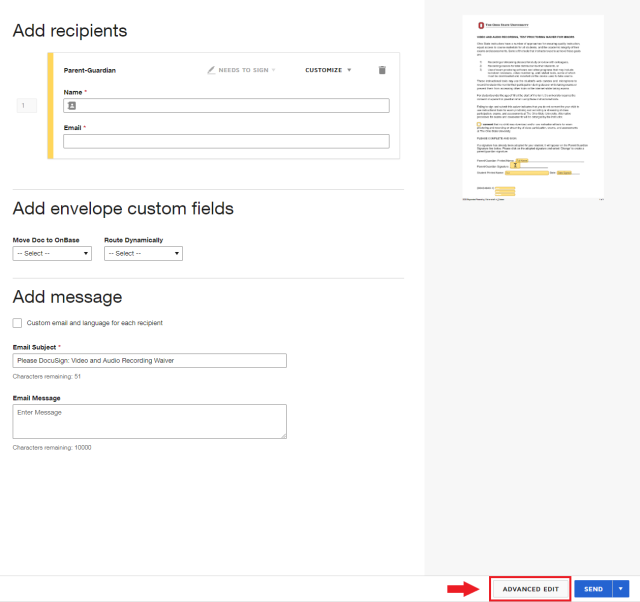
Click the Advanced Edit button.
Helpful Note
There are four areas you can adjust to build out your export. Again we highly encourage you to keep the export data sample small until you get familiar with how the filters function.
- Type: Allow you to select envelopes, powerforms, or both.
- Filters: Allow you to export fine tune what to be included in the export. Please visit Envelope Filters for more details on filters.
- Status: Allow you to export envelope with your define status.
- Date Range: Allow you to export based on the specific date range.
- Include received envelopes (optional): If you select this, this will include envelopes the you have signed.
Please visit Select Envelopes for an Export for detailed explanation on this page configuration.
Import Bulk List
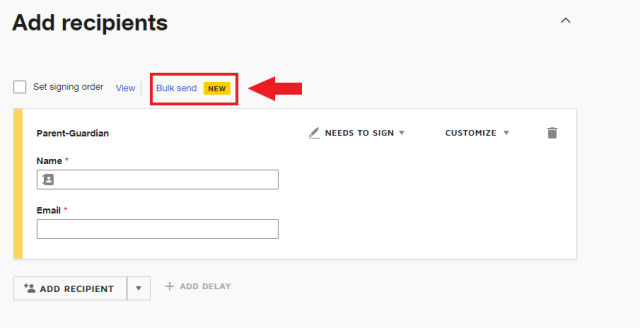
- Click Import Bulk List to begin the bulk send process.
Helpful Note
If you only wish to export the envelope without the metadata associated with the envelopes, you could exclude the CSV file by unchecking the "Include the CSV file". However, the metadata will come in handy if you wish to store your exported envelopes in a repository (e.g. OnBase) for indexing purposes.
Please visit Format the Index File for detail explanation on how to configure this page.
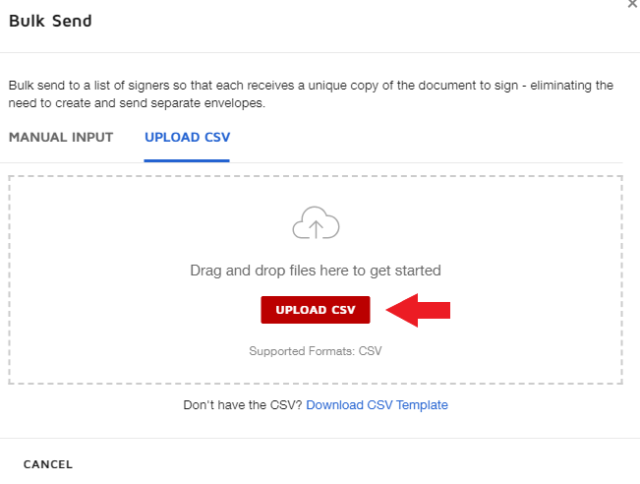
Click Upload CSV.
Select the CSV and upload it to DocuSign.
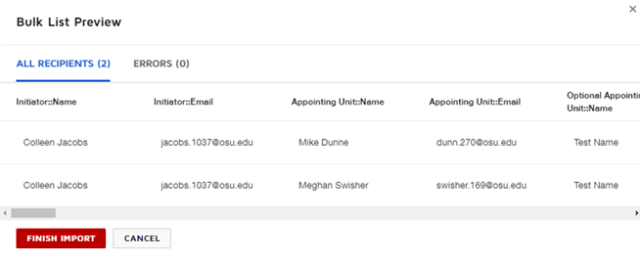
- Review recipients and check for errors.
Click Finish Import to import your data in the envelope.
Helpful Note
Name by default for the file name will be the Email Subject. If you wish to customize the file name, please select Custom File Name in the dropdown (visit the link below for more information). For file Format, we recommend using the Combined PDF for each envelope. We also recommend checking the "Include certificates of completion" options, which provide the audit trail for each envelope.
Please visit Choose Location for an Export for detail explanation on how to configure this page.
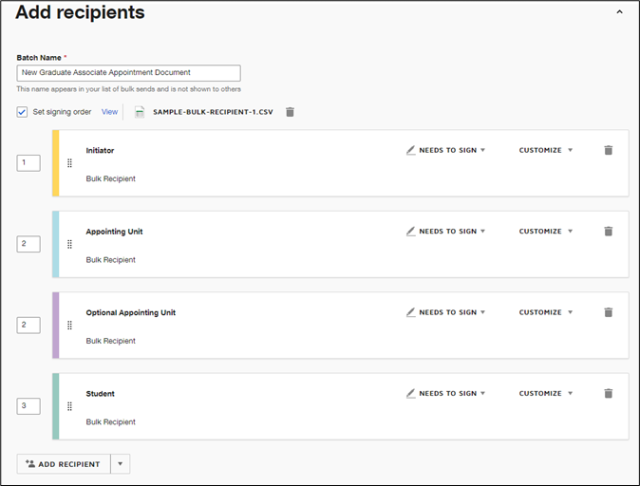
- Click the red Next button in the top-right corner of the screen.
- Click the Send button in the same location on the following page.
Helpful Note
Bulk Send runs on a different timer than individually sent envelopes. As such, they may take a few minutes to populate in your sent box. Keep refreshing the page and they will appear.