There are some situations where a session roster needs to be moved from one event session to a new event session, such as when a session has been created under the wrong event or when the session is needed for a new topic.
For help with moving a session roster to another session of the same event, review the Move Roster from One Session to Another Session of the Same Event job aid.
- Open the roster you want to move to a new event.
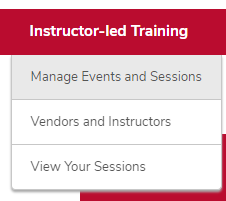
- Hover over the ILT tab.
Click Manage Events & Sessions.
Click the Sessions icon on the same line as your event.

Click the View Roster icon on the same line as your session.

Save the sign-in sheet by clicking the Print Sign-In Sheet link and saving the Excel file.

Bulk upload the learners to the new session.
- Remove learners from the original session.
- Cancel the session, if needed.