You may need to remove learners from rosters when they are unable to withdraw from a session on their own. For additional information visit Cornerstone's online help.
You can remove users individually or in bulk.
- Open the Roster page where you want to remove learners.
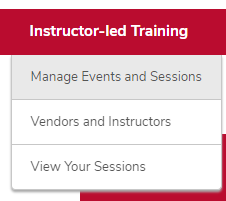
- Hover over the ILT tab.
Click Manage Events & Sessions.
Click the View Sessions button on the same line as your event.

Click the Roster button on the same line as your session.

- Remove learners individually or in bulk.
Remove Learners Individually
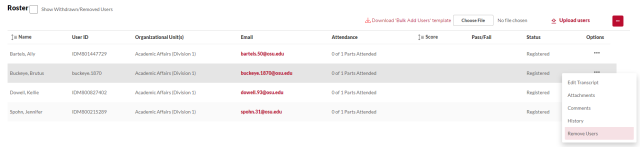
- On the row of the correct learner, click the Actions icon under Options, then click Remove Users.
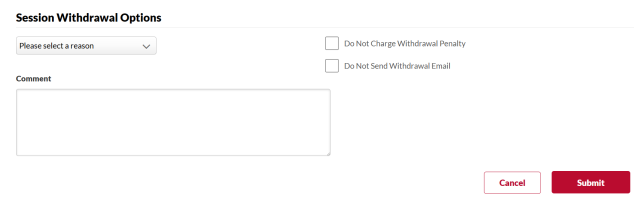
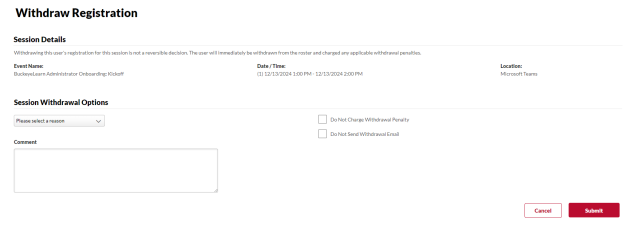
- Select a reason for the removal, and add comments, if desired.
Click the Submit button.
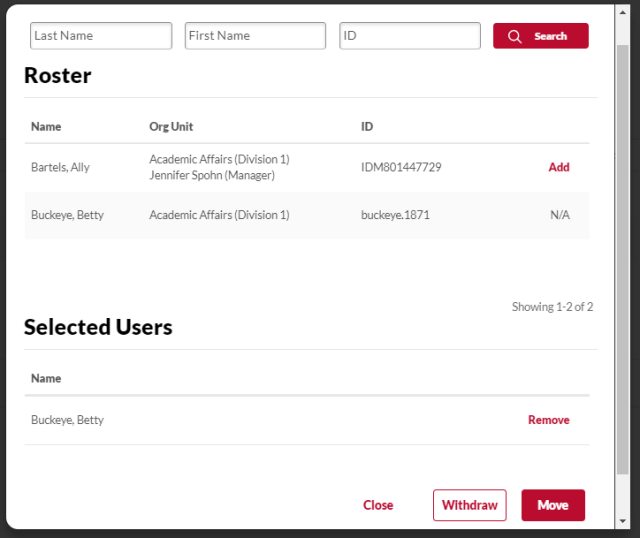
Click the Actions icon in the Users section, then click Withdraw/Move Users.

- Click the Add button next to each learner you want to withdraw.
Click the Withdraw button.
- Select a withdrawal reason from the drop-down menu.
- Type a comment, if needed.
- Check the Do Not Send Withdrawal Email box to not send an email to learners, if needed.
Click the Submit button.