Cancel a Session

Cancel a session when needed. Learners will receive an automatic email letting them know the session is canceled.

  1.  Open the session you want to cancel.
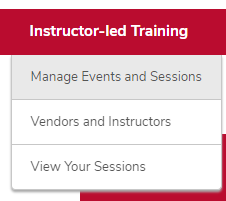
    1. Hover over the ILT tab.
    2. Click Manage Events & Sessions. 

      The ILT menu expanded with the Manage Events & Sessions option circled
    3. Click the View Sessions button on the same line as your event. 

      The Manage Events & Session page with the sessions link circled
    4. Click the Action icon on the same line as your session, then click Cancel Session. 
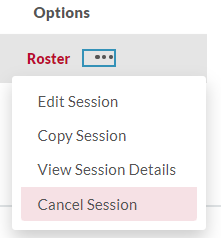
      options menu with the cancel session option circled
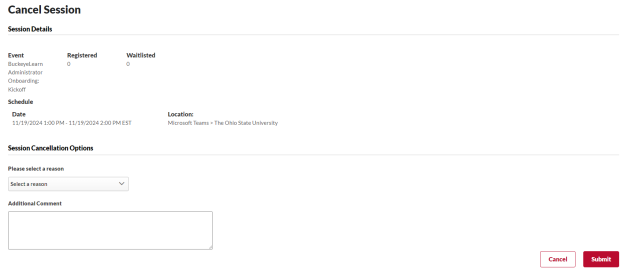
  2. Cancel the session.  

    the session cancellation page
    1. Select a cancel reason from the drop-down menu.
    2. Type a comment, if needed.
    3. Click the Submit button 

      submit button

      .


Helpful Note:

Learners will have the canceled session on their roster with a Withdrawn status. It will be automatically moved to their archived transcript after three days.