Create a Standard Learning Assignment
Standard learning assignments are run once for a defined group of learners, such as a group of employees who need to take a new online course.
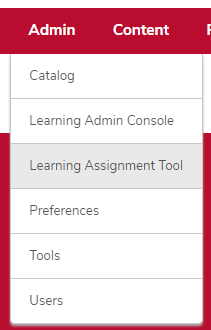
Navigate to the Manage Learning Assignment page.
- Hover over the Admin tab.
- Click Learning Assignment Tool.
Click the Create Assignment button
.
Click the Standard radio button.
Type the Assignment Title and Type the Assignment Description.
Helpful Note:
Titles can be searched, though descriptions cannot. Include enough information in titles and descriptions that others reviewing the information will understand the purpose of the learning assignment.
Select the Training.
Helpful Note:
You can select more than one or more learning objects. Be sure that you are selecting the correct training by verifying the training title and the type of learning object. You can select any learning object in BuckeyeLearn, even if you don’t own it or it is not available to your learners. If you do not own the learning object you are assigning, you must contact the owner before you assign it.
Check the Add comment to appear in the Transcript History section for each selected training checkbox and type a comment.
Helpful Note:
It is a best practice to add a comment that will appear on the learner’s transcript explaining the reason for the assignment and who learners should contact with questions. This can help with troubleshooting later, as well as letting learners know why and at whose request a specific training was assigned.
Click the Next button

to continue to the next page.
Select the Training Assignment Workflow.
Helpful Note:
In most cases, you will select assigned, approved, and registered to allow learners to immediately complete training without any additional approval or other steps.
Select the Prerequisite Options.
Helpful Note:
If a selected training has a prerequisite, you can turn on the enforce prerequisites option. If you do not turn on this option, learners will be able to complete the training without completing any required prerequisites. If you do not own the training you are assigning, you must discuss this option with the owner before assigning it.
Select the Email Settings.
Critical Note:
Review the Learning Assignment Email Settings job aid for detailed information about selecting the correct email settings for your learning assignment. The most commonly selected option is Training Specific Emails with neither of the two sub-options selected.
Click the Next button
to continue to the next page.
- Select the Processing Start Date.
Select the Training Start Date.
Helpful Note:
This option is only available for non-ILT training.
- Select the Training Due Date, if applicable.
Click the Next button
to continue to the next page.
Select or upload users.
Helpful Note:
To upload a list of users, provide a CSV file containing one of the following identifiers for each user: lastname.#, OSU lastname.# email address, or IDM number. Each CSV file can include a maximum of 2,000 users; if needed, multiple CSV files can be uploaded to include additional users.
Turn on the Assign New Occurrence option, if desired.
Helpful Note:
Turn the Assign New occurrence option on if you want learner to retake the assigned training, even if they already have it on their transcript. You can decide to only reassign the training to those who have completed it, allow learners in progress to maintain their progress, or to override any previous due dates.
Click the Generate Initial User List button to confirm the user list.
Helpful Note:
It is a best practice to click the Generate Initial User List button to show the learners who will be assigned the training each time you make a change to the user assignment criteria. You can include or exclude individual learners from the assignment as needed by checking or unchecking their box. You can also view information about the number of times the training has appeared on the learner’s transcript and the current transcript status. Training that has been removed from a learner’s transcript will be included in this count and is not noted that it was removed.
Click the Next button
to continue to the next page.
Helpful Note:
You may receive warnings when creating your learning assignment. Review the Learning Assignment Warnings job aid for more information.
- Confirm the learning assignment selections.
Click the Submit button

to submit the learning assignment.
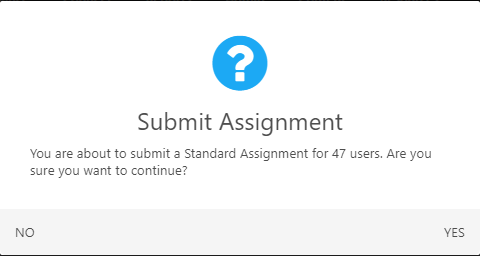
Click the Yes link to confirm the submission.