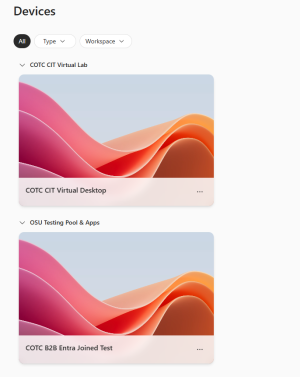
The web portal is one of the fastest and easiest ways to access the university’s virtual desktop service. Web access requires no installation and will work immediately inside any HTML5 compatible browser. It is great for temporary work or on a locked down machine where you can’t install or access software.
There are limitations to video, audio and clipboard use with the web portal. It is recommended to use the Windows App if a robust environment is needed or if regular virtual desktop use is required. See Installing the Client for details.
To Log in on the Web
Start by visiting the university's Virtual Desktop web portal.
Enter your Ohio State Username and password into the Windows log in screen. If you have connected to a Windows application previously you may just need to choose your OSU account.
Ohio State University Accounts:
Important Information
You MUST remember to log off at the end of EVERY session using the large Sign Off button or app located in the virtual environment you are using. It will look like this:

The Virtual Desktop environment consists of a navigation panel on the left that can be used to move between deployed applications and devices. By default, the devices screen should be displayed. On the devices screen any devices the connected user has access to will be available.
Choose the device or the application to open and click Connect.
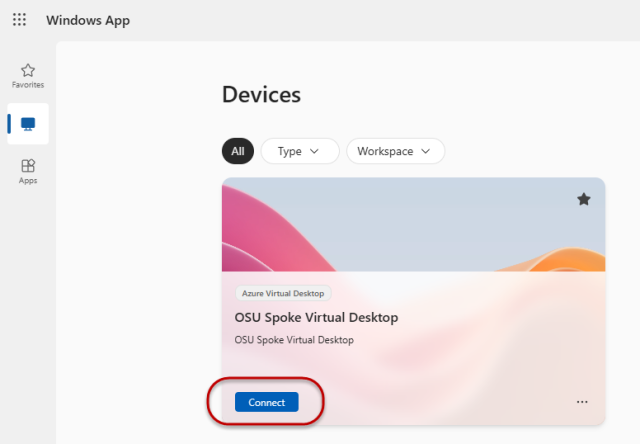
Clicking Apps will bring the user to any applications that have been provided to them. This is different than an entire desktop interface as it only provides access to a specific application. Please see Using a Virtual Desktop or Application for more details.
Log In as an External Identity
Start by visiting the university's Virtual Desktop web portal.
Enter the username and password that was provided for the External Identity in the Microsoft login screen. The username will be the email address provided for the account. Medical Center users would use their medical center email address, COTC students would use their COTC email address, etc. Select Next.
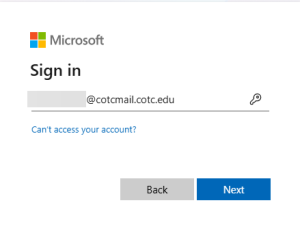
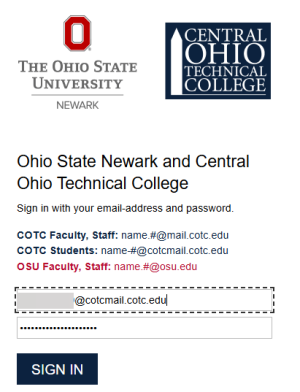
The next screen will be Ohio State and the external identity member’s branded login screen. In this example, a member of COTC is accessing a virtual desktop at the Ohio State University campus. Enter the email address again and the associated password.
BuckeyePass multifactor authentication will also need to be completed before a virtual connection can be made. Please see BuckeyePass for further information.
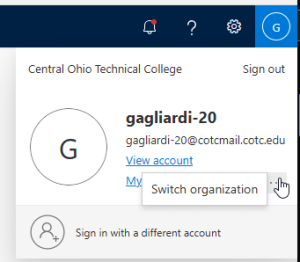
Once the connection is successful an error message may be displayed on the screen. This is telling the user that there are no resources assigned. The organization will need to be changed to The Ohio State University to access the resources. Select the profile icon in the upper right-hand corner to open the action menu. Select the ellipse button and choose Switch organization.
In the Organizations window select The Ohio State University.
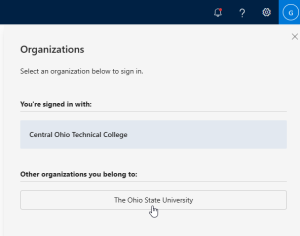
Once the switch is complete the Devices screen will update to show the resources available to the logged in user.