Once the authentication process is complete either a Virtual Desktop or a Virtual Application can be launched.
Using a Virtual Desktop
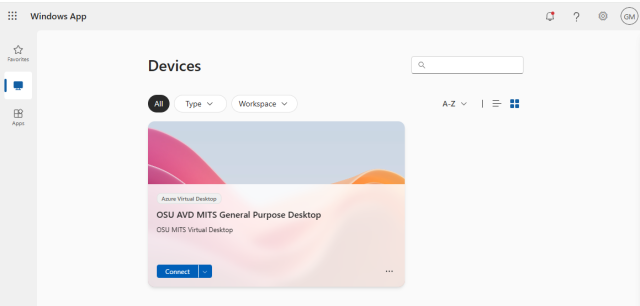
Once authenticated choose the Virtual Desktop to connect to and click Connect and wait for the interface to load. The Virtual Desktop(s) available are the ones that have been provided to your account.
If you are working in the web interface, then the virtual desktop will open in a new tab and you will need to keep track of where the tabs are located. It is recommended not to have to too many tabs open. There will be a sequence of screens that appear
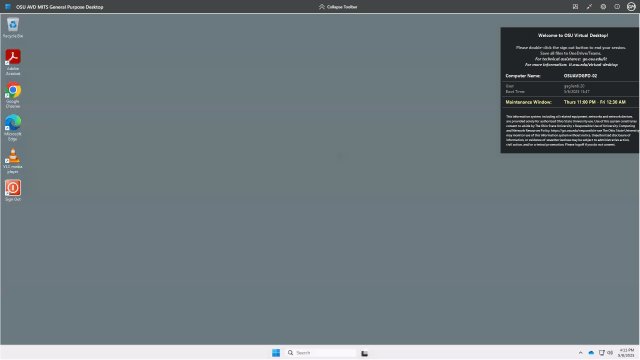
Once the virtual desktop is open it can be used as any other desktop. Applications that are part of the virtual desktop can be opened and used. The environment can be controlled using the toolbar at the top of the screen.
Important Information
External Identities will take an extra step before being able to access Microsoft Resources. Please see Using Virtual Desktop as an External Identity for details.
You MUST remember to log off at the end of EVERY session using the large Sign Off button or app located in the virtual environment you are using. It will look like this:

External Identity Information
External Identities will take an extra step before being able to access Microsoft Resources. Please see Using Virtual Desktop as an External Identity for details.
Using a Virtual Application
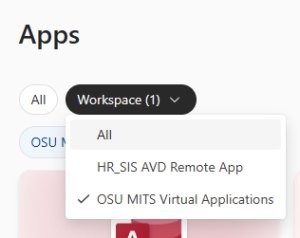
Clicking Apps on the left hand side of the screen will show any Virtual Applications that are accessible. A Virtual Application is an option available to departments when someone only needs access to a specific application and not necessarily an entire virtual desktop. The apps that are available to you are in something called a Workspace. The Workspace you are looking at can be changed. Your devices, applications and workspaces available are all controlled by your department.
To launch an application double click the appropriate application and wait for it to open. It will open in a separate window and will only contain the specific application. The first time the application is launched it will take some time to open, additionally you may be asked questions depending on the application. In this example MS Project is the virtual application being opened and the prompt is asking about Microsoft 365 themes to use. This will only happen the first time an application is opened.
Tools Available in the Virtual Environment
Whether a virtual desktop or application is being accessed the tools available for working in and controlling the environment are the same. Keyboard short cut keys will ONLY work when the virtual environment is in Full Screen mode.
Working with a virtual application the ability to open more than one does exist. Using the tool bar in the upper left hand corner you can:
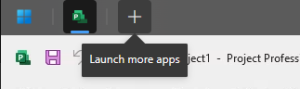
- Go back to the Virtual Desktop Windows App
- Select the current open app
- Launch more apps
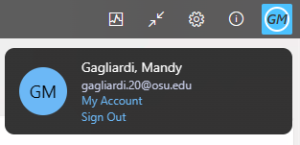
The upper right hand corner contains another toolbar that controls the virtual environment. The right side of the toolbar should display the initials of the account logged in

. Clicking the icon will open a panel providing information on the account signed in. From here, Sign Out is also an acceptable way to disconnect your session with the virtual desktop or the virtual application currently open.
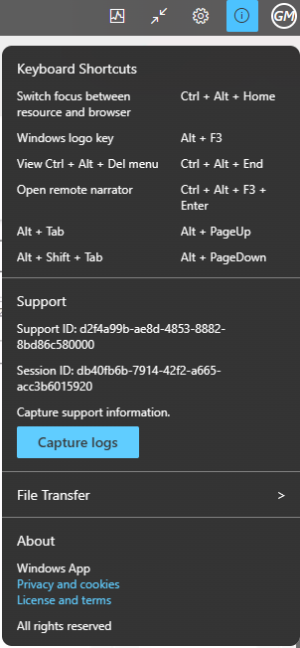
The information icon

provides information such as shortcut keys, file transfers, and support information such as log files.
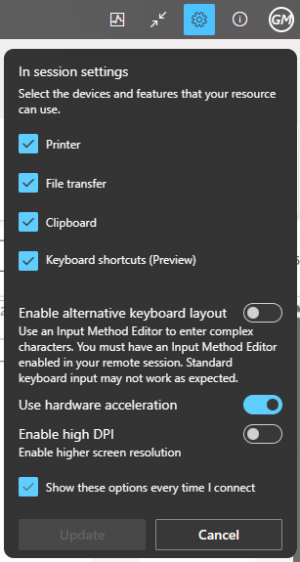
The gear icon is

In session settings. This allows for the selection of devices and features accessible to the session such as a local printer.
The arrows

exit full screen mode.
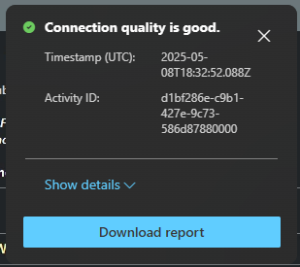
The image icon

provides information about the current connection such as connection quality.
You MUST remember to log off at the end of EVERY session using the large Sign Off button or app
located in the virtual environment you are using.