Once connected to a Virtual Desktop, External Identity members will use the desktop in the same manner as any native Ohio State user account can. Please see Using a Virtual Desktop for details. However, External Identity accounts may need to take extra steps to connect to OSU the first time and then access their own Microsoft 365 resources.
If the Windows App has been used previously you may have to reset the application to log in to the environment properly. If you need to reset the Windows Application, it can be done by following the instructions found at Resetting an App. Not all users will need to reset, but if you cannot connect, this is a first good troubleshooting step.
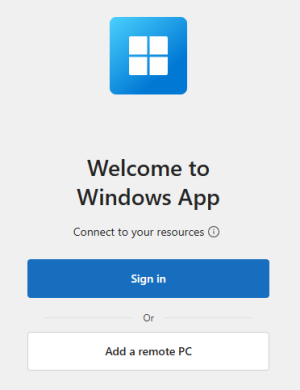
When the Windows App opens select Sign In.
Important Information
You MUST remember to log off at the end of EVERY session using the large Sign Off button or app located in the virtual environment you are using. It will look like this:

On the next screen you may need to select the Use another account option to find the Microsoft branded login screen.
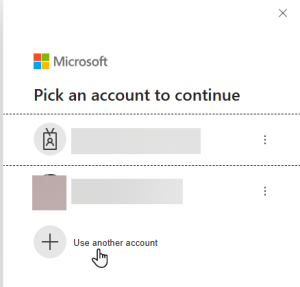
On the Microsoft branded login screen select Sign-in options at the bottom.
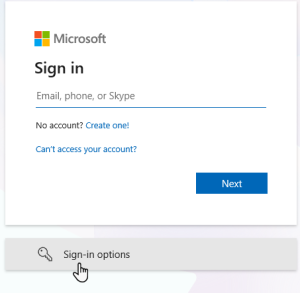
Select Sign in to an organization.
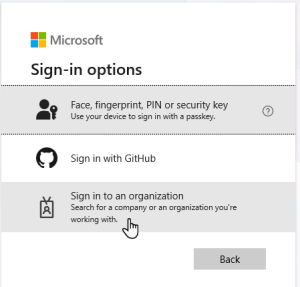
Here you will need to tell the application which Domain hosts the resources your external identity is trying to use. Enter osu.edu for the domain and select Next.
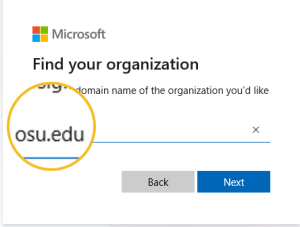
From here, log in following the normal login process using the email address and password of your External Identity account.
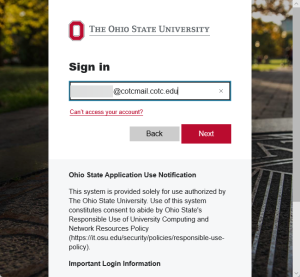
Do not forget that BuckeyePass multifactor authentication will need to be approved. Please see BuckeyePass for further information.
Once successfully logged in, the Ohio State University’s resources that are available should be displayed.
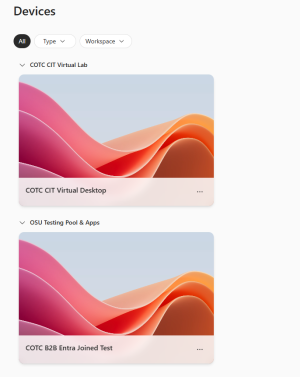
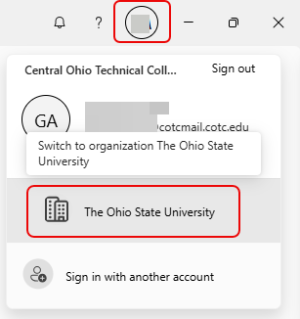
If the resources do not appear, select the profile icon in the upper right-hand corner to open the action menu. Select The Ohio State University.
Once connected to the virtual desktop, you will want to connect to the Microsoft 365 resources you use at your organization. Log in to a Microsoft application such as Word using your organization’s credentials. It is recommended to do Word first as it makes logging in to OneDrive a faster process. To log in to Word, open the Microsoft Word desktop application.
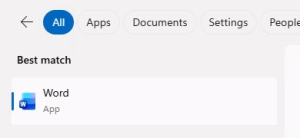
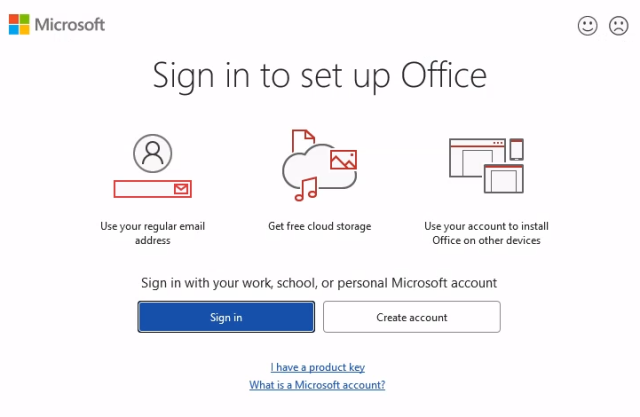
Be certain to log in using the correct credentials for your external identity account.
Once Word is logged in, open OneDrive and you will be prompted to Sign in.
Remember to walk through the entire login process, including the BuckeyePass multifactor prompts.
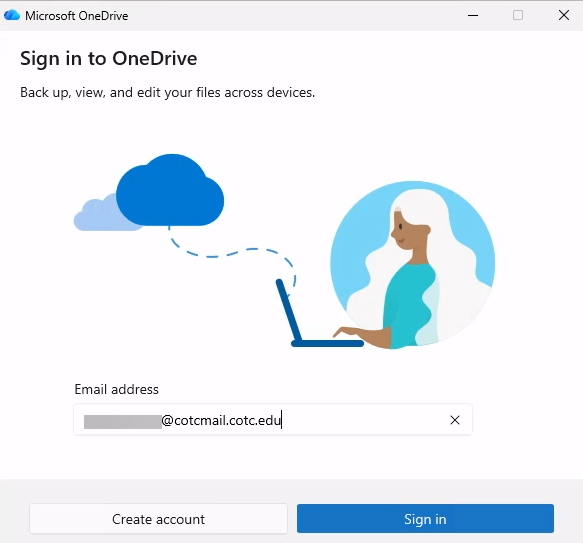
Once the log in is complete you will have access to your Microsoft 365 resources.
Using the Virtual Desktop or Application once connected, is done the same as a native Ohio State account. Please see Using a Virtual Desktop for complete details.