This job aid will explain how to assign training to your employees.
Before Assigning Training
Your Employees
BuckeyeLearn pulls data directly from Ohio State’s human resources system, Workday, to populate manager information in BuckeyeLearn. University and Medical Center manager relationships are managed in the same way. A manager can assign training to their employees and view their employees’ transcripts.
All employees that you can assign training to will be available when you assign training to them in BuckeyeLearn. For detailed information about viewing your employees in BuckeyeLearn and how to resolve any discrepancies with the Human Resources system, review the Manager/Employee Data in BuckeyeLearn job aid.
Communication
Before you assign training, you should always communicate with your employees, including why the training is being assigned and any due dates. In addition, you should also communicate with your area’s human resources professionals or other groups that assign training to prevent duplication and confusion for your employees.
Review Transcripts
Before you assign training, review your employee’s active and completed transcripts to ensure they have not already completed or been assigned the training.
If they have already completed the course and you want them to re-take it, talk to your employee and ask that they take it again from their completed transcript. If they have already been assigned the course (perhaps from a department-wide assignment), you do not need to re-assign the training.
The Assign Training Page
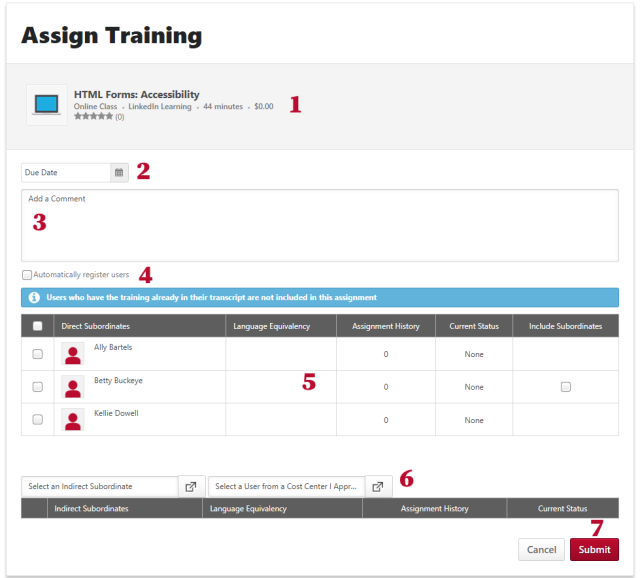
1. Training information
The training that is being assigned.
2. Due Date
Select a date the training should be completed, if necessary.
3. Comment
Add comments or instructions to your employee. This information will appear on your employees’ transcripts.
4. Automatically Register Users checkbox
Check this box to skip any approval process for this training.
5. Select direct subordinates
Check the box next to each employee you want to assign the training to.
If you want to include indirect employees, check the Include Subordinates checkbox. If no checkbox is visible, they do not have any indirect subordinates.
If a checkbox is greyed-out and not selectable, you cannot assign the training to the employee. The course may not be available to them based on criteria set by the course owner, or your employee may have already completed the course.
6. Select indirect subordinates
Check the Include Subordinates checkbox of the direct employee to include indirect employees in your training assignment.
If no indirect employees are visible in the indirect subordinates section at the bottom of the page, ensure that you have checked the Include Subordinates checkbox of their manager.
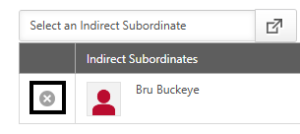
To exclude certain indirect employees, check the Include Subordinates checkbox of the direct employee, then click the X by the indirect employee you want to exclude in the indirect subordinates section.
7. Submit button
Click the Submit button to submit the training assignment.
Assign Training
- Search for training.
- Click the Assign button.
- Type a Due Date, if applicable.
- Type a Comment.
- Check the Automatically register users checkbox.
- Select employees.
Check the box next to each direct employee to whom you want to assign training.
Check the Include Subordinates checkbox for each direct employee to assign training to that employee's subordinates.
- Click the Submit button to complete the assignment.