Review how manager information is populated in BuckeyeLearn and how to correct issues.
Manager/Employee Data in BuckeyeLearn
BuckeyeLearn pulls data directly from Ohio State’s human resources system, Workday, to populate manager information in BuckeyeLearn. University and Medical Center manager relationships are managed in the same way. A manager can assign training to their employees and view their employees’ transcripts.
There are differences in how a Worker manager and a Contingent Worker/Academic Affiliate/Guest manager are populated.
Worker
BuckeyeLearn pulls the manager from Workday to populate the manager field. The manager field in BuckeyeLearn reflects what is present in Workday including any changes in reporting structure. For example, if an employee’s manager leaves the organization, the manager field in BuckeyeLearn will continue to match Workday, automatically rolling up to the next Superior Manager in the Workday Supervisory Organization Hierarchy.
View Your Employees in BuckeyeLearn
To view your employees in BuckeyeLearn,
- Log into BuckeyeLearn.
Click the Universal Profile icon in the upper right corner of the Home screen.

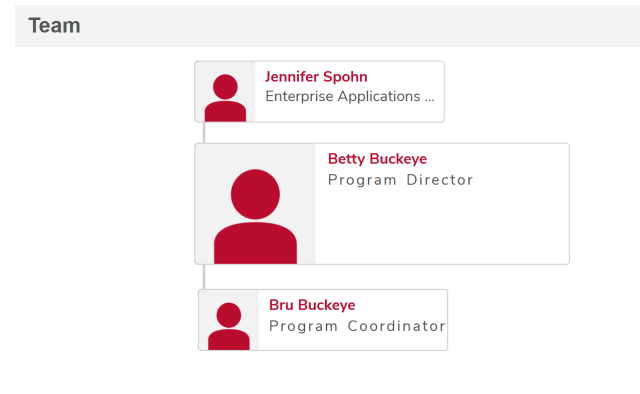
Your employees are listed at the bottom of the page in the Team section.
View Your Employees in Workday
To view your employees in Workday,
- Log in to Workday.
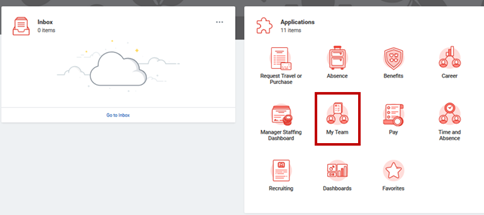
In the Applications menu on the homepage, select the My Team icon.
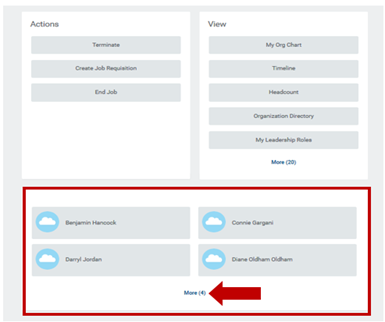
Employees who report to you are in the last box on the page.
Potential Issues
Employee Not in Team in BuckeyeLearn
If a you believe a person is missing from the Team area in BuckeyeLearn, you should verify that your direct reports are listed correctly in Workday.
If My Team in Workday matches the View Team area in BuckeyeLearn, but you still believe a person is missing, you should work with your HR contact to update your direct reports in Workday. After Workday is updated, the change will automatically update in BuckeyeLearn.
If My Team in Workday does not match the Team section in BuckeyeLearn, contact the IT Service Desk at 614-688-4357 or via Self Service to open a case to investigate the issue.
Employee Does Not Have Manager in BuckeyeLearn
If an employee does not have a manager in BuckeyeLearn, contact the IT Service Desk at 614-688-4357 or via Self Service to open a case to investigate the issue.
Contingent Worker/Academic Affiliate/Guest
BuckeyeLearn uses the listed OSU Guest Sponsor from the Identity Management (IDM) database to populate the Manager field for Contingent Workers, Academic Affiliates, and Medical Center Guests.
The OSU Guest Sponsor the Contingent Workers is located on the Summary page in Workday. Academic Affiliates will not have a manager listed in Workday; this value is only present in the IDM database.
Potential Issue
Contingent Worker/Academic Affiliate/Guest Does Not Have Manager in BuckeyeLearn
If a Contingent Worker/Academic Affiliate/Guest does not have a manager in BuckeyeLearn, contact the IT Service Desk at 614-688-4357 or via Self Service to open a case to investigate the issue.