This guide will explain how to view your employees' transcripts.
What is a Transcript?
In BuckeyeLearn, a transcript contains all of an employee’s training, including active, completed, and archived training.
Why Should I Review My Employees' Transcripts?
Reviewing your employees’ transcripts can help your decision-making when you
- Plan to assign training
- Evaluate performance
- Discuss professional development
View Transcripts
- Open your transcript.
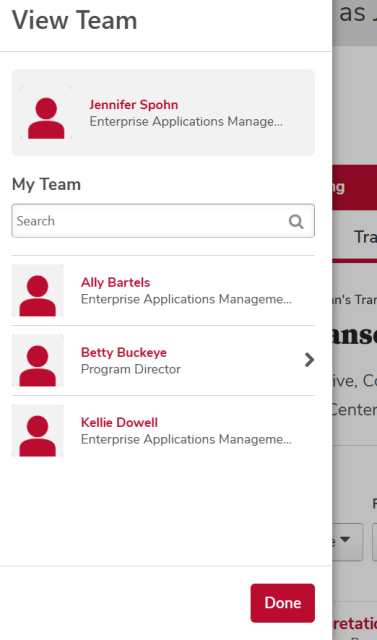
- Click the View Team button.
Click the name of the employee whose transcript you want to review.
Transcript Overview
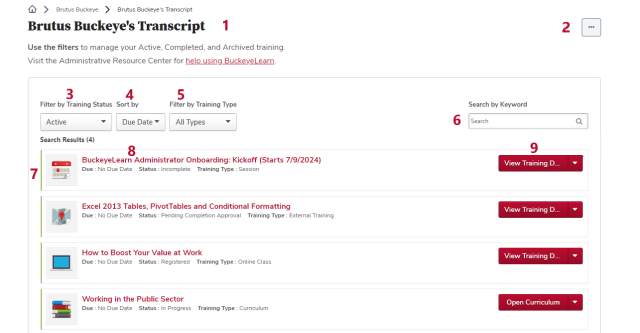
- The employee whose transcript you are reviewing.
- Use the options menu to report on training by your employee, either by exporting or printing the current transcript page, or by running the transcript report.
- Use this button to switch between the active, completed, and archived transcripts.
- Use this button to sort training by due date (the default), training type, date added, status, or title.
- Use this button to search for certain types of training, including all types of training (the default), curricula, materials, online classes, sessions, and videos.
- Search for training on the current transcript page.
- The type of training.
- The name of the training, as well as any due date, and the status. Click the course name to view the training details.
- Use this button to view the training details, as well as any certificates of completion or the curriculum progress view. If the button says “Inactive” the course has been inactivated by the course owner, but you can still review the training details or certificates.