In BuckeyeLearn, your transcript provides access to all training that you have registered for or been assigned. It also contains the details of your training and information on your completed and archived training. It is a good practice to check your transcript for new training each time you visit BuckeyeLearn.
View Your Assigned Training
To view your assigned training,
- Log into BuckeyeLearn.
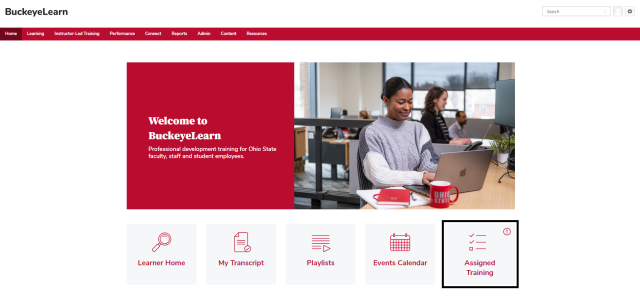
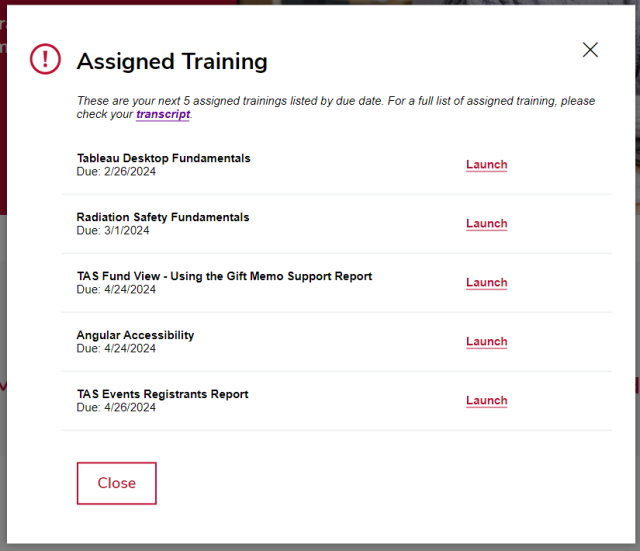
View your Assigned Training by clicking the Assigned Training button in the middle of the page.
Open Your Transcript
To open your transcript,
- Log into BuckeyeLearn.
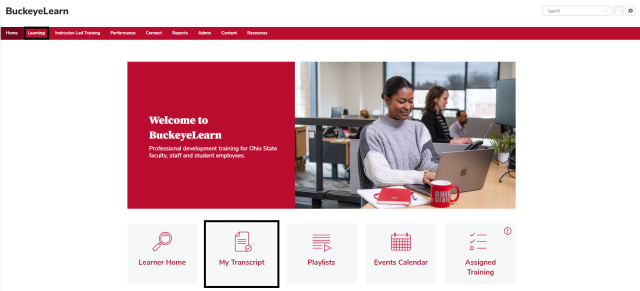
- Open your transcript by clicking the My Transcript button in the middle of the page OR by clicking the View Your Transcript link in the Learning menu in the navigation bar.
Review Your Transcript
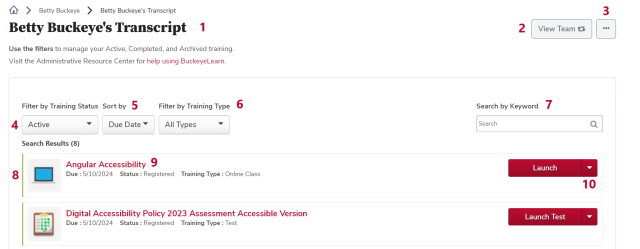
- Employee name and information: The person whose transcript you are viewing.
- View Team button: To view your employees’ transcripts, from your transcript, click the View Team button, then click your employee’s name.
- Options menu: Use the options menu to add external training or to report on training.
- Active button: Use this button to switch between the active, completed, and archived transcripts.
- By Due Date button: Use this button to sort training by due date (the default), training type, date added, status, or title.
- All Types button: Use this button to search for certain types of training, including all types of training (the default), curricula, materials, online classes, sessions, and videos.
- Search box: Search for training on the current transcript page.
- Type of training icon: The type of training.
- Course name: The name of the training, as well as any due date, and the status. Click the course name to view the training details.
- View Training Details Button: Use this button to view the training details, as well as any certificates of completion or the curriculum progress view. If the button says “Inactive” the course has been inactivated by the course owner, but you can still review the training details or certificates.