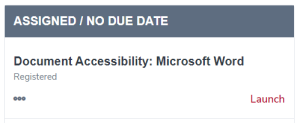
Learner home is a one-stop-shop to find, register for, and take training in BuckeyeLearn.
Access Learner Home
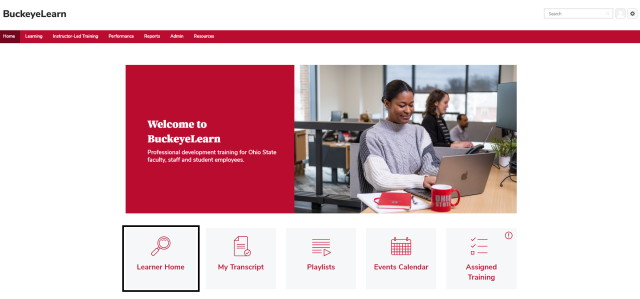
- Log into BuckeyeLearn.
Click the Learner Home button on the BuckeyeLearn homepage to open Learner Home.
About Learner Home
Learner Home is a single place to view all of your training and search for new training.
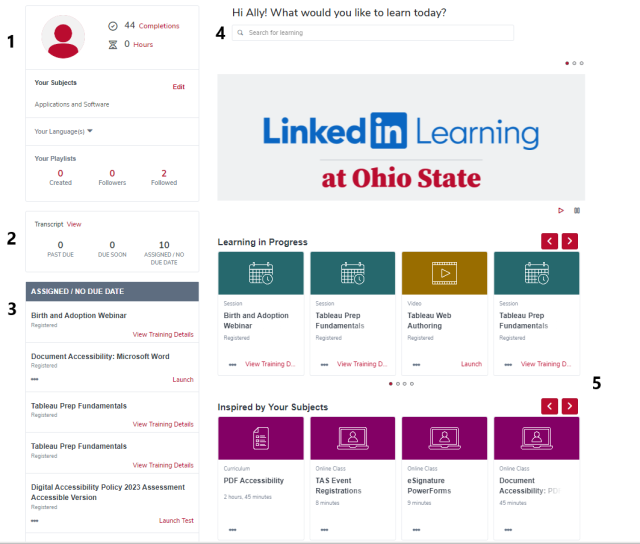
1. Profile
Basic information about you and your training progress. Here you can also select subjects of interest to you, as well as your preferred training language.
2. Transcript
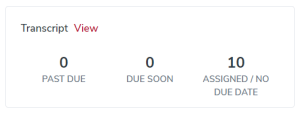
An overview of your transcript, including training that is past due, due soon, and was assigned to you with no due date. This may not reflect all courses on your transcript, such as training that you registered for yourself. Click the View link to view your entire transcript.
3. Your Training
Training courses on your transcript, in sections by past due, due soon, and was assigned to you with no due date. This may not reflect all courses on your transcript, such as training that you registered for yourself. Click the Launch or Open Curriculum link on each training to open and take the training.
4. Search
Search for training.
5. Carousels
Carousels contain training that may of interest to you, based on your transcript, subject selections, and other BuckeyeLearn activity.
Find Training
There are two ways to find training in Learner Home: searching for training and by selecting subjects that will return training related to your areas of interest as they are added to BuckeyeLearn.
Search for Training
Type a search term in the search box at the top of Learner Home and press Enter to search.

Use the Filters to narrow your search by duration, training type, subject, or provider.

- Click a training’s title to open details about that training and to register.
Add Subjects of Interest
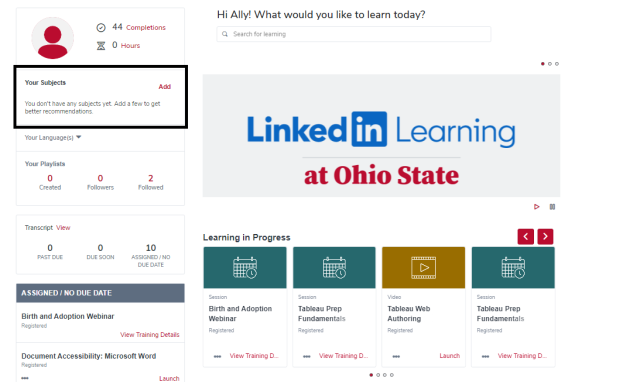
Click the Add link in the Your Subjects box on the left side of Learner Home.
Search for subjects of interest to you.
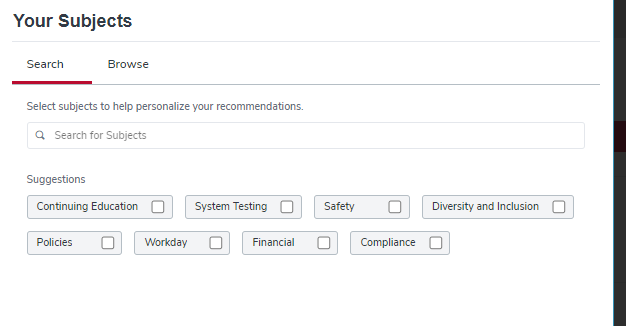
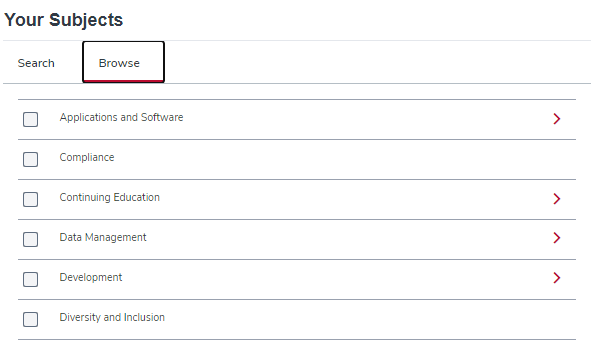
Click the Browse link to view a list of all subjects.
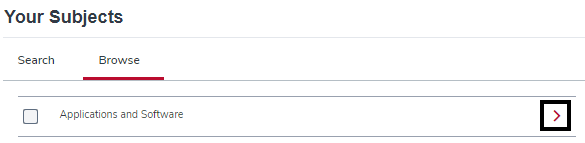
Click the arrow on any subject to see subjects under that main subject.
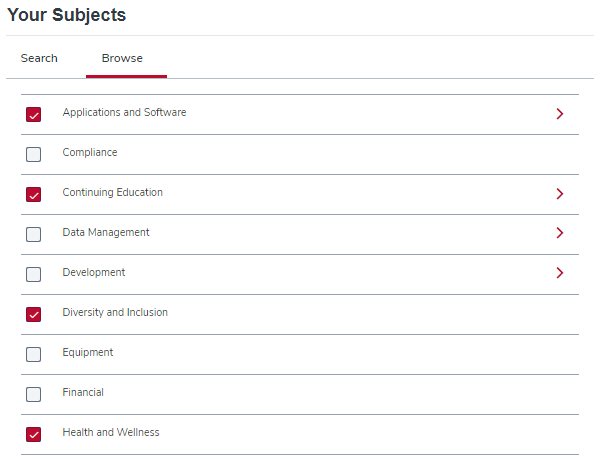
Check each subject of interest to you.
Click the Save button

.
Take Training
To take training from Learner Home:
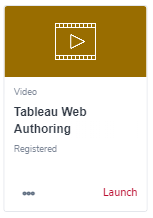
Option 1: Click the Launch or Open Curriculum link in a course listing in a carousel or search results.
Option 2: Click the View link in the Transcript section to take training from your transcript.
Option 3: Click the the Launch or Open Curriculum link on each course in the Your Training section.