Register for Training

Register for an Online Course, Video, or Material

  1. Find the training you want to take.
  2. Review the description and other training information.
  3. Click the Launch button 

    launch button

    .


Helpful Note:

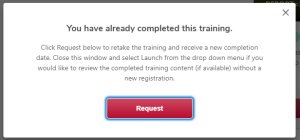
If you have already completed the training, you will receive a pop-up letting you know you have previously completed it. Click the Request button  

request button

to complete the course again and update your completed date.

a pop-up message that says "You have already completed this training" with additional information and a request button


If you do not need to update your completed date, but want to review the course content, you can review the course from your completed transcript.


Register for a Curriculum

  1. Find the training you want to take.
  2. Review the description and other training information.
  3. Click the Open Curriculum button 

    open curriculum button


Helpful Note:

If you have already completed the training, you will receive a pop-up letting you know you have previously completed it. Click the Request button  

request button

to complete the course again and update your completed date.

a pop-up message that says "You have already completed this training" with additional information and a request button


If you do not need to update your completed date, but want to review the course content, you can review the course from your completed transcript.


Register for Instructor-Led Training

Instructor-led training may be in person or online at a specific time. To register for instructor-led training, 

  1. Find the training you want to take.
  2. Review the description and other training information. 

    the training details page
  3. Scroll down or click the Select Session button 

    select a session button

    .

  4. Review the available sessions of the instructor led training. 
  5. Click the View Details button  

    view details button

    to open a flyout with information including the location, training contact, and more.

  6. Click the Request button  

    request button

    in the flyout. If you did not open the flyout, click the down arrow on the View Details button, then click the Request option. 
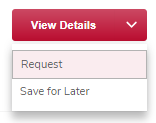
    the view details menu expanded showing the request option
 

Helpful Note:

After you have selected a session, the word Registered will appear under the View Details button, and the session will appear on your transcript.

the view details button with the word registered under it

Depending on the session's settings, you may also receive an email.