Playlists are thoughtfully curated collections of LinkedIn Learning courses available within BuckeyeLearn. Playlists are created by individuals or units across Ohio State and are used by learners for professional development.
Only the trainings that a learner registers for and completes within a playlist will be recorded to their transcript. Opening or following the playlist will not automatically add all courses in the playlist to the learner’s transcript.
Search for a Playlist
- Log into BuckeyeLearn.
Open playlists by clicking the Playlists button in the middle of the page.
The referenced media source is missing and needs to be re-embedded.Type keywords to search for a playlist about a certain topic, if desired.
The referenced media source is missing and needs to be re-embedded.
Complete training within a Playlist
- Click on the title of the playlist to view the courses within the playlist and to view details about that playlist.
Click the actions menu

below the course title.
Click the Launch option.
The referenced media source is missing and needs to be re-embedded.
Follow a Playlist
Following a playlist allows you to come back to it at a future time. You will also receive notifications if there are changes made to the playlist. Playlists are not recorded to your transcript; only the courses you register for within a playlist are recorded to your transcript.
Click the Follow link under the title of the playlist to save it for later.
The referenced media source is missing and needs to be re-embedded.
Resume a Playlist
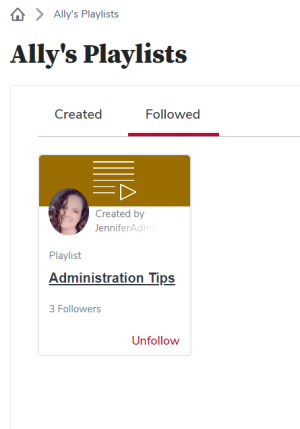
Playlists you are following can be accessed through the playlist option in the Learning tab.
- Open Learner Home.
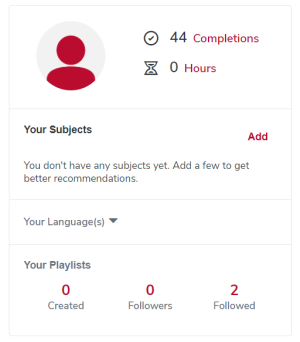
In the Your Playlists section, click the number above Followed.
Click the playlist title.
Share a Playlist
You can share a link to a playlist with others at Ohio State.
- Click the playlist title to open it.
Click the Actions menu
in the top right corner of your playlist.
- Click the Share option.
- Click Copy this playlist to copy the link.