The learning admin console allows administrators to view several training management actions in one location. For additional information about the learning admin console, visit Cornerstone’s online help.
Access the Learning Admin Console
- Hover over the Admin tab.
Click Learning Admin Console.
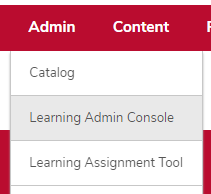
Learning Admin Console
Top Bar

Search
To search the course catalog, type in a training title or keyword in the “Search the catalog” field. Click the Search icon

in the Search the catalog field or press the Enter key.
Create New Learning Object
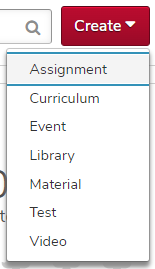
To create a new learning object or learning assignment, click the Create button
. Select an item from the dropdown menu.
Manage Widgets
To manage the widgets visible on your Learning Admin Console, select the Manage Widgets icon

. Check or uncheck the boxes next to each widget title to change their visibility.
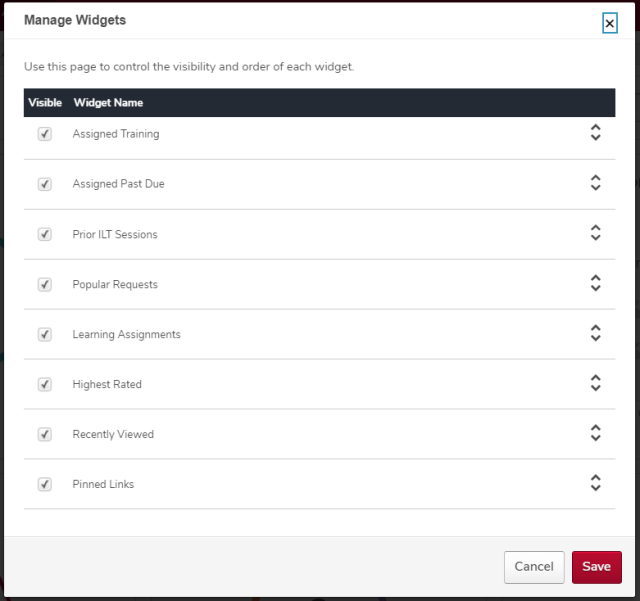
Widgets
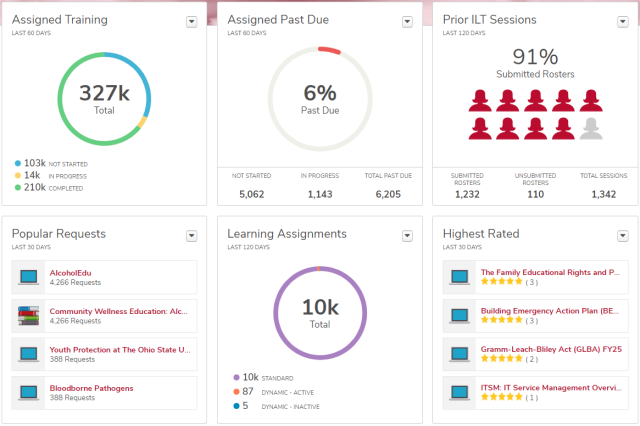
Assigned Training
The Assigned Training widget shows the statuses of all training assigned to users during the selected timeframe.
Assigned Past Due
The Assigned Past Due widget provides quick access to overdue training data.
Prior ILT Sessions
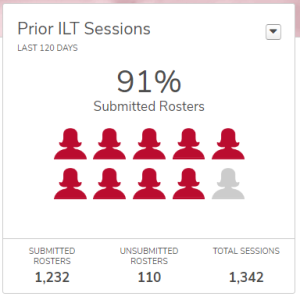
The Prior ILT Sessions widget displays data related to completed instructor-led training sessions.
Click the Unsubmitted Rosters section to view which completed sessions still need to have their rosters submitted. Have the instructor submit the roster or submit it yourself. If a session had zero attendees, cancel the session.
Popular Requests
The Popular Requests widget displays the top four most requested training items in your vendor, if applicable.
Learning Assignments
The Learning Assignment widget shows the different learning assignments created with the Learning Assignment Tool.
Highest Rated
The Highest Rated widget displays a list of the four most highly rated training items in your vendor, if applicable.
Recently Viewed
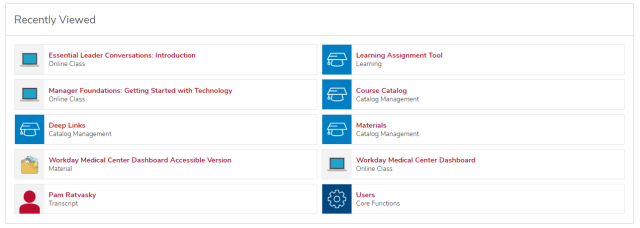
The Recently Viewed section displays your 10 most recently viewed items in the system.
Pinned Links
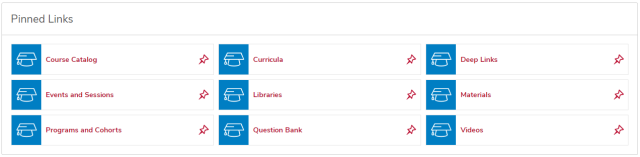
The Pinned Links section allows administrators to save links to frequently used admin pages and Course Console pages for training.