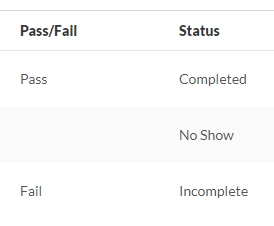
After a session is over, it is important to promptly submit the roster. Submitting the roster marks the training complete on a learner’s transcript and provides proof of attendance.
- Navigate to the Roster page.
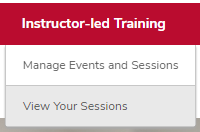
- Hover over the ILT tab.
Click View Your Sessions.
Locate the session you want to submit the roster for on the calendar.
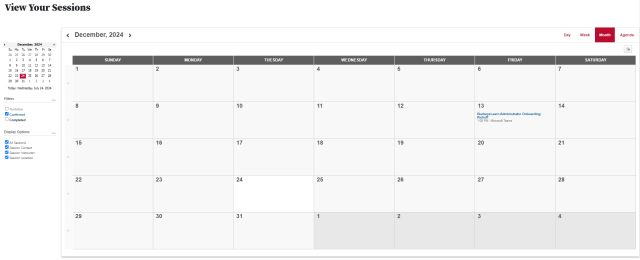
- Click the name of the session.
On the training details page, click the View Roster button.
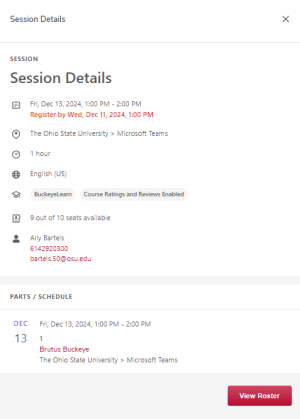
Click the Attendance and Scoring tab on the Session Roster page.

- For each learner, check or uncheck each box in the attendance column. If the learner did not attend the session, uncheck the box.
- If the session was scored, record the numerical score in the Score column.
For each learner, check or uncheck each box in the Pass column. If the learner did not attend the session, uncheck the box.

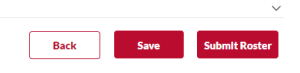
Click the Submit Roster button.
Click the OK button on the pop-up information window.
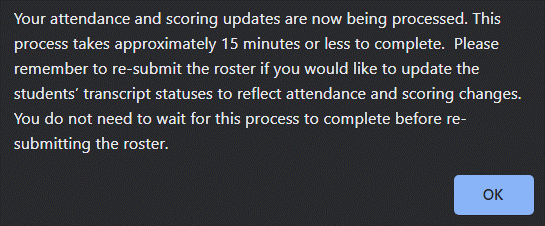

After the roster process completes, learners who were marked as attending will appear with a status of Completed. Learners who did not attend all parts will be marked as incomplete. Learners who were not marked as attending will appear with a status of No Show.