In order to use the Virtru encryption service you will need to activate it on every device that you will send and receive encrypted messages on. Virtru works with the University supported email clients Outlook, Outlook Mobile, and the Outlook Web App. The activation process only needs to be done once on each device. Only install Virtru on the device(s) you plan to use to send and receive encrypted messages for research. Virtru will scan every message being sent, encrypted or not.
The workflow is the same on Outlook and the Outlook web app but there are additional needs for mobile devices. The activation may take a few minutes to complete. Do not move away from the activation window until you see the confirmation message.
Outlook
Inside your Outlook desktop client there will be a button on the ribbon panel that contains the Virtru for Outlook button.

This will open the Virtru panel on the right side of your screen. In the panel you will be asked to Activate Virtru with options for activation. For the Outlook Web App and for the Outlook Desktop client you will need to choose Activate with Email. Once you click the Activate with Email option the panel will update to a loading screen. Once the activation is complete you will be presented with success screen. The activation may take a few minutes to complete. Do not move away from the activation window until you see the confirmation message.
Outlook Web App
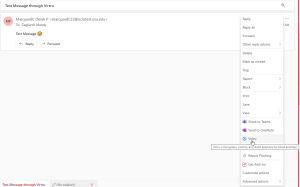
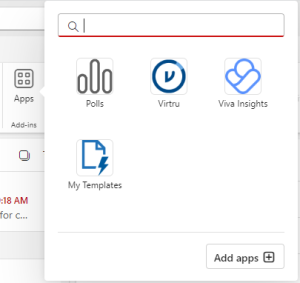
In the Web App you will need to use the email message options menu, or the Apps button in the ribbon panel at the top. Unfortunately, due to the ease of updating a web interface, the icon could be in either location.
This will open the Virtru panel on the right side of your screen. In the panel you will be asked to Activate Virtru with options for activation. Choose Activate with Email. On the Outlook Web App watch for any pop-up blockers. If you have a pop-up blocker you may need to allow the pop up.
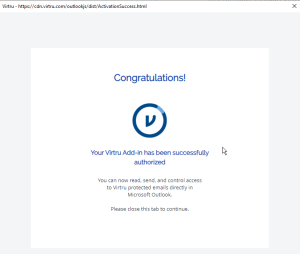
Once you click the Activate with Email option the panel will update to a loading screen. Once the activation is complete you will be presented with success screen. The activation may take a few minutes to complete. Do not move away from the activation window until you see the confirmation message.
Virtru for Mobile Devices
To use Virtru on a mobile device you will need to download the Virtru application. Due to the variety of mobile devices available the instructions here are shown using an Android device, however the instructions have been tested on iOS and they are the same.
Start by accessing your mobile store and searching for Virtru.
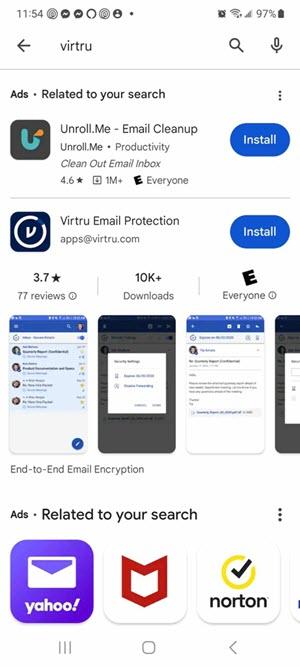
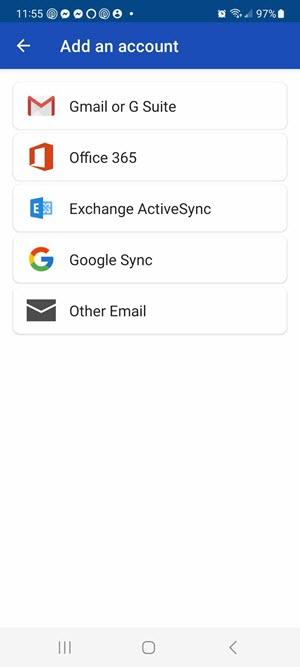
Once you install and open Virtru you will be asked to Add an Account. This is where things will differ from the desktop and web client. Choose Office365 as the option to add an account.
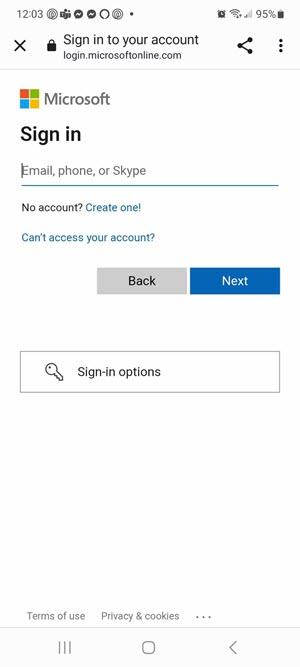
You will be presented with the Microsoft Log in Screen. Enter your Ohio State email address (lastname.#@osu.edu) and click next.
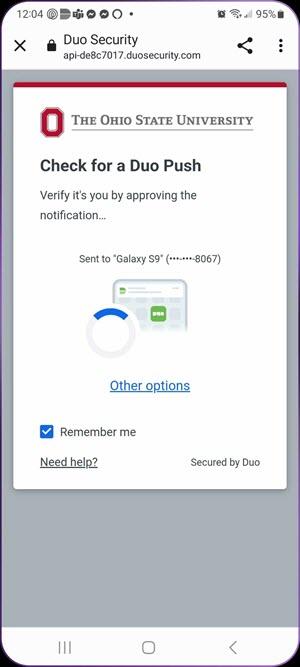
You will then be presented with the standard Ohio State log in process which does include the use of Duo Mobile. You will need to accept the Duo Mobile push or walk through the multifactor authentication you have set up. For more information on BuckeyPass and Duo Mobile please see the BuckeyePass service.
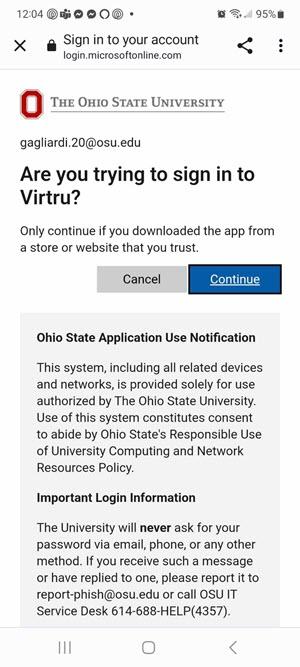
Once the push has been accepted you will then be asked to confirm if you are trying to sign into Virtru. Click Continue to complete the process.
At this point Virtru is installed but there are still system settings that need to be configured for Virtru to work properly on your device. You will be asked to allow notifications (this is a personal choice) and you will be asked to allow certain sites. The location of these settings vary on device so walk through the options for your device and operating system. The wizard will tell you which settings to change.
Once activation is completed on your device, set a PIN and/or Biometrics for Virtru for iOS or Virtru for Android app. You need to use Virtru for iOS or Virtru for Android app to create, send, and read encrypted email.