Path.
- Navigate to the appropriate Class Roster page.

- By default, the Class Roster displays only students with a status of "Enrolled".
To view a different Enrollment Status, select an alternate status from the drop-down menu and select

- Waiting - waitlisted students
- All - enrolled, dropped, and waitlisted students
- Dropped - dropped students
- Initiate the notification.
- To send a notification to all students in the current view, select notify all students.
- To send a notification to only selected students, select them in the Notify column and then select notify selected students.
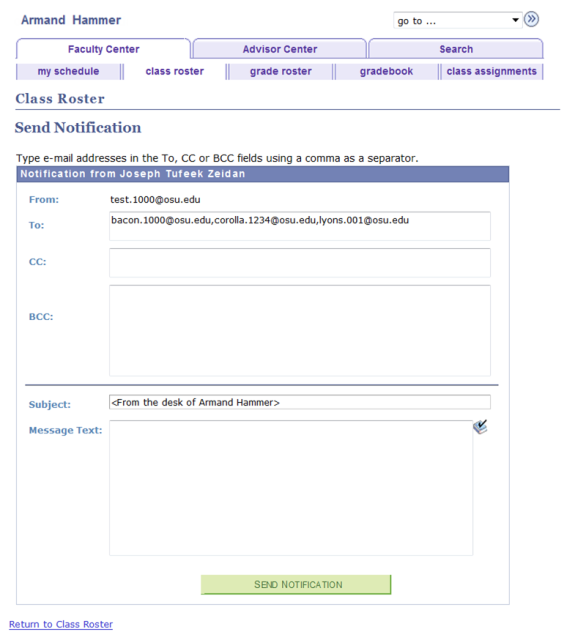
The Send Notification page will appear, addressed to you and with the BCC: (blind copy) field populated with the addresses of the students you have chosen to notify. This ensures that you receive a copy of the notification in your email inbox, and also ensures that students cannot see each others' addresses.
- Complete the Notification.
- [Optional] add more recipients by typing their email addresses in the To, CC, and/or BCC fields. Separate their addresses with commas.
- Type the Subject and Message Text.
Select

. You will see a confirmation that a notification was sent.
- Select Return to Class Roster to return to the Class Roster page.