The Faculty Center Gradebook offers faculty an option for tracking and maintaining assignment grades. Carmen, the university's learning management system where instructors, TAs and students can collaborate and share course materials, continues to be available for managing grades as well.
- Navigate to the Faculty Center Gradebook page.
By default, this page displays the most recent class that has been viewed.
If a class is not listed on the Faculty Center gradebook page select the My Schedule tab and select the

(Gradebook) icon beside the class you wish to view.
To change to a different class within the current term select
.
To change to a different term select the My Schedule tab and select

.

- By default, this page displays both active students and inactive students (students who have dropped the class). Uncheck Show Active Students Only if you wish to view only active students.
Enter Assignment Grades
- Select the Grade by Assignment tab.

- Select the assignment for which you wish to enter grades by looking up and selecting the Select Assignment.
- Complete the following fields for each student:
- Submitted Dt (Date)
- Due Date
- Grade
Select

.
Calculate Cumulative Grades
- Select the Cumulative Grades tab.
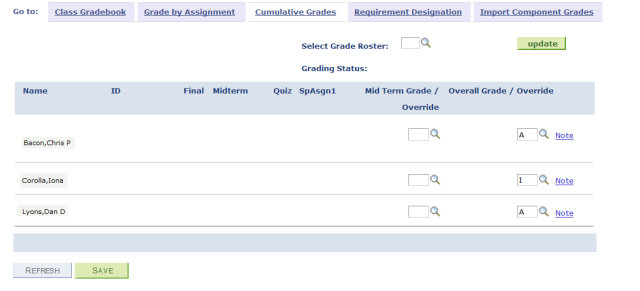
- Look up and select the Grade Roster for which you wish to calculate cumulative grades.
- Complete the following fields for each student:
- Mid Term/Override
- Current Overall Grade/Override
If you wish to type a note for an individual student:
- Select the Note link in that student's row.
- The Gradebook Notes page will appear.
- Type a note in the Instructor Comments section.

c. Select

to return to the Cumulative Grades page.
- Select the Note link in that student's row.
Select
.
Select

to populate the selected grade roster with these grades.
Setting Requirement Designations
Requirement Designations are items like extra credit that a student has done for a course. They should be used sparingly.
- Select the Requirement Designation tab.
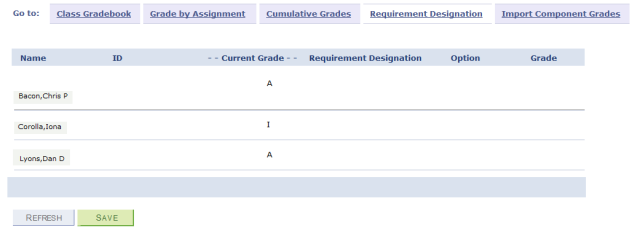
- Complete the following fields:
- Current Grade Designation
- RD Option (Requirement Designation Option)
- RD Grade (Requirement Designation Grade)
Select
Import Component Grades
Use Import Component Grades to import final grades from a non-graded class component. The instructor of the graded component must also be entered as an instructor on the ungraded components to import grades from those class components. They do not need to have grade roster access.
Select the Import Component Grades tab.

Select

For information regarding setting up class assignments refer to Set Up Class Assignments.