Path.
- Navigate to the Faculty Center Class Assignment page. By default, this page displays the most recent class that has been viewed.
If a class is not listed on the Faculty Center gradebook page go the Faculty Center My Schedule page and select the

(Graderoster) icon beside the class you wish to view.
To change to a different class within the current term select
.
To change to a different term select the My Schedule tab and select

.
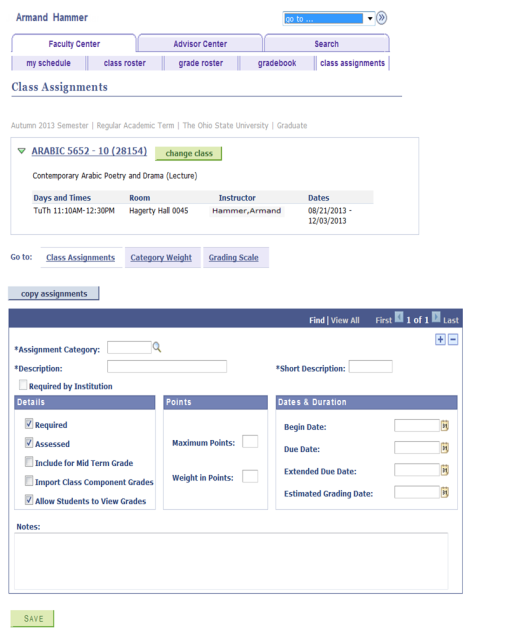
Complete the following fields for each assignment:
- Required:
- Assignment Category
- Description
- Short Description
- Optional:
- Required by Institution
- All fields in Details section
- All in Points section
- All fields in Dates & Duration section
- Notes
The following examples depict a typical assignment.

- Required:
Select the Category Weight tab.

- Complete the following fields:
- Assignment Category
- Weight
Note: You may set various weights for different portions of the class [e.g., quizzes (25%), midterm (25%) final (50%)].
Select the Grading Scale tab.

- Complete the following fields:
- Mark = Score earned
Grade = Grade to be assigned based on Mark earned
Note: Select the Copy Grade Scale button
to copy the grade scale information to another class to which you are assigned. Previous values are overwritten.
Select

.