
Microsoft continues to enhance Microsoft 365 with new AI-powered capabilities, improved collaboration tools, stronger security controls, and the ongoing modernization of core services. Upcoming changes focus on making Teams meetings more intuitive, bringing Planner more deeply into everyday workflows, expanding Copilot experiences, and helping organizations prepare for the retirement of legacy technologies and applications. These updates are designed to provide a more connected, productive, and secure experience while supporting the future of work across Microsoft 365.
Microsoft Teams Updates
Refreshed meeting experience: simpler controls, smarter share panel, updated schedule
As Microsoft Teams has added meeting capabilities over time, the meeting controls and share panel have grown crowded, contributing to mis-clicks between high‑impact actions like Share, Leave, and Raise hand, and to accidental shares of unintended content. Drawing on extensive customer feedback and telemetry, Microsoft is introducing two coordinated updates: simplified meeting controls and a redesigned share panel. This applies to Teams for Windows desktop, Teams for Mac desktop, and Teams for the web.
WHAT TO EXPECT:
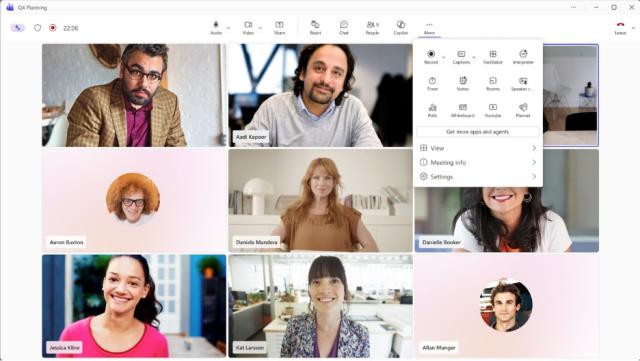
- Meeting controls will be center aligned, with microphone, camera, and share grouped together.
- The “Leave” button will be separated to reduce accidental exits.
- Actions that are used less often will move into a reorganized “More” menu.
- Personalize meeting controls by pinning, unpinning, and rearranging controls using drag and drop.
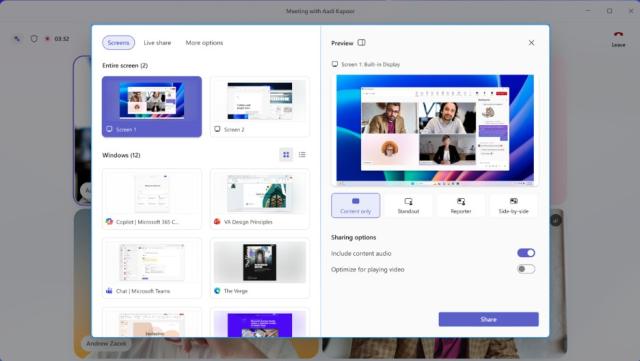
- The redesigned share panel will include:
- Live previews of screens and windows.
- A tabbed layout (Screens & Apps, Interactive Files, More options).
- A two‑step share confirmation to reduce accidental sharing.
- The new experience is enabled by default.
- During rollout, users may opt in early and can temporarily return to the previous experience from Teams settings.
- Existing meeting app pinning policies will continue to be honored.
- New meeting app pinning policies will support up to two apps pinned to the main meeting controls, with additional apps available in the More menu.
New Options Menu View
New Sharing Panel
WHEN: Roll out will be completed by end of October 2026.
Connect Teams meeting to existing Planner Plans
Microsoft Teams is introducing a new capability that allows users to connect Microsoft Teams meetings to existing Microsoft Planner plans.
WHAT TO EXPECT:
Currently, Teams meetings automatically create separate Planner plans for meeting-related tasks, which can result in tasks for the same initiative being spread across multiple plans. This update enables users to link meetings to an existing plan, so tasks can be tracked in a single location, improving organization and continuity across ongoing work.
WHEN: Roll out was completed at the end of August 2026.
AI meeting recap without transcript to meet compliance policies
Microsoft Teams will offer AI meeting recaps without saving transcripts or recordings. Recap without saving transcript provides an optional way for Copilot to generate a meeting summary using live meeting context, without saving a meeting transcript or recording.
This feature will be available to users with an M365 Copilot (Premium) license across platforms, including desktop (Windows and Mac), web, and mobile.
HOW TO: Meeting organizers with a Copilot license can enable or disable Recap without saving transcript in meeting options under Copilot and other AI before the meeting, and organizers or participants with a Copilot license can manage the AI toggle during the meeting through the AI mode dropdown (top‑left indicator).
- During a meeting, organizers and participants with a Copilot license can enable or disable this option.
- When enabled, Intelligent Recap will generate an AI summary even if recording and transcription are not turned on.
- No transcript or recording is saved as part of this experience.
WHEN: Roll out was completed on July 1, 2026.
Recap app consolidates meeting recaps in one place
The Recap app in Microsoft Teams provides a centralized experience for users to find, review, and catch up on meeting recaps. By bringing recordings, transcripts, and AI-powered summaries together, this feature improves personal productivity and helps users quickly stay informed across meetings.
Quick filters help users find the right meetings faster, while audio recap capabilities enable efficient review of multiple meetings in a podcast-style format. Users can also browse and revisit meeting recaps from the past 30 days, making it easier to stay up to date.
Using the new Teams Recap App you will be able to:
- View meeting recaps from the past 30 days
- Filter meetings by date, participants, or keywords
- Access recaps for meetings that include a recording or transcript
- Watch video recaps or listen to audio recaps
- Generate a combined audio recap across multiple meetings
HOW TO: access the Recap app from the Teams app store by selecting Apps and then Recap, browse recent meetings, and open individual recaps to view or listen. AI-powered recap features such as audio recap, video recap, and intelligent summaries require a Microsoft 365 Copilot license. People without a Copilot license can still access recordings and transcripts based on existing permissions.
WHEN: Roll out will be completed by early September 2026.
AI meeting recap without transcript to meet compliance policies
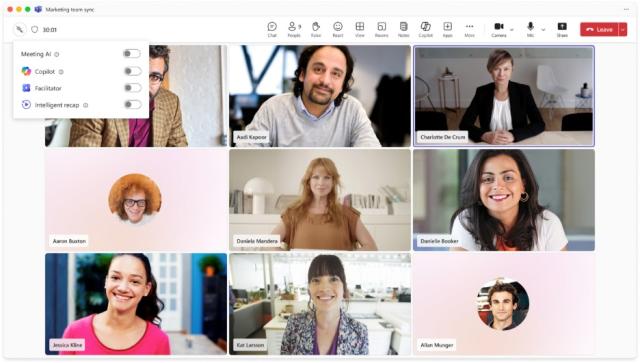
Microsoft Teams will introduce a new in-meeting toggle that allows licensed meeting organizers and presenters to turn Meeting AI (including Copilot, Facilitator, and meeting recap) on or off during a live meeting. This change builds on existing Meeting AI behavior and provides real-time flexibility to control when AI is active.
Licensed organizers and presenters can capture insights when discussions are valuable and turn off AI when conversations shift to sensitive topics. The toggle respects existing tenant policies and compliance controls.
HOW TO: Meeting organizers will see a new Meeting AI toggle in the Teams meeting toolbar
WHEN: Roll out was completed on Sept. 1, 2026.
Identify external bots joining your Teams meetings
AI powered meeting assistant bots—such as transcription and summarization services—are increasingly used to enhance productivity in online meetings. While these tools can be valuable, some bots may access meetings without the knowledge or consent of the meeting organizer or the hosting tenant, which can create data security, privacy, and compliance risks.
To help organizations protect meeting content and increase visibility into automated participants, Microsoft Teams is introducing a new capability that detects external meeting assistant bots as they attempt to join meetings. This update gives organizers greater awareness and control and provides administrators with clear controls to manage how detected bots are handled in meetings hosted across the organization.
WHAT TO EXPECT:
- Teams will detect external meeting bots as they attempt to join meetings hosted by your organization.
- When detected, bots will be clearly labeled in the meeting lobby experience. Note: There might still be bots that are undetected by the system due to their intrinsic behavior
Organizers will be able to:
- Approve or deny detected bots from the meeting lobby.
- See clearly which participants have been identified as bots.
- Remove detected bots during the meeting if necessary.
These organizer controls are designed to help ensure that bot participation in meetings is an intentional and informed decision.
WHEN: Rollout was completed at the end of June 2026.
Planner tab support for Shared and Private Channels in Microsoft Teams
Microsoft Planner tabs will be available in Microsoft Teams Shared and Private channels, allowing users to create or add plans within these channels. Only basic plans are supported initially. Planner inherits channel permissions and stores data in the channel’s SharePoint.
WHEN: Rollout was completed at the end of July 2026.
Microsoft Teams and Google Calendar sync retirement
Microsoft is retiring calendar syncing between Microsoft Teams and Google Workspace. After this retirement, organizations will no longer be able to synchronize calendars between the two services using the calendar sync capability available through the Admin app in Teams.
WHEN: Retirement will be completed by the end of October 2026.
Power Platform Dataflows in Microsoft Teams is being retired
Microsoft is retiring the Preview Power Platform Dataflows experience for Dataverse for Teams environments.
This retirement applies only to Power Platform Dataflows in Dataverse for Teams. It does not affect Power BI dataflows, Power Automate, Dynamics 365 applications, or Power Apps experiences outside of Dataverse for Teams.
To continue using dataflow capabilities in affected Dataverse for Teams environments, migrate affected dataflows to one of the following supported alternatives:
- Standard V2 dataflows after upgrading the Teams environment to full Dataverse
- Dataflow Gen2 in Microsoft Fabric
WHEN: Removal will be completed by the end of October 2026.
General Updates
Retirement: SharePoint classic pages including wiki pages, web part pages, blog pages, publishing pages, and custom ASPX pages in October 2028
Microsoft SharePoint continues to evolve to help organizations create and manage content more securely, easily, and intelligently. As part of this evolution, we’re introducing upcoming changes to classic publishing sites, classic user-created pages, and custom scripting in SharePoint Online, with a two-phase rollout designed to give organizations time to assess usage, plan modernization, and move to modern SharePoint experiences.
Beginning March 1, 2027, classic publishing site creation and publishing feature activation will be disabled for all existing tenants. For new tenants created on or after that date, no new classic pages can be created by default; adding or updating custom scripts and related changes will be disabled.
Beginning October 1, 2028, all existing classic user-created pages will be set to read-only and custom scripting enforcement will extend to all tenants.
Affected classic user-created page types include wiki pages, web part pages, blog pages, publishing pages, and custom ASPX pages created using SharePoint Designer or third-party solutions.
More details will be made available close to the retirement date as Microsoft makes them available.
WHEN: Pages will become read only in October 2028.
OneDrive Mobile: Create, view, and edit Markdown files in OneDrive mobile
Microsoft is introducing support for creating, viewing, and editing Markdown (.md) files directly within the OneDrive mobile app for iOS and Android. This enhancement aligns the mobile experience with the web experience and enables users to work with Markdown content from anywhere without downloading files or switching applications.
WHEN: Rollout will be completed by the end of July 2026.
OneDrive for macOS Native Sync Engine
Microsoft is introducing a new Native Sync Engine for OneDrive on macOS. The redesigned engine integrates more closely with macOS to improve synchronization performance, reliability, responsiveness, and resource efficiency.
This update modernizes the OneDrive sync experience on Mac devices by reducing resource consumption, improving reliability, and making synced content more accessible in Finder.
Organizations that sync SharePoint document libraries will notice a change in Finder. Each synced SharePoint library will appear as a separate location in the Finder sidebar instead of being grouped under a single organizational entry.
WHEN: Rollout will be completed by the end of November 2026.
Retirement: Exchange Web Services (EWS) in October 2026
Exchange Web Services (EWS) in Exchange Online will be retired starting October 1, 2026. Organizations must migrate active EWS applications to Microsoft Graph, Power Platform, or Copilot Declarative Agents. Deprecation of Exchange Web Services in Exchange Online details. Any application use EWS will need to be updated by the vendor or replaced with a similar product not using EWS. Applications using EWS after October 2026 will stop functioning.
OTDI is reaching out to application owners that can be identified to make them aware of the deprecation.
WHEN: EWS reaches end of support in October 2026.
Retirement: Evolution email client use due to Exchange Web Services (EWS) in October 2026
Exchange Web Services (EWS) in Exchange Online will be retired starting October 1, 2026. Organizations must migrate active EWS applications to Microsoft Graph, Power Platform, or Copilot Declarative Agents. Applications using EWS after October 2026 will stop functioning.
If you currently use the Evolution mail client, you will need to switch to a Microsoft-supported email application to continue accessing your email. Supported email applications include:
- Outlook (Windows)
- Outlook for Mac
- Outlook Mobile (iOS or Android)
- Outlook on the web
Once the legacy method is disabled, Evolution will no longer be able to access your mailbox.
WHEN: EWS reaches end of support in October 2026.
Retirement: Microsoft Publisher in October 2026
Microsoft Publisher will no longer be supported after October 2026. People can continue to use it with its current functionality until then. Support for the perpetual version of Publisher will end in October 2026. No action is required at this time, Microsoft is exploring modern ways to achieve common Publisher scenarios across other applications.
WHEN: Support for the perpetual version of Publisher will end in October 2026, when Office LTSC 2021 reaches end of support.
Retirement: Microsoft Office 2021 LTSC in October 2026
Microsoft Office 2021 LTSC will no longer be supported after October 2026. People can continue to use it with its current functionality until then.
WHEN: Office LTSC 2021 reaches end of support in October 2026.
Retirement: Prepare VBScript Retirement in August 2027
Microsoft has announced that VBScript in Windows is being deprecated and is in its first deprecation phase, available through features on demand (FODs) and enabled by default on Windows 11, version 24H2. If you have any applications or scripts that rely on VBScript, you need to identify and remediate it before the next deprecation phase. In phase 2 VBScript will be disabled by default in Windows. Phase 3 the VBScript feature will be removed from Windows at a later date that has not yet been set.
HOW TO: For more details refer to VBScript deprecation: Timelines and next steps and VBScript deprecation: Detection strategies for Windows.
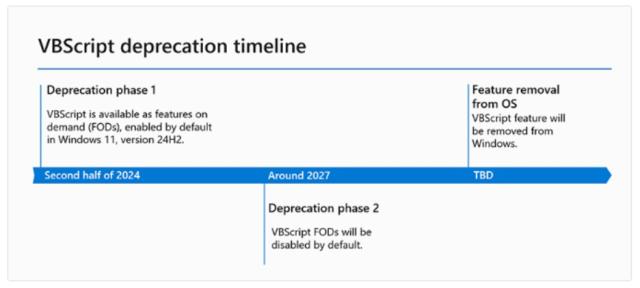
WHEN: Microsoft VBScript in Windows is currently in its first deprecation phase. Phase 2 will be completed August 2027. Dates for Phase 3 are TBD.
New Outlook for Windows not supported
Currently the New Outlook for Windows is available for use, but it is not Ohio State’s supported version. We are not supporting this new version because the application is still missing features and has issues that Microsoft needs to work through before we can fully adopt the software.
HOW TO: For more details, log in to the Administrative Resource Center to read more in the New Outlook for Windows article.
WHEN: The New Outlook for Windows is available for use now, but it is not Ohio State’s supported version.
Planner coming to Outlook and Microsoft 365 Copilot
Microsoft Planner will be integrated directly into Outlook (web and new Windows version) and Microsoft 365 Copilot, enabling users to manage tasks alongside their email and calendar.
WHEN: Rollout will be complete by August 2026.
Retirement: Microsoft Outlook Meeting Insights in September 2026
Microsoft is retiring Meeting Insights, the feature that surfaces relevant emails and files within meeting details. To provide a more intelligent and context-aware meeting preparation experience, users with a Microsoft 365 Copilot license can instead use Copilot meeting preparation experiences that summarize relevant content, tasks, and context available to the user.
WHEN: Retirement by end of September 2026.
Retirement: Project Online
As technology evolves, so must our tools to maintain efficiency, security, and user satisfaction. Microsoft has announced the retirement of Project Online. This decision reflects Microsoft’s focus on delivering solutions that are modern, scalable, and future-ready—enabling you to take advantage of the latest innovations in AI, automation, and collaboration. By moving to the next-generation platforms, you’ll benefit from enhanced productivity, deeper integration with Microsoft 365, and new capabilities designed for the way people work today and tomorrow.
This update is exclusive to Project Online and does not affect Project desktop, Project Server, or Planner (which brings together Project for the web, Planner in Microsoft 365, and To Do).
To ensure a smooth transition and continued success, Microsoft is providing three clear paths forward.
- The New Microsoft Planner: For organizations seeking a modern, cloud-first, and AI-powered project management experience, the new Planner brings together the best of To Do, Planner, Project for the web, and Copilot. It’s designed for flexibility, collaboration, and scalability—empowering teams to manage everything from simple tasks to complex projects in one unified platform. The premium features of Planner included in our Planner and Project Plan 3 and Planner and Project Plan 5 licenses, offer advanced features such as portfolios, baselines, dependencies, and Gantt charts.
- Project Server Subscription Edition: For organizations with advanced project and portfolio management (PPM) requirements, or those needing a short-term solution before moving to the cloud, Project Server Subscription Edition offers comprehensive tools for planning, scheduling, and resource management—built on the latest SharePoint Server technology.
- Project Operations: For Dynamics ERP customers, especially those focused on timesheets and resource scheduling.
HOW TO: You will need to determine which solution fits your unique needs, plan and execute your transition before the retirement date.
WHEN: Retirement end of September 2026, after which time you will no longer be able to use Project Online or retrieve any data.
Retirement: Microsoft Store installation for Microsoft 365 apps
The ability to install Microsoft 365 apps (Word, Excel, PowerPoint, etc.) using the Microsoft Store is ending. We recommend upgrading to the Click-to-Run installation type for Microsoft 365 Apps.
HOW TO: For more details refer to Microsoft Store Installation Type end of support for Microsoft 365 Apps.
WHEN: New feature updates will stop after October 2025 and security updates will end in December 2026.
Retirement: Support will retire for 32-bit Microsoft 365 apps on Windows Arm-based PCs
Microsoft is retiring support for the 32-bit edition of Microsoft 365 apps for Microsoft Windows Arm-based devices. New feature updates will stop in October 2025 and security updates will end in December 2026. We recommend upgrading to the 64-bit edition for Microsoft 365 Apps. For more details refer to 32-bit Windows Arm-based devices end of support for Microsoft 365 Apps.
WHEN: New feature updates will stop after October 2025 and security updates will end in December 2026.
Copilot Updates
Microsoft 365 Copilot release notes page
A new centralized Microsoft 365 Copilot release notes page is now available, consolidating all Copilot-related updates across various platforms. It includes platform-specific filters and is updated bi-weekly. People can bookmark, share, review, and provide feedback on the page for better planning and awareness of Copilot updates.
HOW TO: To learn how to use the notes page, reference the Microsoft 365 Copilot release notes.
WHEN: Available now.
Microsoft OneNote: Copilot notebook available in OneNote on Mac
Copilot Notebook, a new Copilot-powered workspace in OneNote, helps users organize, reason over, and take action on their content. This feature brings advanced Copilot capabilities directly into OneNote on Mac, enabling users to generate insights, structure ideas, and work more effectively within their notes.
A Microsoft 365 Copilot license is required to access this feature.
WHEN: Rollout will be complete by end of September 2026..