When working in Teams you may be a member of your "home" organization but need to work within other organizations. In that case you will be invited to the organization as a "guest". This is not the same as an OSU Guest Account.
An example would be you are a COTC student and you need to collaborate within the Ohio State University tenant or you are a University employee that has been invited as a guest to another university's Team. This document is specifically for switching between organizations.
Once you are logged into Teams using your account information you should see your profile picture in the upper right hand corner of the screen.

To the left of your name, if you see the name of your organization, that is an indicator that you are also a "guest" in another organization. This is also a menu. Click the down pointing arrow to the right of the organization name and you will see a list of other organizations you are a guest of.
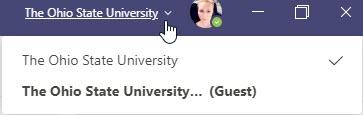
Select the organization you would like to switch to and your Teams will update to show you that environment.
Unfortunately there is not one interface that shows you all the Teams you can access across all organizations that you are a member of, but this will allow you to switch back and forth without logging in an out.
Important Information
This is for switching between organizations that your account is part of
This does not take the place of switching between tenants for those working in both the Medical Center and the University.
- You must still log into the Medical Center tenant using your Medical Center credentials to perform Medical Center related work.