Review Dynamic Assignments
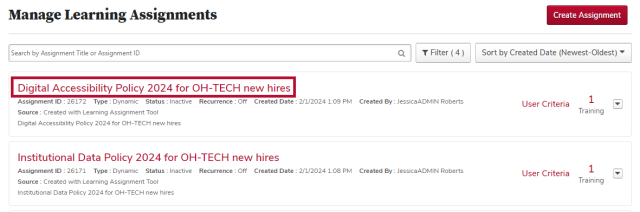
To manage a dynamic learning assignment, click the assignment title in the learning assignment list. Like standard assignments, summary information, the Assignment Settings and Transcript History are available to review.
Manage Dynamic Assignments
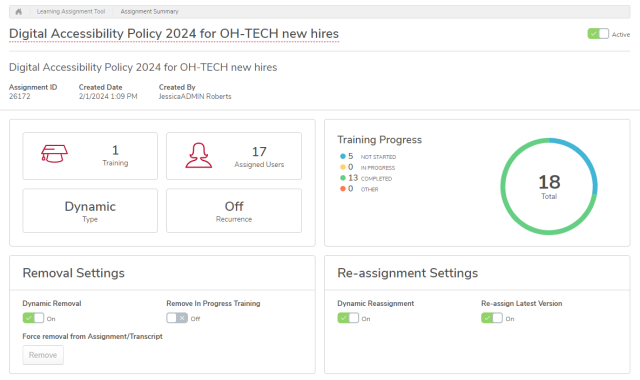
With dynamic assignments, however, you can also manage your assignment. By clicking the appropriate toggle, you can:
- Inactivate the learning assignment
- Turn dynamic removal on and off
- Remove in progress training from learners’ transcripts
- Turn dynamic reassignment on and off
- Opt to have the most recent version reassigned
Edit Comment in Transcript History
You can also edit the comment in the Transcript History section after a dynamic assignment is created. Any changes will take effect the next time that the dynamic learning assignment processes.
To edit the comment in the Transcript History section,
Click the dropdown arrow under Setup.

Click the text to edit it.

Click the green checkmark

to save the comment.
Change Email Settings
You can also edit the Email Settings after a dynamic assignment is created. Any changes will take effect the next time that the dynamic learning assignment processes.
To change the Email Settings,
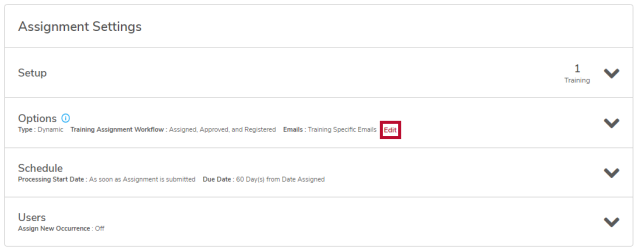
Click the Edit button under Options.
Choose your desired Email Settings.
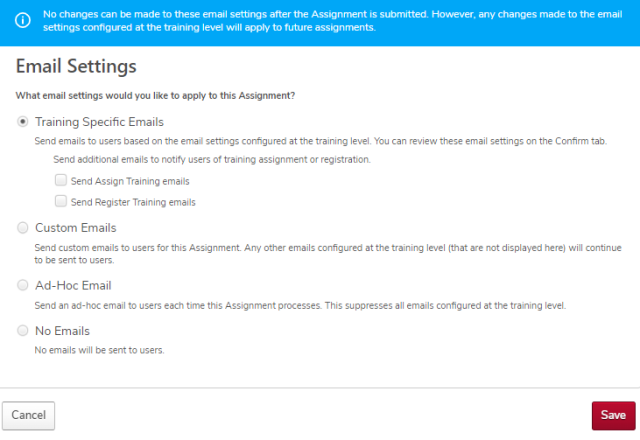
Click the Save button

.