Remove a Learning Object from a Learner’s Transcript

Administrators can only remove learning objects with the appropriate permissions. Training can only be removed by administrators if the training was assigned in error or was assigned for a previous role and is no longer required. 

OU admins should have internal processes in place for their area to remove training, including how you will verify that the training should be removed. OU admins and BuckeyeLearn Liaisons must receive permission from other areas before removing training that was assigned by that area.

The comment required for removing a training must include: 

  • Individual requesting removal
  • Date of removal request
  • Ticket number, if applicable
  • Date permission for removal was received and the name of the training owner who granted approval, if applicable 
 

Critical Note:

You must only remove training that is owned by your area. You must never remove university-wide compliance trainings. If you believe a training should be removed that you do not own, contact the OU admin for that area or the BuckeyeLearn Support team. 

  1. View a learner's transcript. 
  2. Click the down arrow on the View Training Details button 

    view training details button

     on the same line as the correct learning object.  

  3. Click the Remove option from the dropdown menu.  
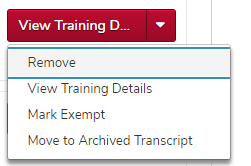
    the view training details menu expanded
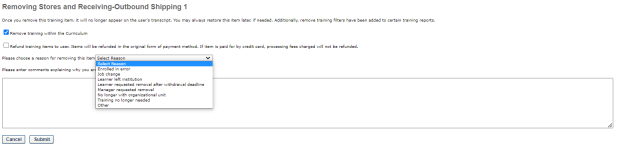
  4. Select a removal reason from the menu. 
     

    Helpful Note:

    When removing a curriculum, check the top box to remove training within the curriculum. If this box is not checked, the individual learning objects within the curriculum will appear on the learner’s active transcript.

    the removal page with the remove training within the curriculum box checked


    the remove page with the reason menu expanded
  5. Type a comment explaining why you are removing the training.

     

    Critical Note:

    The comment required for removing a training must include: 

    • Individual requesting removal
    • Date of removal request
    • Ticket number, if applicable
    • Date permission for removal was received and the name of the training owner who granted approval, if applicable 


    the remove page with a comment in the comment box
  6. Click the Submit button 

    submit button

    .