Only administrators with the appropriate permissions can review learners' transcripts.
You may review learners' transcripts to
- Troubleshoot training problems, such as issues with
- Online courses
- Curricula
- Reversioning
- Learning assignments
- Verify learning assignments and reversioning
- Confirm training has been completed
- Verify training has been removed or archived
Open a Learner's Transcript
Navigate to the Users page.
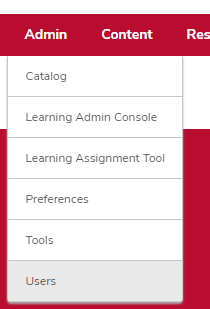
- Hover over the Admin tab.
- Click Users.
Search for the learner.

- Type your search criteria.
Click the Search button

.
View the learner's transcript.

Click the down arrow

on the same line as the correct learner.
- Click View Transcript in the dropdown menu.
View a Learner's Completed Training
Click the Active dropdown menu.
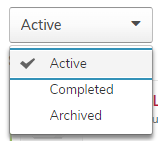
- Select the Completed option.
Transcript Overview
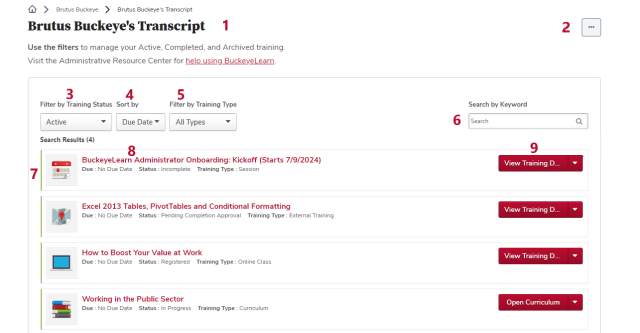
- The leaner whose transcript you are reviewing.
- Use the options menu to report on training.
- Use this button to switch between the active, completed, and archived transcripts.
- Use this button to sort training by due date (the default), training type, date added, status, or title.
- Use this button to search for certain types of training, including all types of training (the default), curricula, materials, online classes, sessions, and videos.
- Search for training on the current transcript page.
- The type of training.
- The name of the training, as well as any due date, and the status. Click the course name to view the training details.
- Use this button to view the training details, as well as any certificates of completion or the curriculum progress view. If the button says “Inactive” the course has been inactivated by the course owner, but you can still review the training details or certificates.