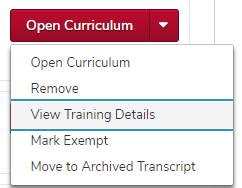
Administrators can only mark learning objects complete with the appropriate permissions. Training is usually only manually marked complete by administrators when a learner's completion is not logged by BuckeyeLearn due to technical issues, and they can verify that they have actually completed the training.
OU admins should have internal processes in place for their area to mark training complete, including how you will verify that learners actually completed the training. The comment required for marking a learner complete should have the reason it is being marked complete and a support ticket number, if applicable.
You should not mark learners complete in place of fixing a problem with a learning object.
Consider having learners complete the accessible version of a course in place of marking them complete.
- View a learner's transcript.
Click the View Training Details button
on the same line as the correct learning object.
Click the Mark Complete link
, either in the Training Details or Training Progress section, depending on the type of learning object.
Type a comment explaining why you are marking the learner complete.
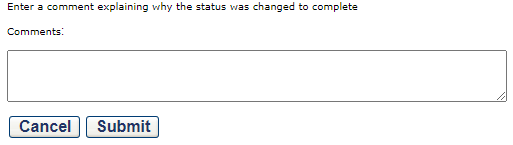
Click the Submit button
.