Add Training Equivalents

You can set up learning objects to be equivalent to other learning objects in the system.  

The Training Equivalence should be set on the learning object that is to be marked complete if a learner completes the equivalent training. For example, if Learning Object A should be marked complete when a learner complete Learning Object B, then the Training Equivalence should be set on Learning Object A.

  1. Access the Course Catalog.
  2. Search for the learning object on which you would like to set an equivalency. 

    the course catalog page
  3. Click the Actions icon 

    actions icon

    , then click the Edit option. 
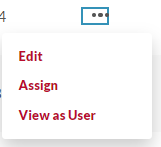
    the actions dropdown menu expanded
  4. Click the Add Training Equivalents link.

    equivalencies
  5. Search for the learning object that is equivalent.  
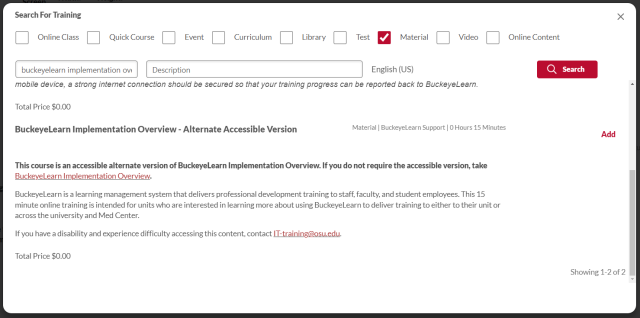
    the search page
     

    Helpful Note:

    In the Search For Training box, check or uncheck boxes to search only the types of Learning Objects you need.

    1. Click the Add button next to the learning object you would like to select.
    2. Click the Add button at the bottom of the pop-out window.

      selected training
  6. The learning object will now be listed in the Training Equivalence section. 

    equivalency added
  7. Check the Bidirectional box to make the training qualify for completion if learner completes one or the other training, if required.  
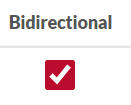
    the bidirectional checkbox
     

    Helpful Note:

    For example, if the learner completes Learning Object A, Learning Object B will be considered complete, and if the learner completes Learning Object B, Learning Object B will be considered complete.

  8. Check the Apply Retroactively box next to any training equivalents that should be retroactively applied to learners' transcripts, if required.  
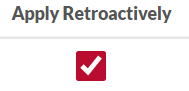
    the apply retroactively checkbox


    Helpful Note:

    If the Apply Retroactively option is selected and the Save button is clicked, you will receive a pop-up which indicates the estimated number of impacted learner transcript records. Note that the estimated number of impacted transcripts includes all learners who currently have both training items within the equivalency pair on their transcript, regardless of whether the learner’s status will be updated as a result of applying the equivalency retroactively.


    Click the Continue button to apply the equivalency retroactively to learner’s transcripts.

  9. Click the Save button 

    save button

    .